You can set up your Intelligence Events to inform parents and specific members of staff when triggered.
Staff members will receive a notification by clicking the bell in the top right corner.
Parents will be able to view the Intelligence event in their activity tab.
Both staff members and parents will receive an email notification.
irstly, go into the Analytics page:

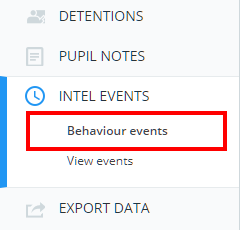
Next, select Intel Events from the side menu on the left.
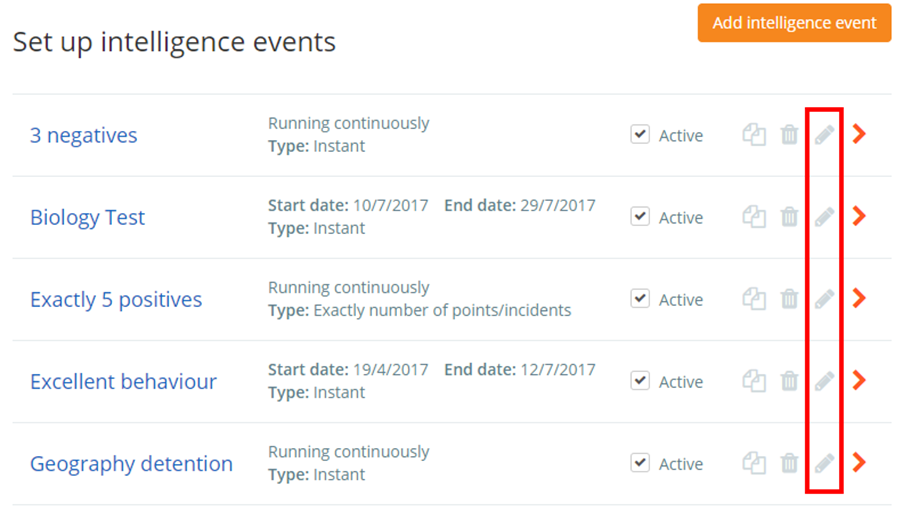
Click on the pencil icon to begin editing your chosen intelligence event.
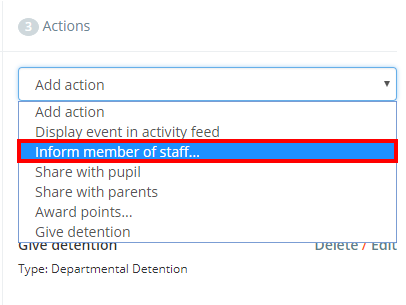
In the Actions column, select Inform member of staff from the Add action drop down menu.
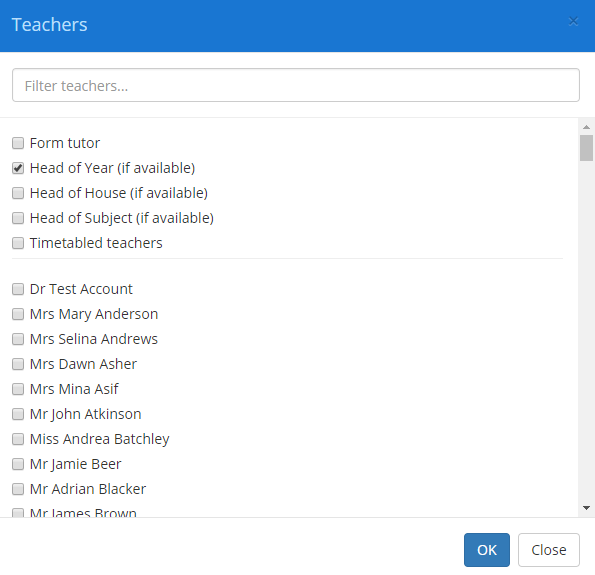
Another popup will appear. You can then decide which teacher you would like to inform.
To inform a parent is the same steps as above.
In the Actions column, select Inform parent from the Add action drop down menu.
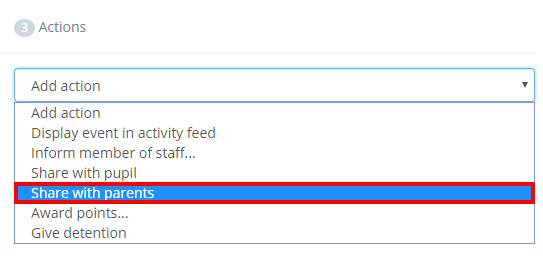
If you choose to share an intelligence event with parents, you can also attach a note to the email notification.
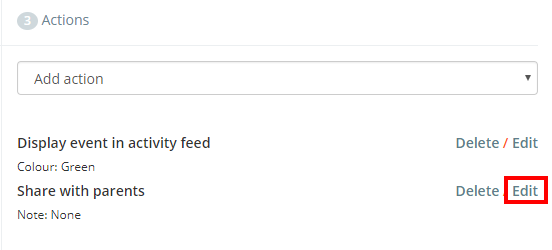
To set up a note, click on the Edit button next to the Share with parents’ action.
A popup menu will appear. Enter a note into the text area and click on the OK button.
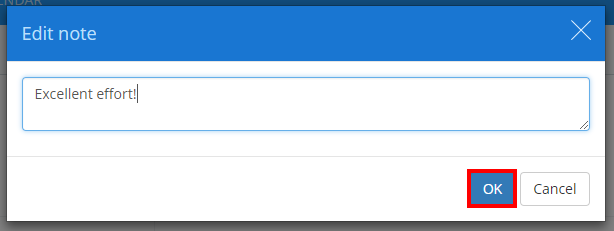
The note will then be included in the intelligence event email notification that is sent to the parents.
Was this article helpful?
That’s Great!
Thank you for your feedback
Sorry! We couldn't be helpful
Thank you for your feedback
Feedback sent
We appreciate your effort and will try to fix the article