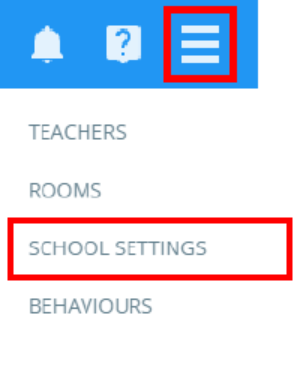
To make changes to the teacher settings at your school, click on the three lines menu and select School settings from the list of available options.
Next, click on the Teachers tab on the left side.
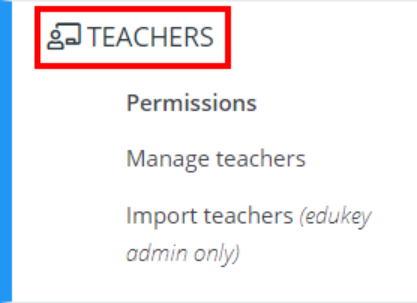
You will be presented with a list of settings that control what teachers can do within Class Charts, outside of their individual permissions. Each available setting is explained in more detail below:
Allow cover teachers
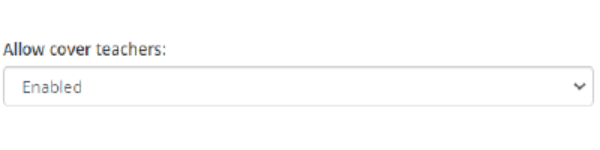
Enabled: Teachers will have access to the cover class button, allowing them access to classes they are not assigned to.
Disabled: Teachers will not see the cover class button and will only be able to access their assigned classes.
Allow teachers to view other teacher’s statistics
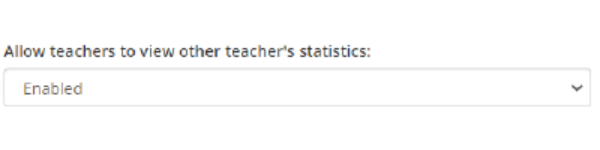
Enabled: Teachers will be able to access end of class reports when covering a class.
Disabled: Teachers will be sent back to the Classes page when ending a covered class. Teachers with the Analytics permission will still be able to access covered end of class reports however.
Allow teachers to create and edit rooms
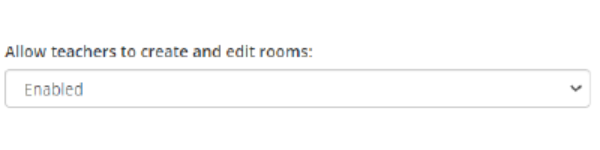
Enabled: Teachers will be able to create new rooms and make changes to existing ones.
Disabled (school admins only): Only school admins will be able to create and edit rooms.
Edit only: Teachers will be able to make changes to existing rooms.
Allow teachers to add new custom fields
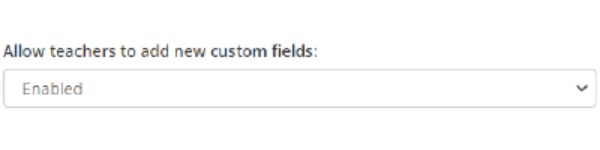
Enabled: Teachers will be able to create new custom fields when choosing custom fields for their class.
Disabled: Teachers will not be able to create new custom fields when choosing custom fields for their class.
Allow teachers to edit dates for behaviour incidents
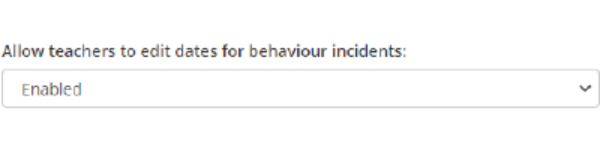
Enabled: Teachers will be able to change the date of a behaviour they have issued.
Disabled: Teachers will not be able to change the date of a behaviour they have issued.
Allow editing and deleting behaviour incidents created by other teachers
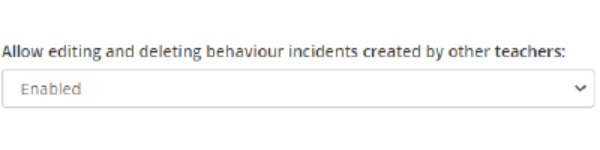
Enabled: Teachers will be able to edit or delete behaviour incidents that other teachers have made.
School admins & analytics users only: Only school admins and teachers with the Analytics permission will be able to edit or delete behaviour incidents that other teachers have made
School admins only: Only school admins will be able to edit or delete behaviour incidents that other teachers have made.
Allow teachers to edit pupil core data (manual schools only)
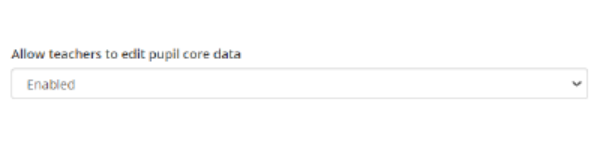
Enabled: Teachers will be able to edit core pupil information on the Pupil Details page.
Disabled: Only school admins will be able to edit core pupil information on the Pupil Details page.
Please note this is available to manual schools only.
Allow teachers to create announcements for their own classes
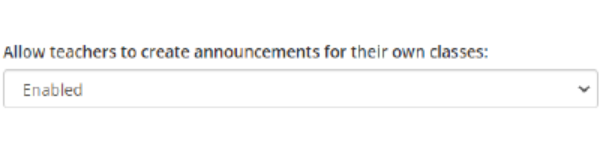
Enabled: Teachers will be able to create announcements whilst taking a class.
Disabled: Only teachers with the Announcements permission will be able to create announcements from within a class.
Allow teachers without announcement permission to send announcements to other teachers
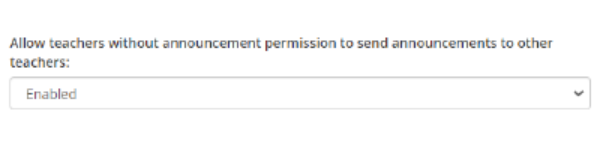
Enabled: Staff members without the Announcements permission can send teacher announcements.
Disabled: Staff members without the Announcements permissions cannot send teacher announcements.
How to display names in intelligence event emails to teachers
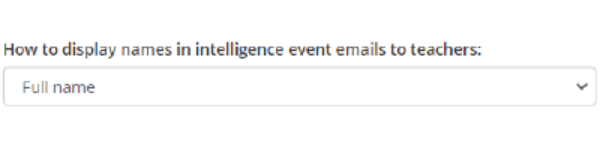
Full name: The teacher’s full name will be displayed within intelligence event emails.
Initials only: The teacher’s name will be shortened to their initials within intelligence event emails.
Allow teachers to create new classes

Enabled: Teachers will have access to the Add Class button, allowing them to create new manual classes.
Disabled: Only school admins will be able to create new manual classes.
Email reward purchase notifications to reward store admins
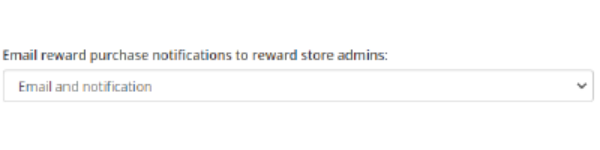
Email and notification: Teachers with the Store permission will receive an email notification and a Class Charts notification when a new order is placed in the rewards store.
Notification only: Teachers with the Store permission will receive a Class Charts notification when a new order is placed in the rewards store.
Disabled: Teachers with the Store permission will not be notified when a new order is placed within the rewards store.
Pupil management
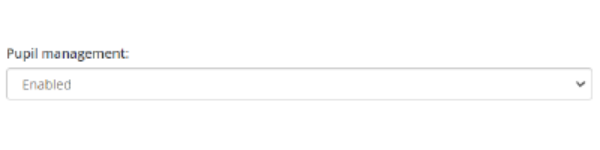
Enabled: All staff members will be able to access the pupil details page.
School admins and analytics users only: Only staff members with the Analytics permission can access the pupil details page.
Disabled: The pupil details page will be hidden for all staff members.
Allow teachers to see parent contact info
School admins and attendance admins only: Only users with these permissions can see parental contact info on the Display all page in the Attendance section of Analytics.
School admins, attendance admins and analytics users: Users with these permissions can see parental contact info on the Display all page in the Attendance section of Analytics.
Allow teachers to impersonate pupil accounts
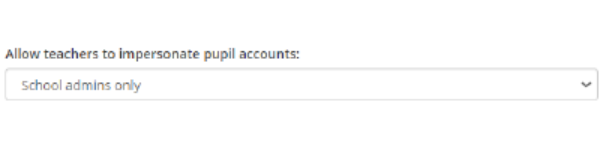
Enabled: All staff members will be able to impersonate pupil accounts when viewing a pupil’s access code.
School admins and analytics users only: Only staff members with the Analytics permission can impersonate pupil accounts.
School admins only: Only staff members with the Admin permission can impersonate pupil accounts.
Allow teachers to reset parent and pupil codes
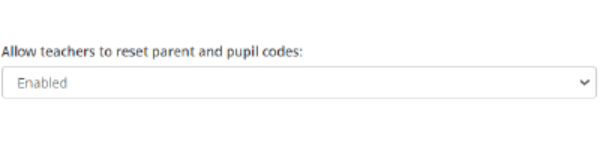
Enabled: Teachers will be able to reset a parent or pupil code when viewing a code.
School admins only: Only school admins will be able to reset parent and pupil codes.
Allow teachers to edit custom field values in a class

Enabled: Teachers will be able to edit custom field values displayed within a class.
Disabled: Teachers can only display custom field values in class and are unable to change displayed values.
Was this article helpful?
That’s Great!
Thank you for your feedback
Sorry! We couldn't be helpful
Thank you for your feedback
Feedback sent
We appreciate your effort and will try to fix the article