If your school’s Class Charts account has been synced with your MIS, your school’s subjects should automatically appear in Class Charts. If your subjects have not come through into Class Charts they can be added manually. To do this, please get in contact with us to enable this feature.
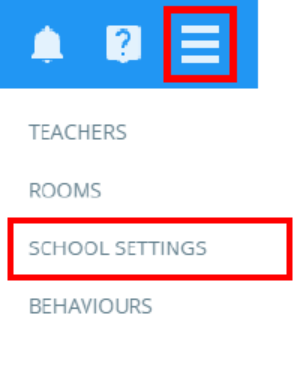
Once the ability to manually add subjects has been enabled, click on the three lines menu in the top right corner of the page and select School Settings from the list of available options.
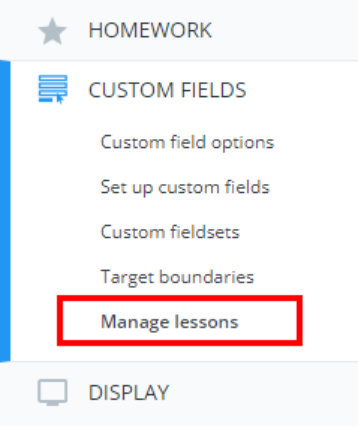
Next, click on Custom fields on the left side and select Manage lessons from its sub menu.
You will be presented with a list of the lessons currently in place at your school. You can specify the subject that the lesson belongs to by entering a subject into the lessons Subject field.
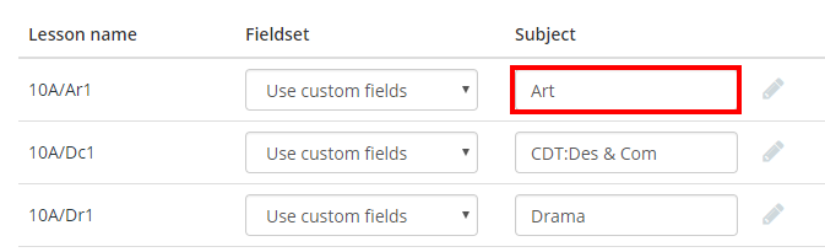
The field should flash green to indicate that your entry has been saved. Click on the three lines menu again and select Subjects.
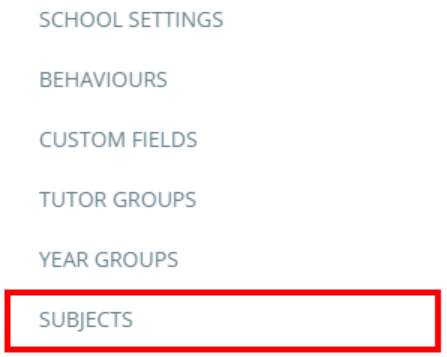
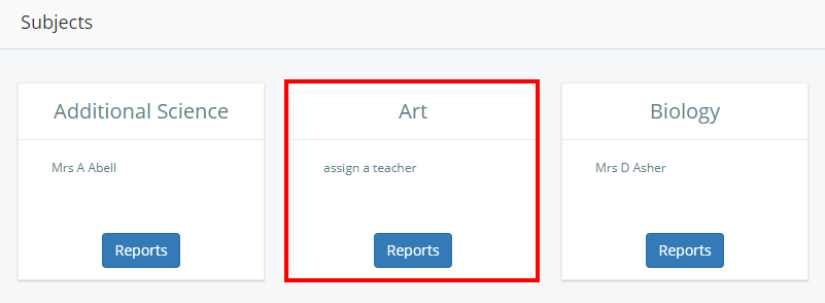
All of your defined subjects will be displayed as subject tiles.
Was this article helpful?
That’s Great!
Thank you for your feedback
Sorry! We couldn't be helpful
Thank you for your feedback
Feedback sent
We appreciate your effort and will try to fix the article