If pupils or parents use the Class Charts apps for Apple and Android, you can control whether or not a push notification should be sent to their device when they receive a message.
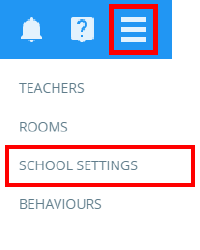
To enable message push notifications for pupil and parent apps, click on the three lines menu in the top right hand corner of Class Charts and select Schools settings from the list of available options.
Next, select Messaging from the left hand side menu
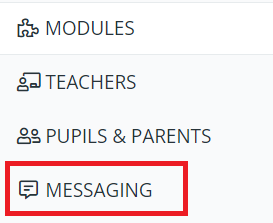
You will be presented with several settings that control how two way communications work at your school. Set Send messages as push notifications to Enabled.

Pupils and parents will now receive push notifications on their Apple and Android devices when they receive a message if they have enabled notifications for their Class Charts app.
Was this article helpful?
That’s Great!
Thank you for your feedback
Sorry! We couldn't be helpful
Thank you for your feedback
Feedback sent
We appreciate your effort and will try to fix the article