When setting up the Rewards store, rewards store admins are required to manage the available rewards and process incoming orders.
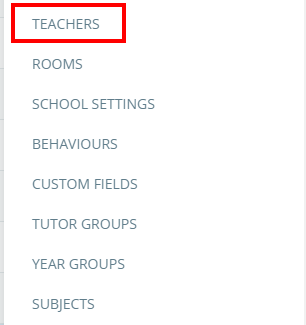
To set up reward store admins at your school, click on the three lines menu in the top right hand corner of the page and select Teachers from the list of available options.
Next, tick the checkbox labelled Store alongside the staff members that you would like to set up as rewards store admins.

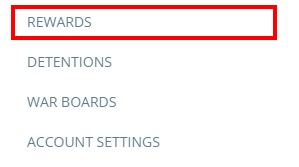
Once ticked, selected staff members will be able to access the Rewards store through the three lines menu.
Reward store admins can also receive email notifications when a order is placed, depending on your school settings.
Go to the three lines menu and click Teachers.
Under ‘Settings’ find email reward purchase notifications to reward store admins.
Email and notification: This setting will send reward store purchase notifications to school admins via their emails, and they will also be notified via the bell icon in Class Charts.

Notification only: This setting will send reward store purchase notifications to school admins via the bell icon in Class Charts.

Disabled: This setting will disable sending reward store purchase notifications to school admins.

Was this article helpful?
That’s Great!
Thank you for your feedback
Sorry! We couldn't be helpful
Thank you for your feedback
Feedback sent
We appreciate your effort and will try to fix the article