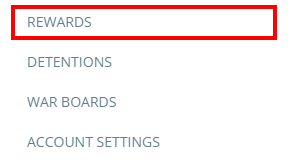
To add a new reward to the rewards store, click on the three lines menu in the top right hand corner of the page and select Rewards from the list of available options.
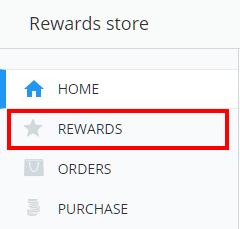
Next, select Rewards from the menu on the left hand side.
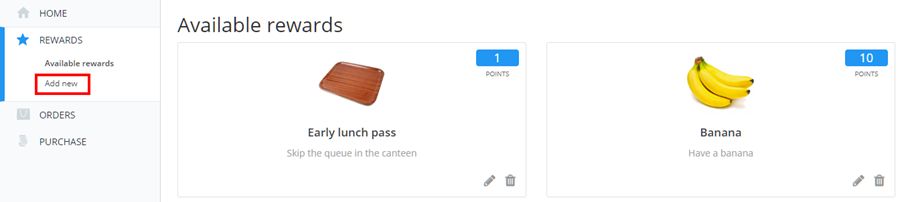
You will be presented with a list of all available rewards in your school’s rewards store. Click on the Add new option from the menu on the left hand side to start creating a new reward.
The Add new reward popup will appear, where details about the reward can be added. The available fields are explained below:
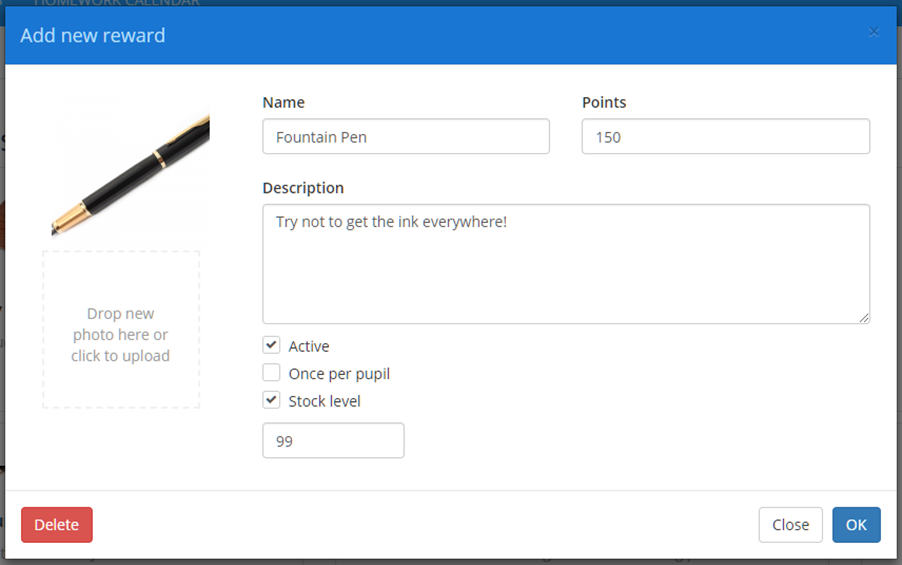
Name: The name of your reward.
Points: How many spendable points does the reward cost.
Image: You can upload an image to represent the reward in the reward store.
Description: A small text description for your pupils explaining what the reward is.
Active: Ticking this option make the reward available immediately. If this box is unticked, pupils will not be able to choose this reward from the reward store.
Once per pupil: Ticking this option means that a specific pupil can only order this reward once.
Stock level: Ticking this option allows you to put a limit on the quantity of a reward. Every time a pupil orders the reward, the stock level will decrease by one. When the stock level reaches 0, pupils will be unable to order the reward.
Once you are happy with your choices, click the OK button to finish adding the reward.
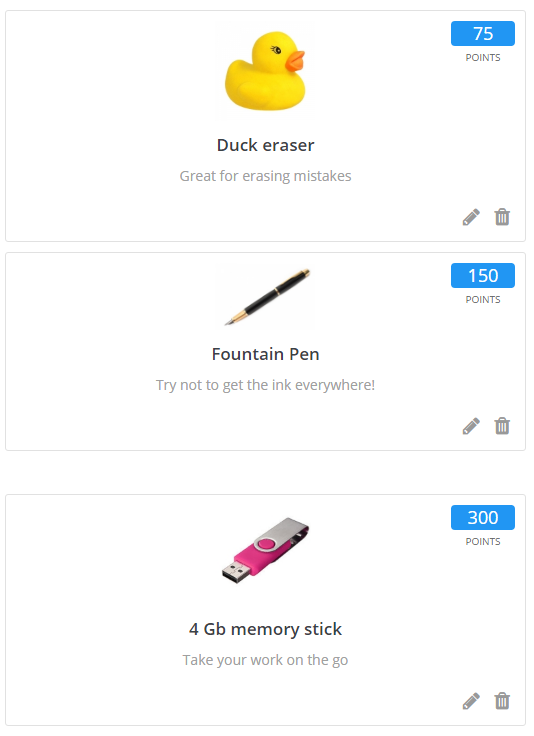
The new reward will now be present in the rewards store.
Was this article helpful?
That’s Great!
Thank you for your feedback
Sorry! We couldn't be helpful
Thank you for your feedback
Feedback sent
We appreciate your effort and will try to fix the article