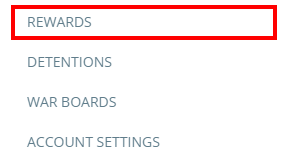
To make changes or delete a reward from the rewards store, click on the three lines menu in the top right hand corner of the page and select Rewards from the list of available options.
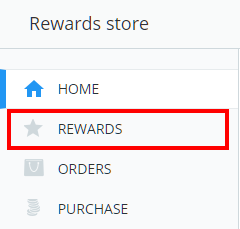
Next, select Rewards from the menu on the left hand side.
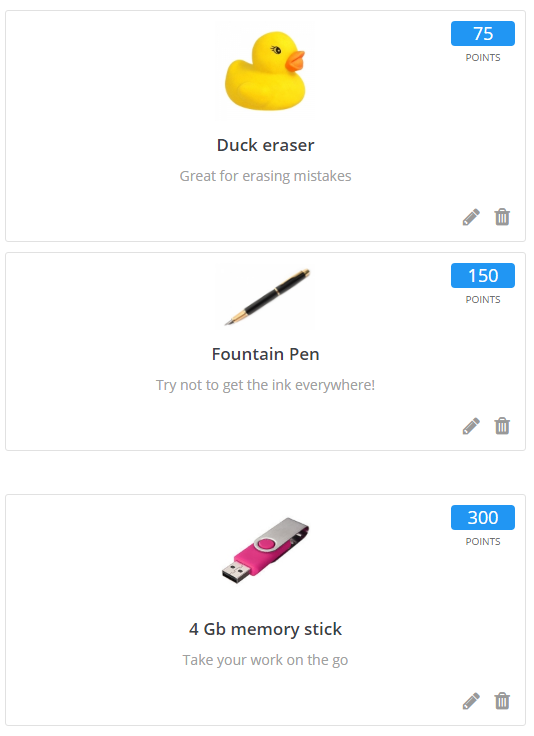
You will be presented with a list of all available rewards in your school’s rewards store.
Editing a reward
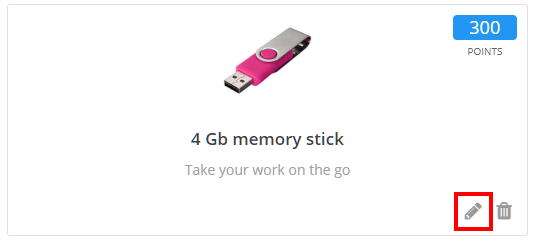
Click on the pencil icon at the bottom of the reward tile.
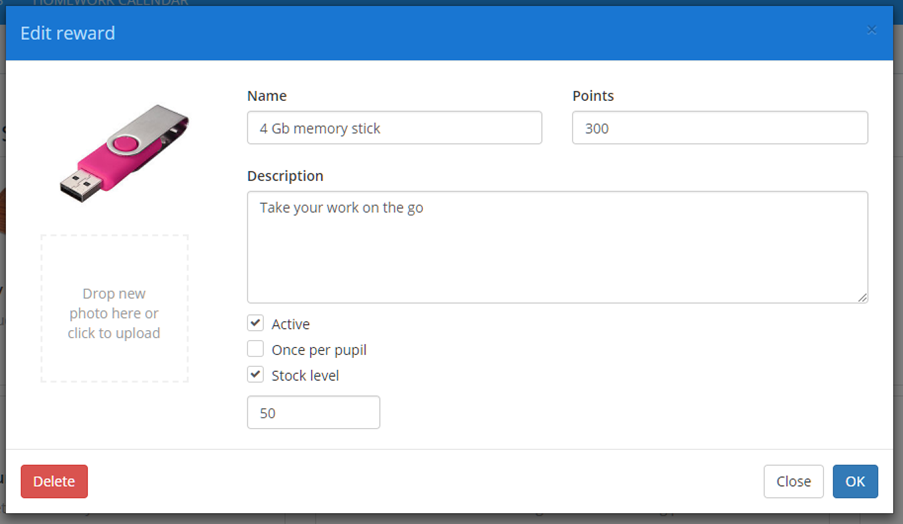
The Edit reward popup will appear, allowing you to make edit the details of the reward. Click on the OK button once you have finished to apply the changes.
Deleting a reward
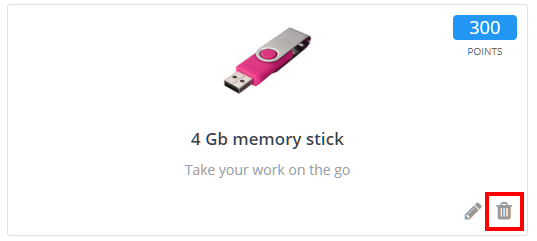
Click the bin icon at the bottom of the reward tile.
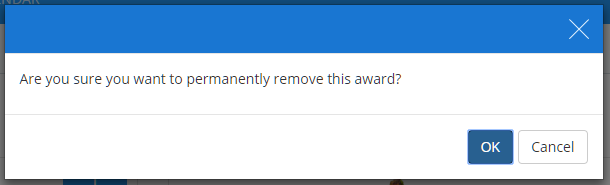
A confirmation popup will appear. Click on the OK button to permanently delete the reward from your school’s reward store.
Was this article helpful?
That’s Great!
Thank you for your feedback
Sorry! We couldn't be helpful
Thank you for your feedback
Feedback sent
We appreciate your effort and will try to fix the article