To display the flipped custom fields for one of your classes, click on the Classes tab along the top of the page.

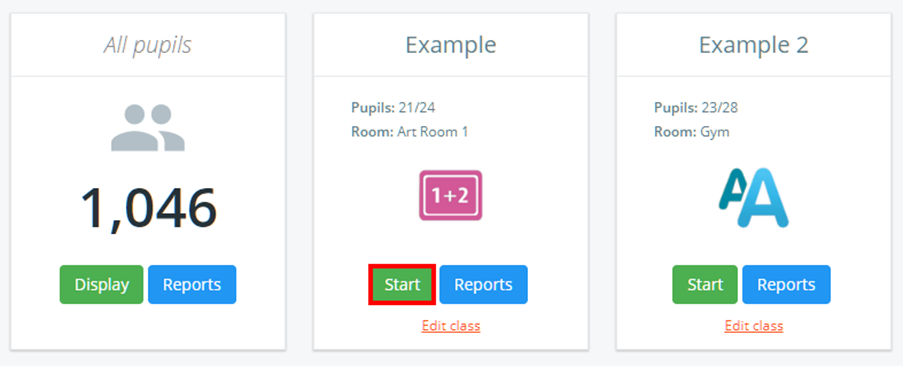
Next, click on the Start button for the class of your choice.
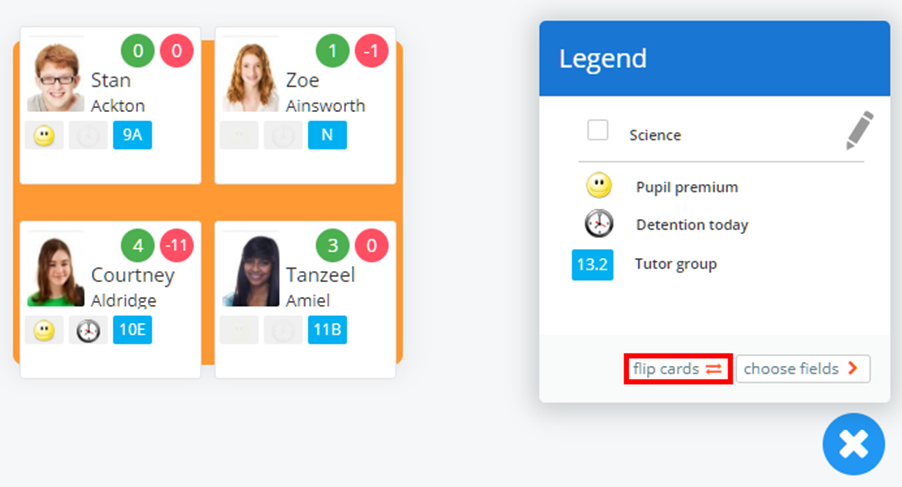
Click on the i icon in the bottom right hand corner of the class to bring up the custom fields legend.

The legend will be visible, explaining which custom fields are currently being represented on the pupil cards. To see the custom fields on the flip side, click on the Flip cards button.
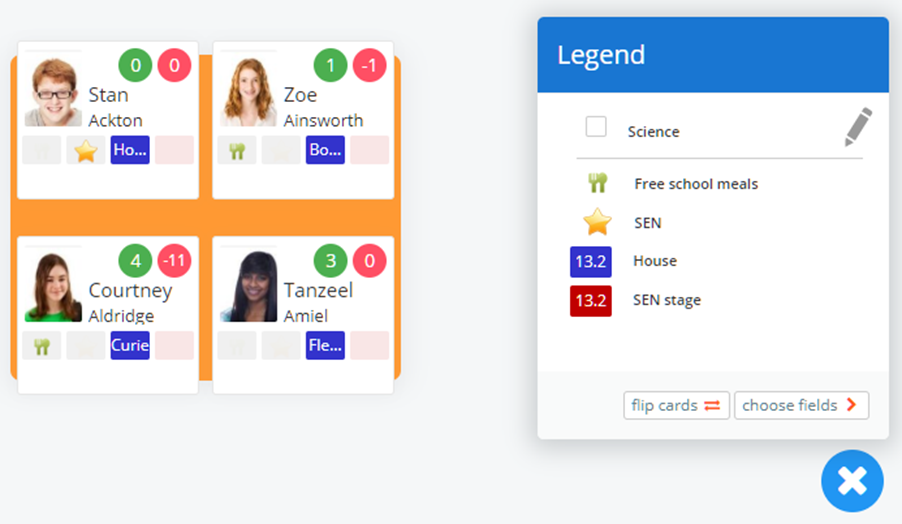
You will now see the custom fields on the flip side and the legend will update accordingly.
Was this article helpful?
That’s Great!
Thank you for your feedback
Sorry! We couldn't be helpful
Thank you for your feedback
Feedback sent
We appreciate your effort and will try to fix the article