Once you have classes set up with their respective rooms, staff will be able to print off their seating plans so that they can be referenced at any time.
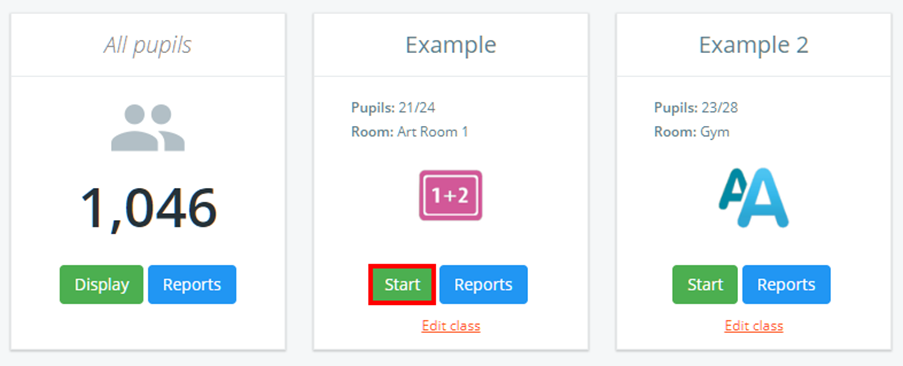
To manually print out a seating plan, click on the Classes tab along the top of the page and click on the Start button for the class of your choice.

You will be presented with the class view page for your selected lesson, where pupils are displayed in their correct seats.
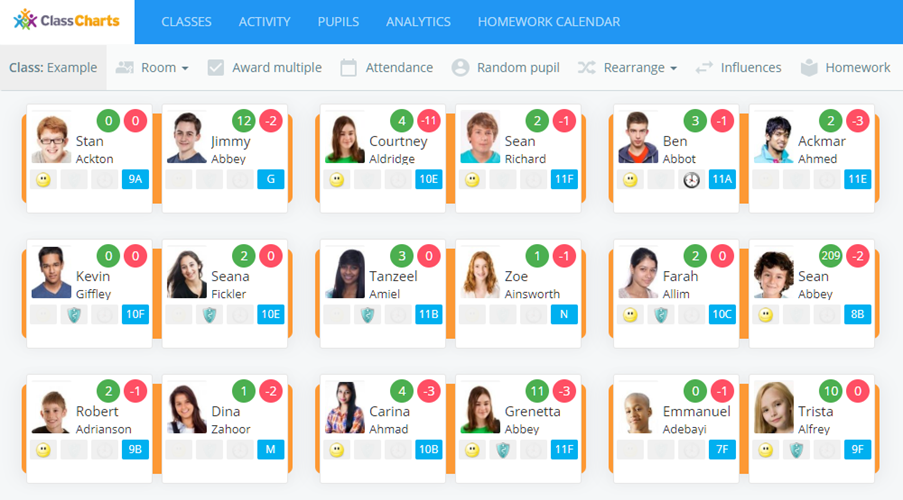
To print out the seating plan for the class, click on the printer icon in the top right hand corner of the page.

The Print seating plan popup will appear, providing you with multiple printing options. These options are explained in more detail below.
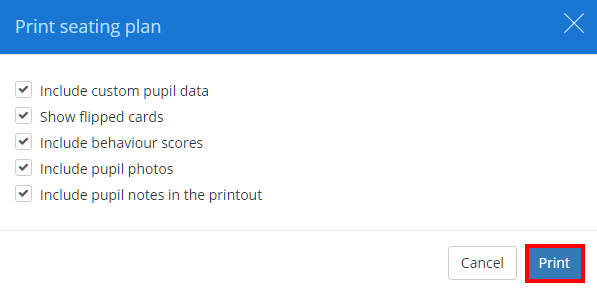
Include custom pupil data: Tick this option to display custom fields on the seating plan printout.
Show flipped cards: Tick this option to display flipped custom fields on the seating plan printout instead of the front facing custom fields.
Include behaviour scores: Tick this option to display the behaviour scores for each pupil on the seating plan printout.
Include pupil photos: Tick this option to display pupil photos on the seating plan printout.
Include pupil notes in the printout: Tick this option to add pupil notes to the seating plan printout on a separate page.
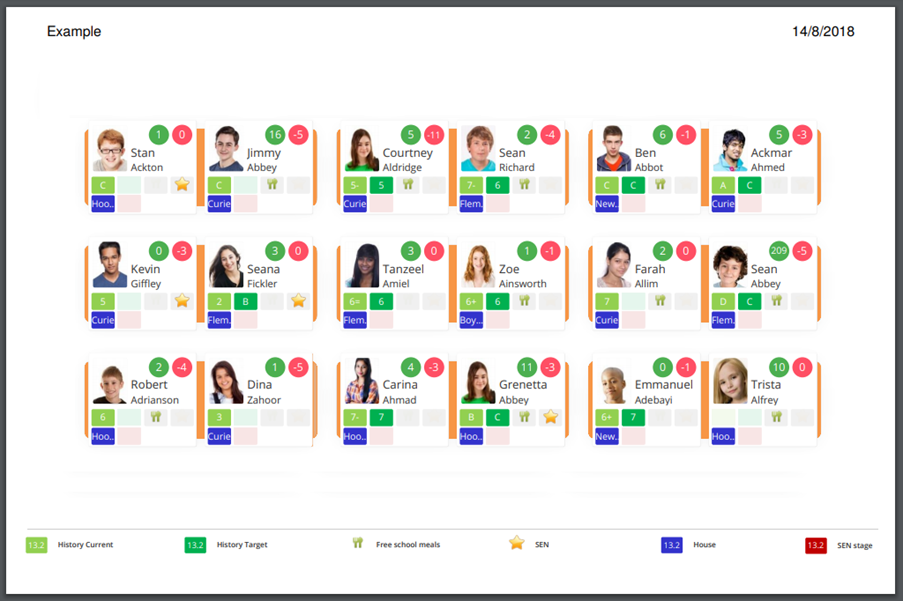
Click on the Print button once you are happy with your selections. A pdf copy of the class’ seating plan will be generated.
Was this article helpful?
That’s Great!
Thank you for your feedback
Sorry! We couldn't be helpful
Thank you for your feedback
Feedback sent
We appreciate your effort and will try to fix the article