Class Charts has the ability to create intelligent seating plans that are optimised by the criteria of your choice.
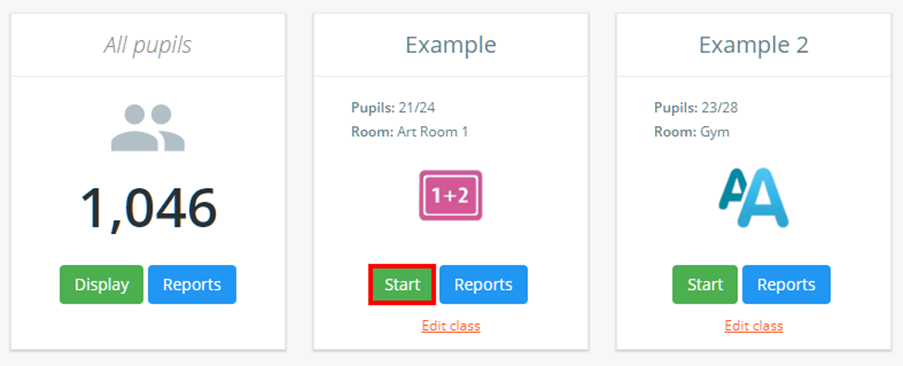
To automatically rearrange pupils into seating plans on Class Charts, click on the Classes tab along the top of the page and click on the Start button for the class of your choice.

You will be presented with the class view page for your selected lesson, where pupils are displayed in their set seats.
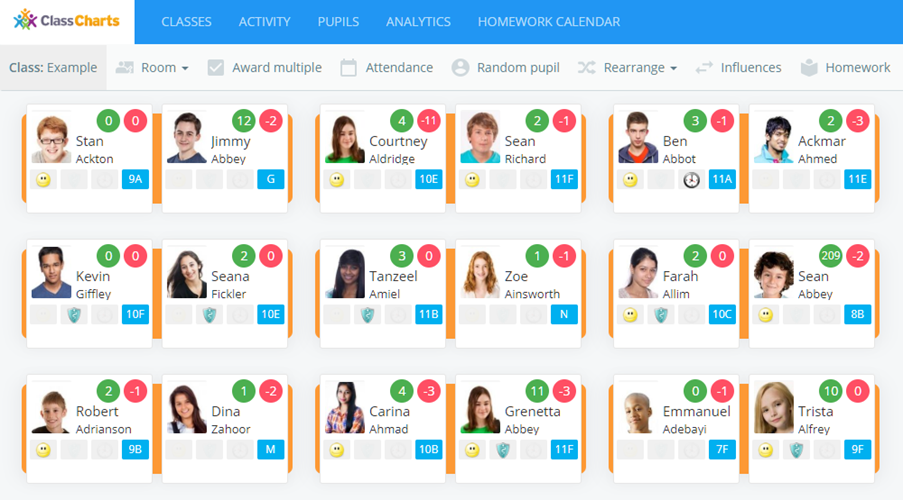
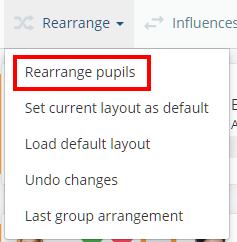
Click on the Rearrange tab along the top of the class view.

Next, select the Rearrange pupils option.
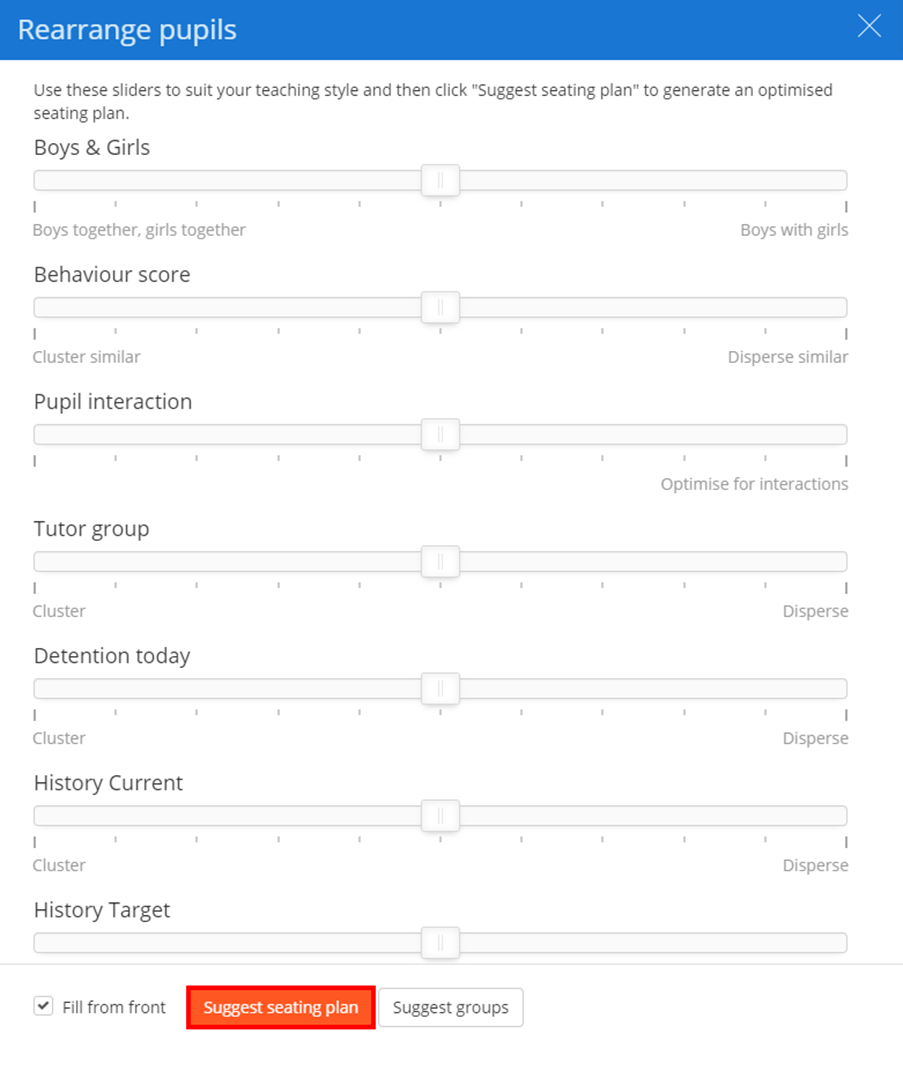
The Rearrange pupils sidebar will appear. Here, you can click and drag the displayed sliders to optimise how the seating plan should be arranged.
Once you are happy with your selections, click on the Suggest seating plan button to apply the changes.
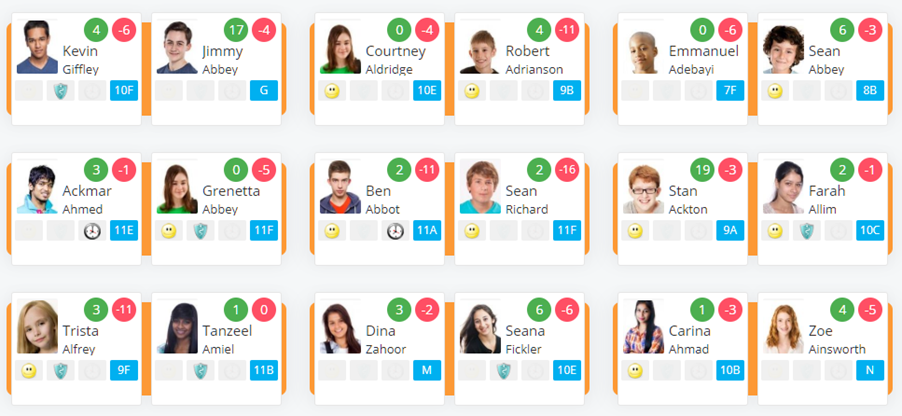
The pupils will now be re-seated based on the criteria that was selected.
Was this article helpful?
That’s Great!
Thank you for your feedback
Sorry! We couldn't be helpful
Thank you for your feedback
Feedback sent
We appreciate your effort and will try to fix the article