Once you have classes set up with their respective rooms, staff will be able to start planning their seating plans.
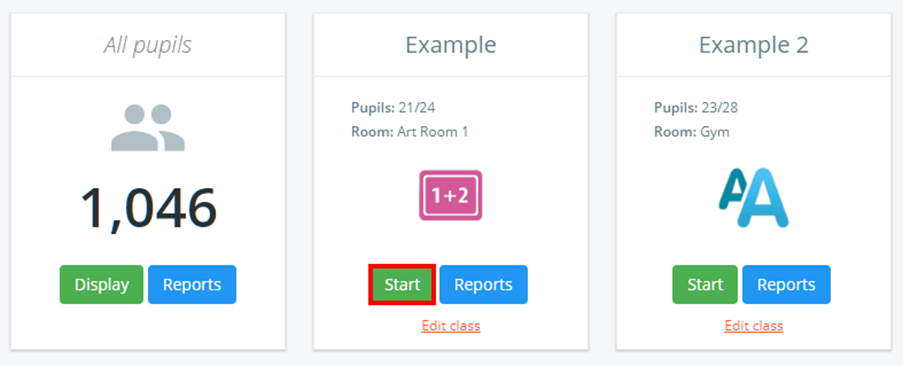
To manually seat pupils in a class, click on the Classes tab along the top of the page and click on the Start button for the class of your choice.

You will be presented with a view of the class and a list of unseated pupils to the right. To seat a pupil, drag the pupil from the unseated pupils list on the right hand side to wherever you want them to sit.
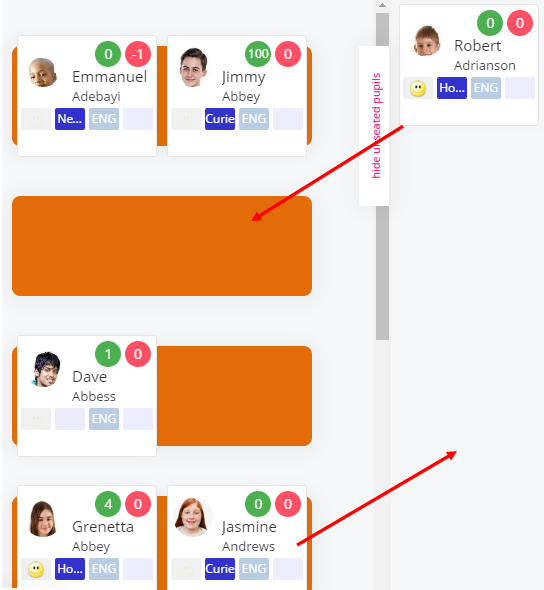
Once seated, a pupil can be moved to another desk in the class or back to the unseated pupils sidebar.
Was this article helpful?
That’s Great!
Thank you for your feedback
Sorry! We couldn't be helpful
Thank you for your feedback
Feedback sent
We appreciate your effort and will try to fix the article