If several classes generally share the same room and pupils, your staff may want to copy a seating plan from another class in order to save time. Class Charts allows you to do this from within your classes.
Requirements
Both classes must be active and not archived.
Both classes must use the same room.
Both classes must share at least 50% of the same pupils.
Both classes cannot have more than 10 additional pupils.
Both classes cannot be missing more than 10 shared pupils.
Pupils must be seated in the class that you want to copy the seating plan from.
Copying a seating plan
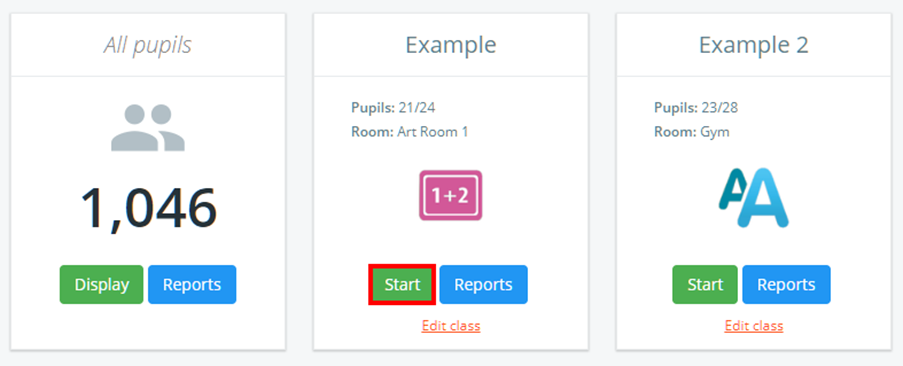
To copy a seating plan from another lesson, click on the Classes tab along the top of the page and click on the Start button for the class of your choice.

You will be presented with the class view page for your selected lesson, where pupils are displayed in their set seats.
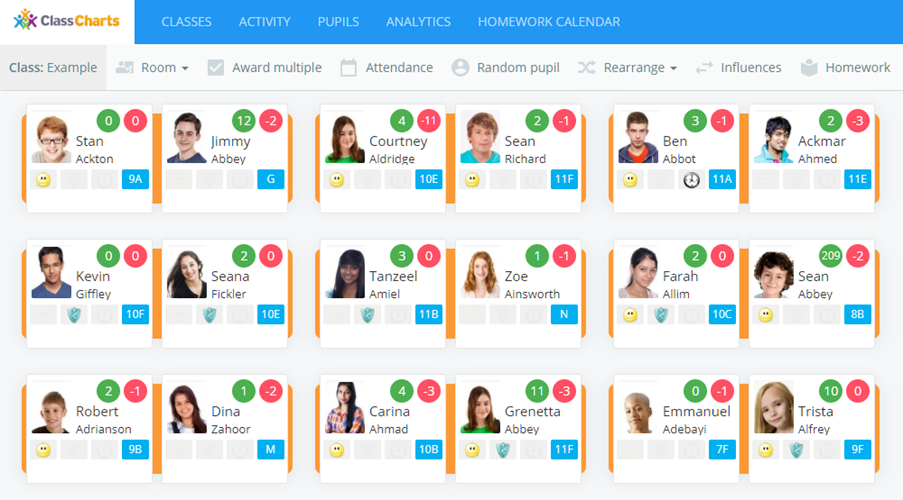
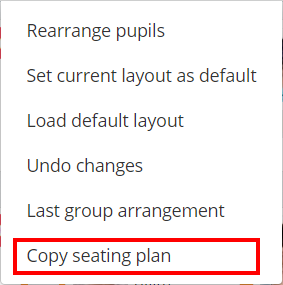
Click on the Rearrange button along the top of the class.

Select Copy seating plan from the list of available options.
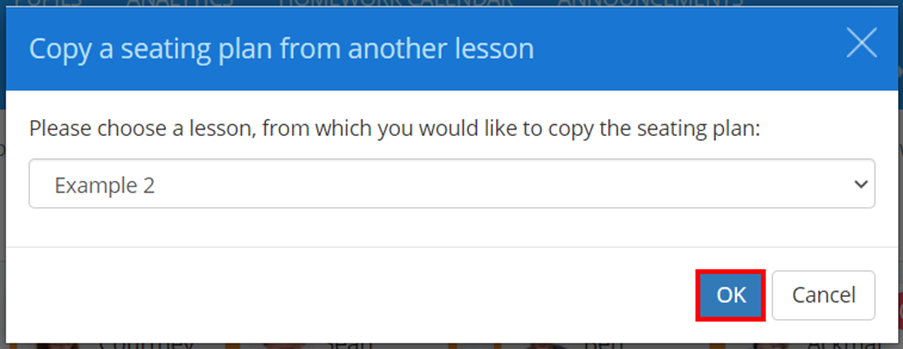
The Copy a seating plan from another lesson will appear. Select the eligible class of your choice and click on the OK button.
Your class will now be using the seating plan that was copied from the selected lesson.
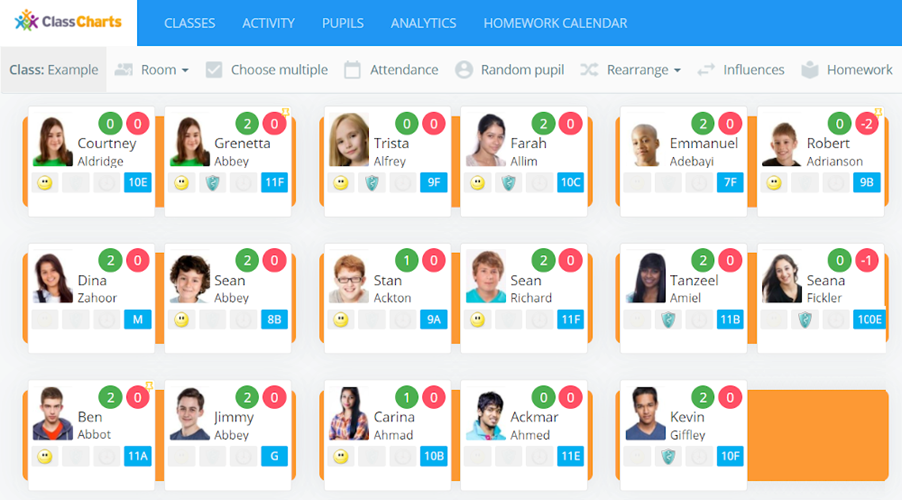
If a pupil is not present in the other class’s seating plan, they will be moved to the unseated pupils sidebar.
Was this article helpful?
That’s Great!
Thank you for your feedback
Sorry! We couldn't be helpful
Thank you for your feedback
Feedback sent
We appreciate your effort and will try to fix the article