There may be times when staff members will want to save their current seating plan, so they can easily return to it if pupils temporarily change seats.
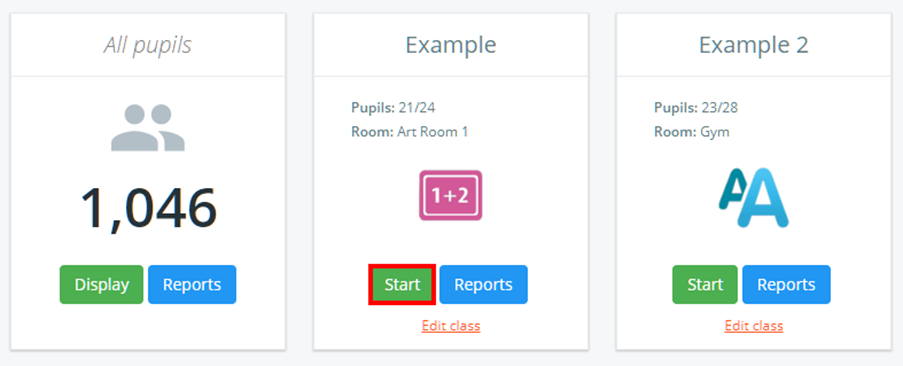
To set your current seating plan as default, click on the Classes tab along the top of the page and start the class of your choice by clicking on the Start button.

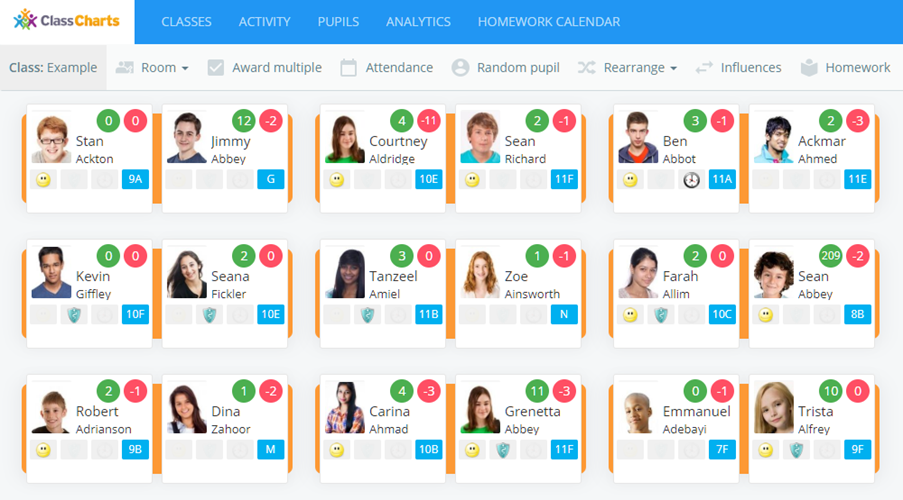
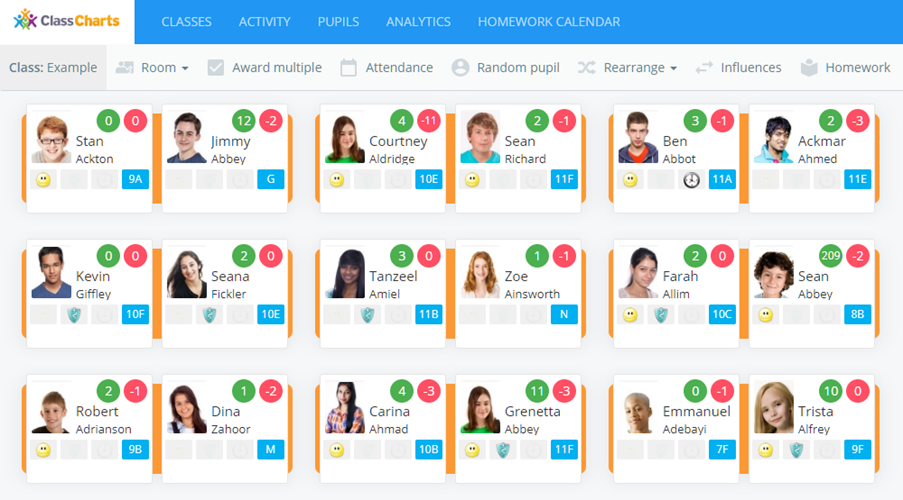
You will be presented with the class view page for your selected lesson, where pupils are displayed in their current seats.
Once you are happy with the current seating plan, mouse over the Rearrange pupils tab along the top of the class and select Set current layout as default.
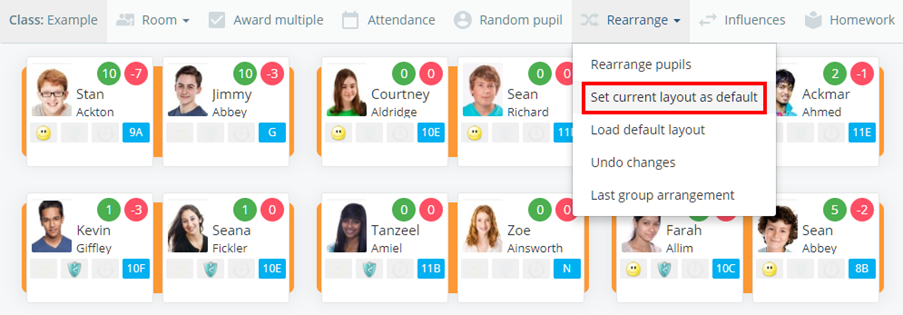
The displayed seating plan will now be saved as the default layout.
Restoring a default layout
If you have made further changes to your seating plan, you can go back to the default layout at any time.
To restore the default layout, mouse over the Rearrange pupils tab along the top of the class and select Load default default.
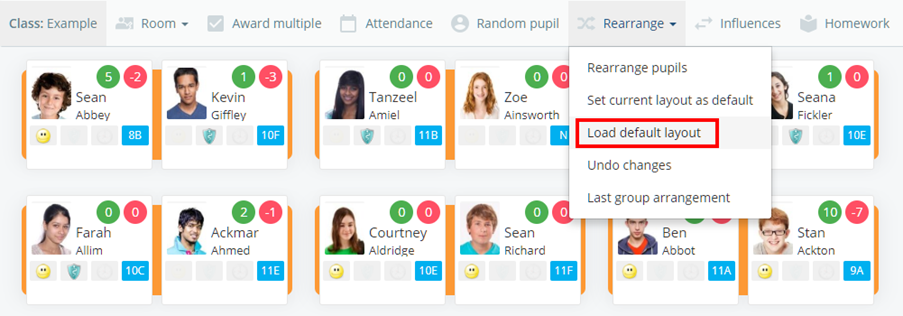
The seating plan will now revert back to the previous default.
Was this article helpful?
That’s Great!
Thank you for your feedback
Sorry! We couldn't be helpful
Thank you for your feedback
Feedback sent
We appreciate your effort and will try to fix the article