When setting up rooms in your school’s Class Charts account, you may want to set up a default room layout so that your staff can quickly apply it to their classes.
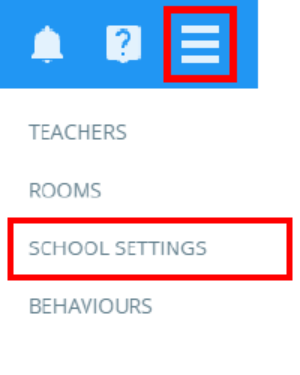
To set a default room for your school as a school admin, click on the three lines menu in the top right corner of the page and select School Settings from the list of available options.
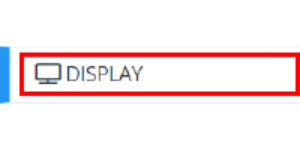
Next, select Display from the left side menu.
You will be presented with a setting labelled Default room layout. The available options for this setting are explained below:

None: Select this option to keep the default room layout as a 3 x 4 room of two seated desks.
An existing room: Select a room from the list to become your school’s new default desk arrangement.
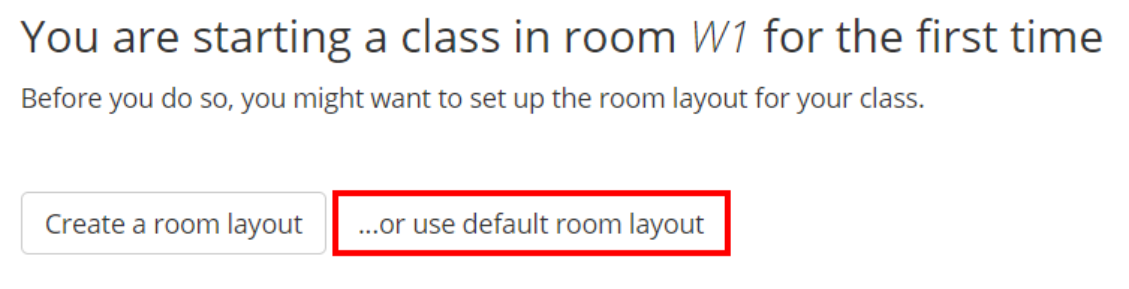
When you start a class in a room that is being used for the first time, click on the …or use default room layout button to copy the default room layout to the selected room.
Was this article helpful?
That’s Great!
Thank you for your feedback
Sorry! We couldn't be helpful
Thank you for your feedback
Feedback sent
We appreciate your effort and will try to fix the article