There may be times when staff members will want to change what information is displayed on pupil tiles in class.
Please note: This will only change the displayed data for the current lesson. To set a default data display method for your account, please check out the following knowledgebase article.
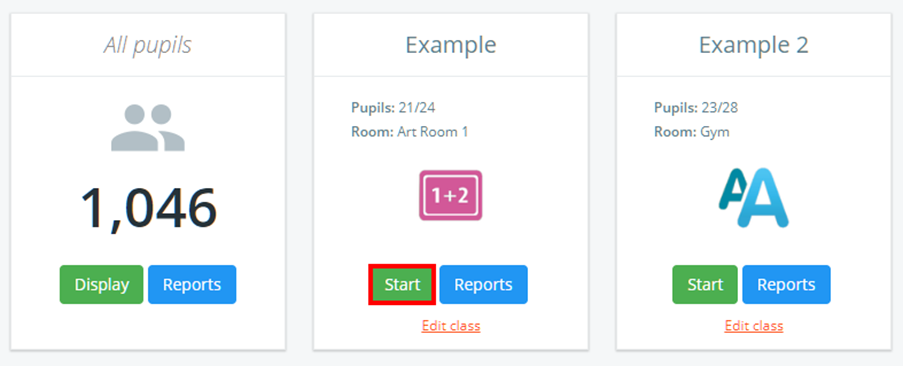
To change how data is displayed in class, click on the Classes tab along the top of the page and start the class of your choice by clicking on the Start button.

You will be presented with the class view page for your selected lesson, where pupils are displayed in their correct seats.
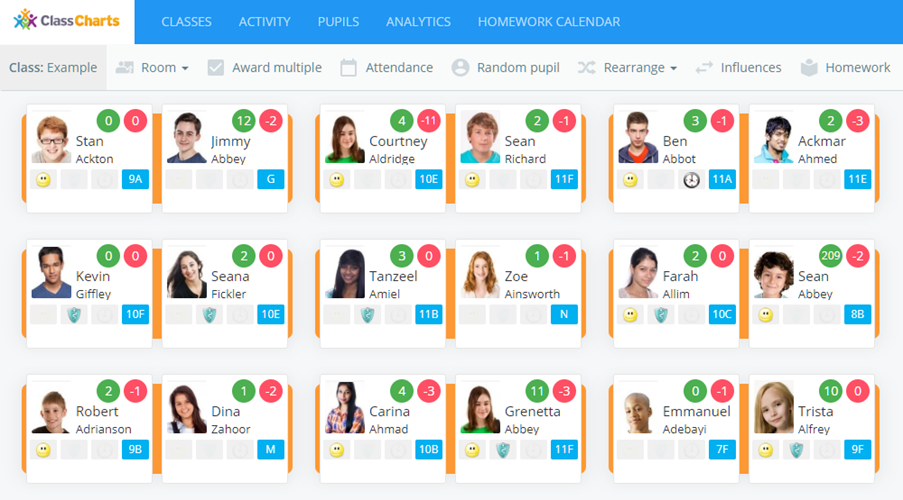
Click on the Eye button in the top right hand corner to change the displayed information on the pupil tiles.
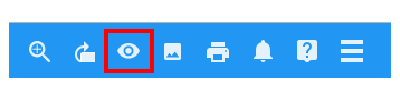
Each available option is explained below:
Show everything
Selecting this option will display both custom fields and behaviour scores on each pupil card.
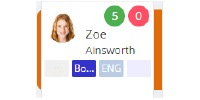
Hide custom fields
Selecting this option will hide custom fields for each pupil card.
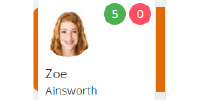
Hide custom fields and behaviour scores
Selecting this option will hide the custom fields and behaviour scores for each pupil
Was this article helpful?
That’s Great!
Thank you for your feedback
Sorry! We couldn't be helpful
Thank you for your feedback
Feedback sent
We appreciate your effort and will try to fix the article