One of the first tasks a school admin should perform when starting out with Class Charts is to ensure that their school’s behaviour policy is comprehensive.
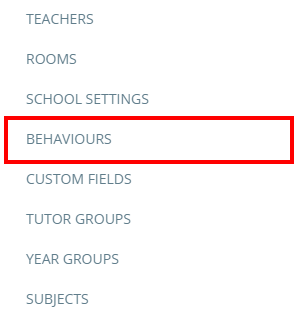
To create a new behaviour in Class Charts, click on the three lines menu in the top right hand corner of the page and select Behaviours from the list of available options.
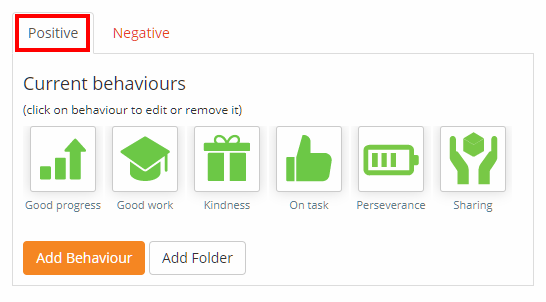
You will redirected to the Behaviour types page. By default the page will display the Positive tab, which contains all of the positive behaviours that have been set up in your school’s Class Charts account.
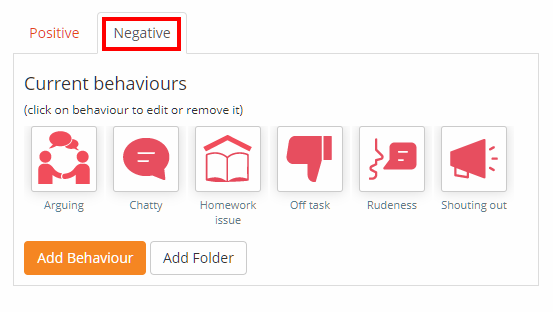
To view a list of the negative behaviours in your school’s Class Charts account, click on the Negative tab.
Creating a behaviour
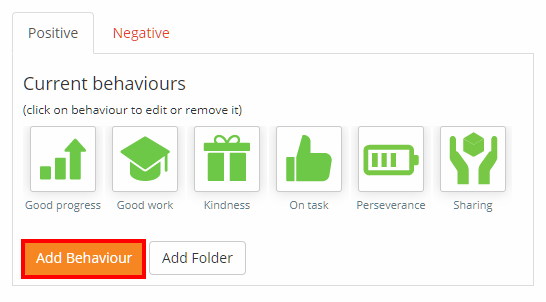
To create a new positive behaviour, ensure that you are set to the Positive tab and click on the Add behaviour button. To create a negative behaviour, ensure that you are set to the Negative tab and click on the Add behaviour button.
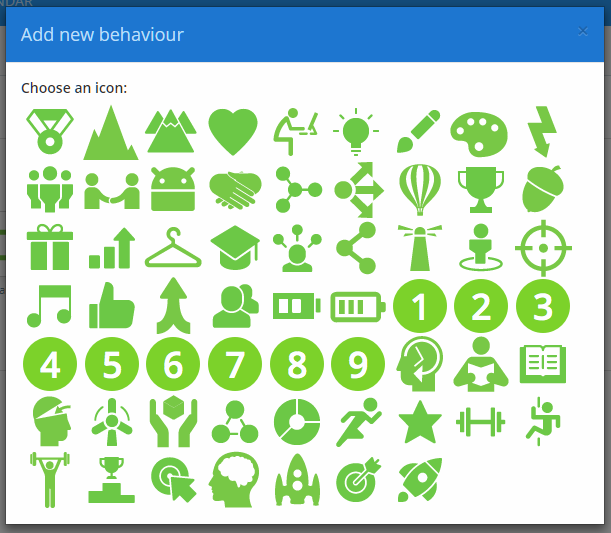
You will be prompted to choose an icon that will represent the behaviour. Click on a displayed icon to continue.
The Add new behaviour popup will appear. Enter details about the behaviour into the form. The available options for both positive and negative behaviours are explained below:
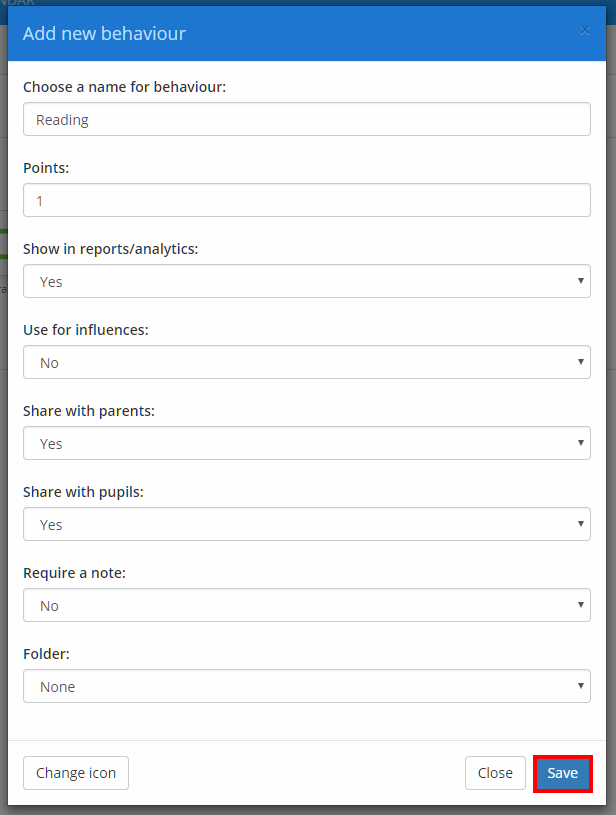
Choose a name for behaviour: The name of the new behaviour.
Points: How many behaviour points will be awarded when the behaviour is issued to a pupil.
Show in reports / analytics: If enabled, the behaviour will appear in analytical reports.
Use for influences: If enabled, this behaviour will be factored when using the Influences feature.
Share with parents: If enabled, the behaviour will be shared to parent accounts if issued to a pupil.
Share with pupils: If enabled, the behaviour will be shared to pupil accounts if issued to a pupil.
Require a note: If enabled, staff members will need to supply a note about the behaviour when issued to a pupil.
Folder: If you have set up behaviour folders, you can send the new behaviour directly to the selected folder.
Once you are happy with the new behaviour, click on the Save button to finish creating it.
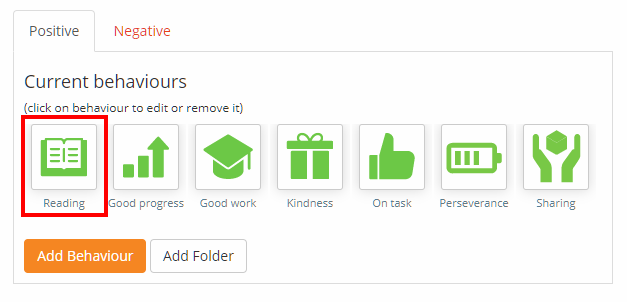
The newly created behaviour will now appear under the appropriate behaviour tab, and can now be awarded to pupils.
Was this article helpful?
That’s Great!
Thank you for your feedback
Sorry! We couldn't be helpful
Thank you for your feedback
Feedback sent
We appreciate your effort and will try to fix the article