If your Class Charts system is linked with MyConcern, you can set up a behaviour to include a safeguarding report.
When setting up negative behaviours, you have the option to include a safeguarding report when the behaviour is awarded.
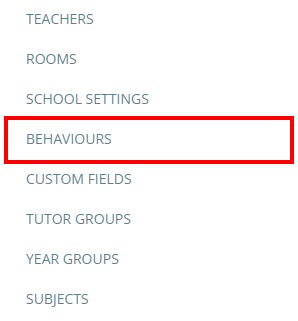
To set this up, click on the three lines menu and select Behaviours from the list of available options.
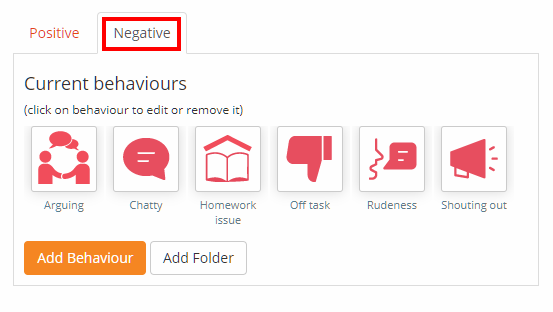
Next, select the Negative tab to view your school’s negative behaviours.
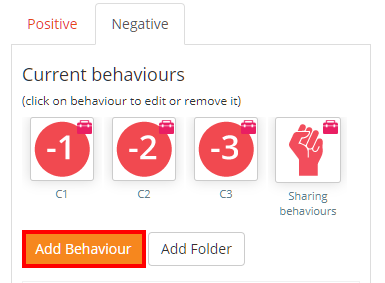
To create a new behaviour, click on the Add Behaviour button.
You will be asked to select an icon for the behaviour. Click on an icon to select it.
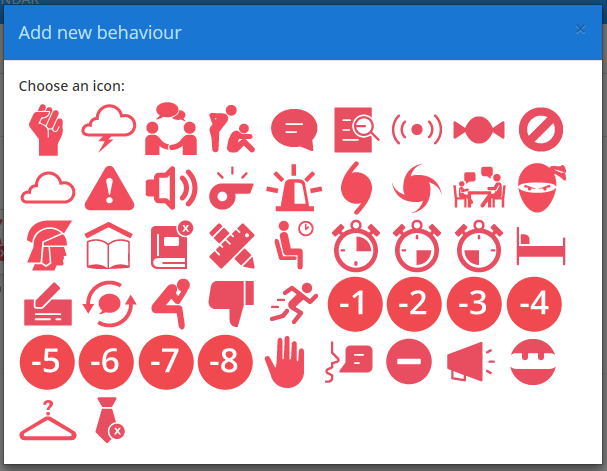
The Add new behaviour popup will appear. Ensure that the setting labelled Create a safeguarding issue is set to Yes.
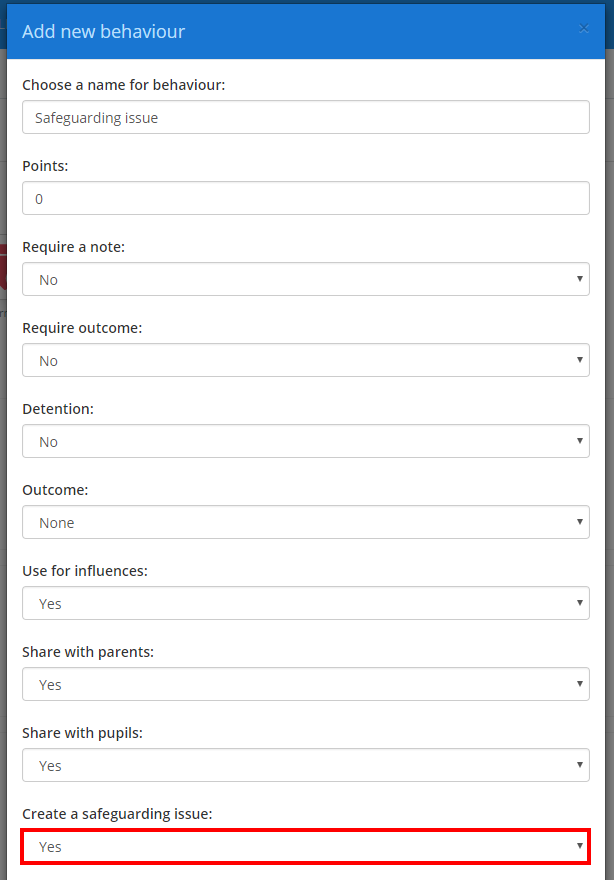
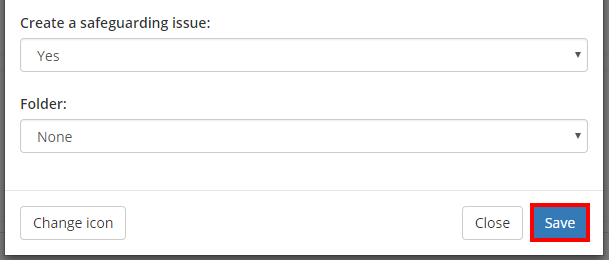
Finally, click on the Save button once you are happy with your behaviour setup.
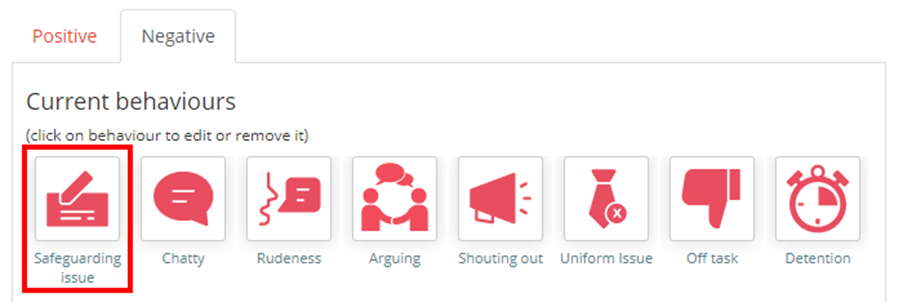
The new behaviour will appear within the behaviours list.
Awarding a behaviour with a safeguarding issue
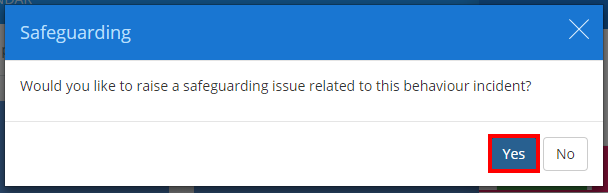
When awarding a behaviour with the safeguarding issue setting enabled, the awarding teach will see the Safeguarding confirmation popup shown below. Click Yes to begin creating a safeguarding report for the pupil.
The Safeguarding tab will open, ready for the awarding teacher to enter their report.
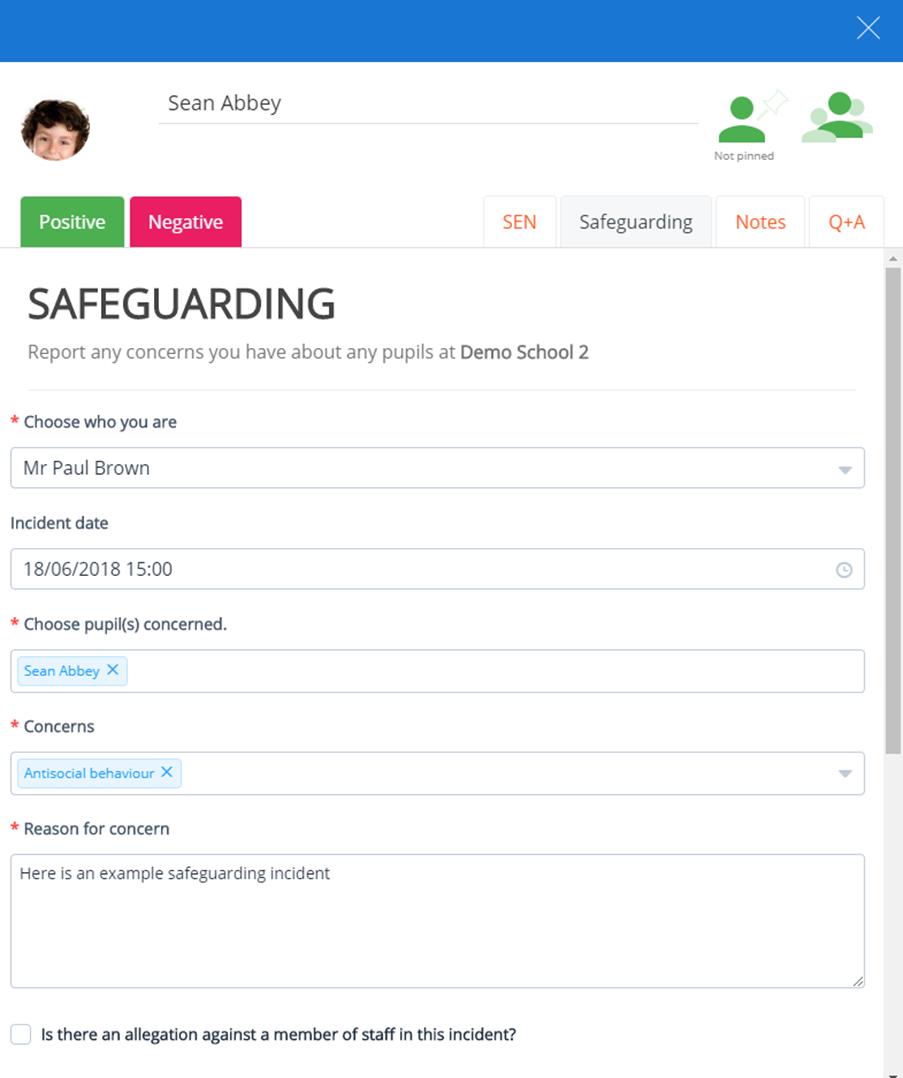
Once the form is complete, click on the Submit form button to log the safeguarding issue.
A confirmation message will appear if your school has set one up and the Safeguarding Lead will be notified of this report via email.
Was this article helpful?
That’s Great!
Thank you for your feedback
Sorry! We couldn't be helpful
Thank you for your feedback
Feedback sent
We appreciate your effort and will try to fix the article