Class Charts allows you to edit the displayed icon for a behaviour once it has been created.
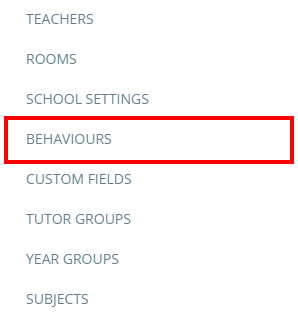
To change a behaviour icon, click on the three lines menu in the top right hand corner of the page and click on the Behaviours option from the list.
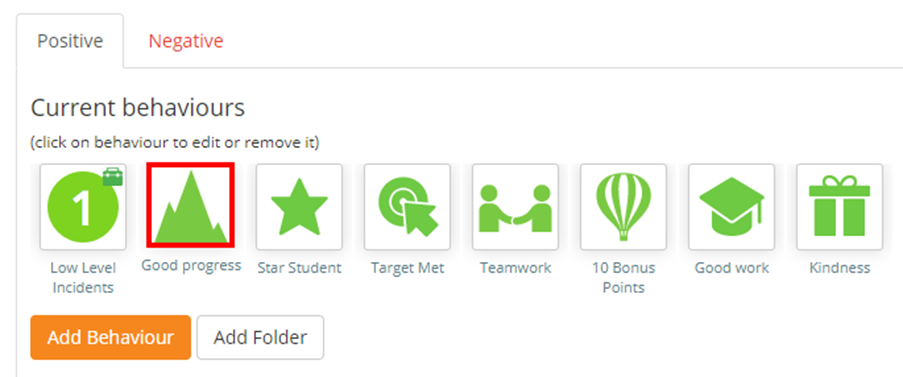
This will take you to a list of behaviours that are currently active in your school. To change the displayed icon for any of these behaviours, click on the behaviour that you would like to change.
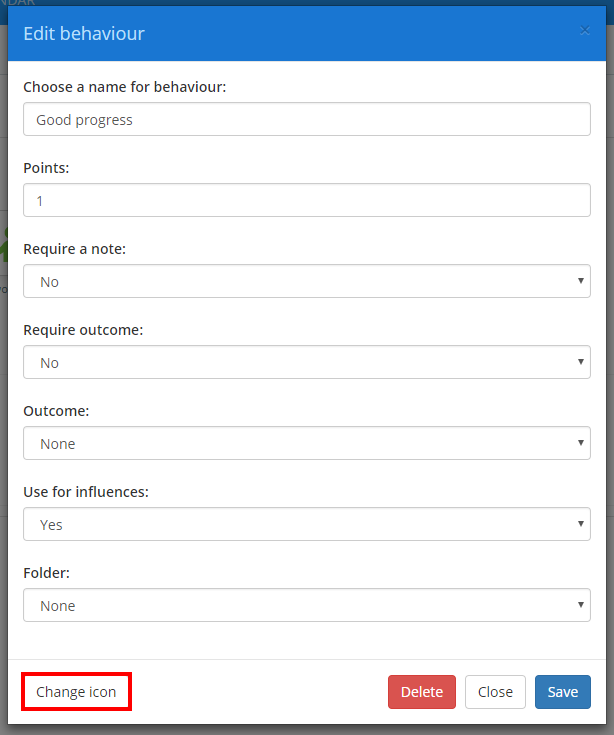
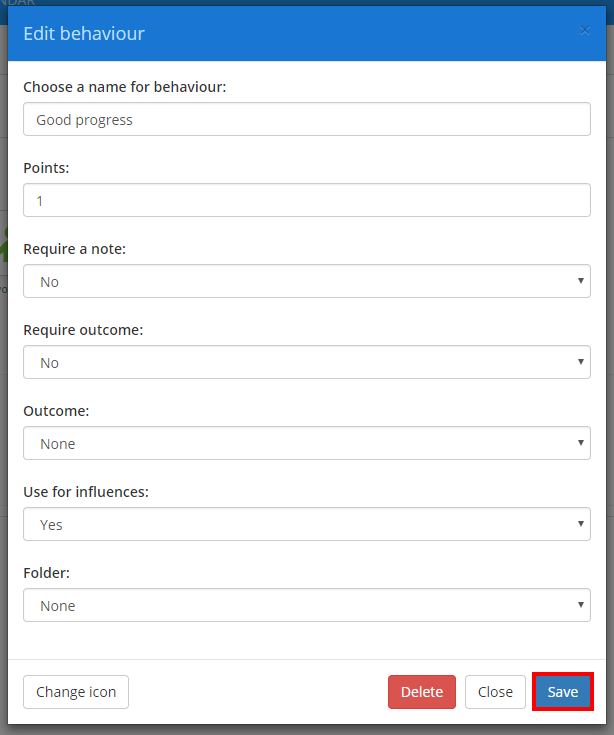
The Edit behaviour menu shown below will be displayed. Click on the button labelled Change icon.
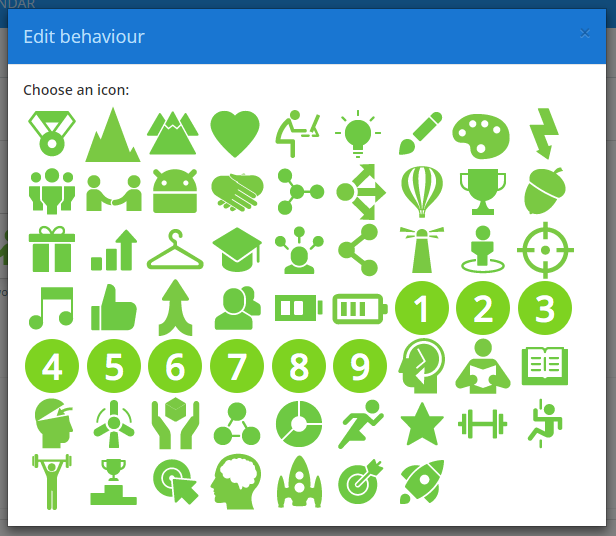
You will see the available behaviour icons. Select the icon that you would like to use by clicking on it.
Finally, click on the Save button to keep your changes. The behaviour’s icon will be updated upon leaving this menu.
Was this article helpful?
That’s Great!
Thank you for your feedback
Sorry! We couldn't be helpful
Thank you for your feedback
Feedback sent
We appreciate your effort and will try to fix the article