As detentions are issued throughout the school day, staff members may wish to track issued detentions in real time.
To view detentions activity in real time, click on the Activity tab along the top of the page.

You will be presented with your school’s activity feed for Class Charts, where behaviour activity across the school is displayed in chronological order.
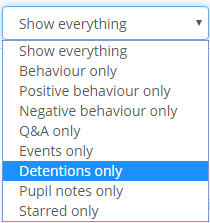
To restrict this display to just detentions, click on the Show everything drop down menu and select the Detentions only option.
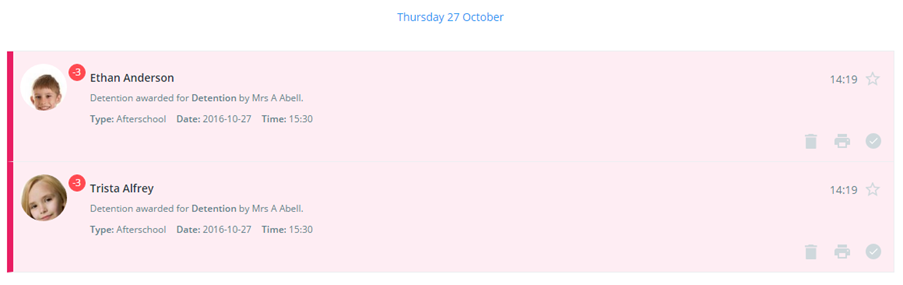
The activity feed will now display all detentions issued across the school in chronological order.
Clicking a detention will expand it to show more details. Here, you can add notes, select an outcome, enter a comment, change the date, refer the detention, print a detention slip, mark the detention as attended, and delete the detention.
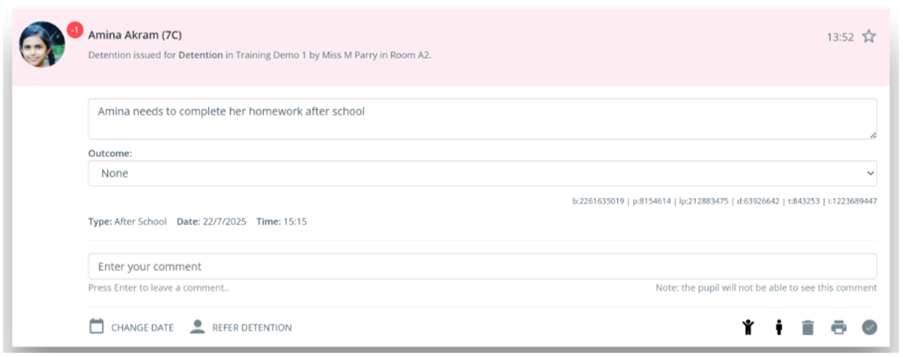
Click the bin icon to delete the detention.
Click the printer icon to download a detention slip with the time, date, duration, and detention type. This slip will also include the issuing teacher, class, and any notes.
Click the tick icon to mark the detention as Attended.
Was this article helpful?
That’s Great!
Thank you for your feedback
Sorry! We couldn't be helpful
Thank you for your feedback
Feedback sent
We appreciate your effort and will try to fix the article