When awarding behaviours to pupils, there may be times when it would be appropriate to hide specific behaviour types from analytics behaviour reports and the end of class pie charts.
To hide behaviours from analytics reports, click on the three lines menu in the top right hand corner of the page and select Behaviours from the list of available options.
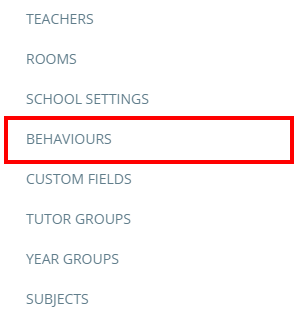
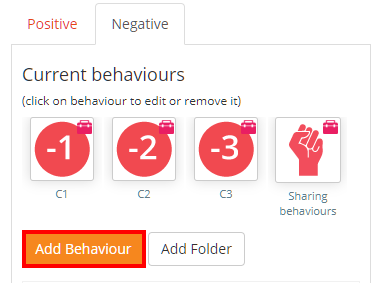
You will be presented with a list of behaviours that have been added to your school’s Class Charts account. Either click on the Add behaviour button to create a new behaviour, or click on the behaviour you wish to edit.
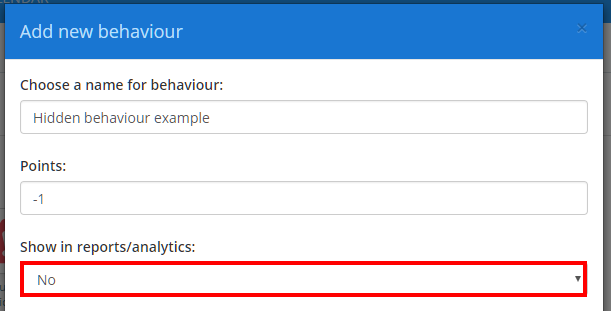
A popup will appear. Set Show in reports/ analytics to No in order to hide the behaviour from analytical reports.
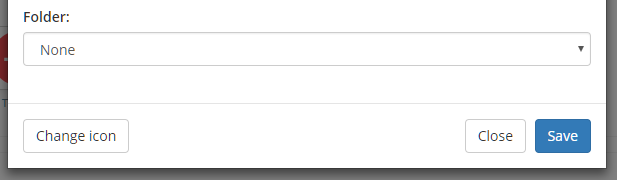
Click on the Save button at the bottom of the popup to save your changes.
The newly created behaviour will be present in your school’s list of behaviours.
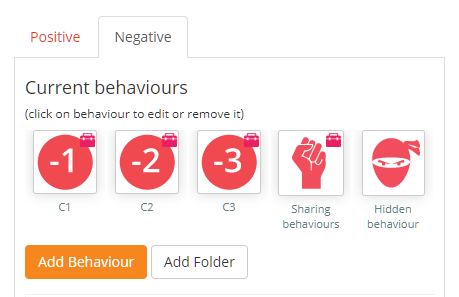
Awarding a behaviour that is hidden from reports / analytics
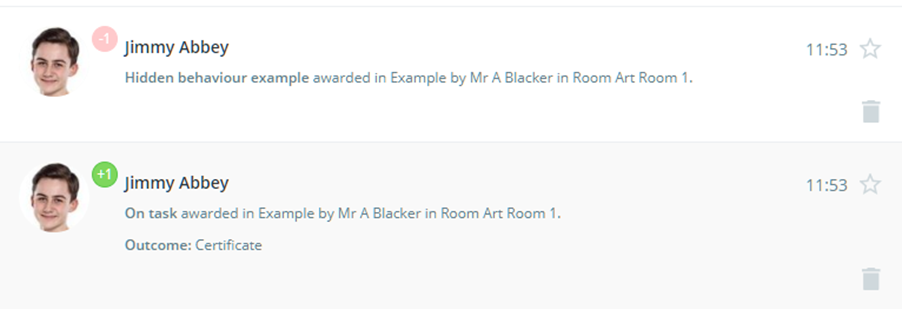
When awarding a behaviour that is hidden in reports / analytics, it will appear as a faded behaviour in the activity feed if it has points associated with it.
Was this article helpful?
That’s Great!
Thank you for your feedback
Sorry! We couldn't be helpful
Thank you for your feedback
Feedback sent
We appreciate your effort and will try to fix the article