If your school’s Class Charts account is linked to your MIS, archiving a staff member in your MIS will also archive them in Class Charts the next time data is synced between the two.
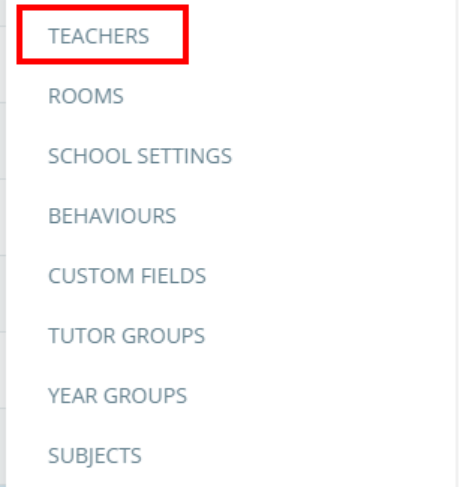
To manually archive a staff member, click on the 3 lines menu in the top right corner of the page and select Teachers from the list of available options.
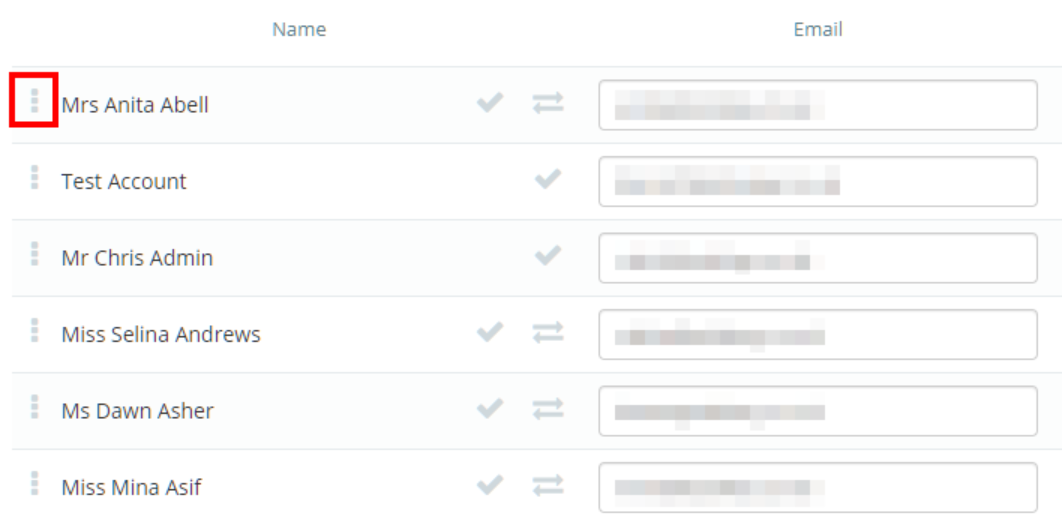
You will be presented with a list of staff members that have Class Charts accounts. Click on the three dots menu next to a staff member’s name.
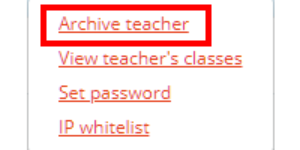
Next, select the Archive teacher option from the menu that appears.
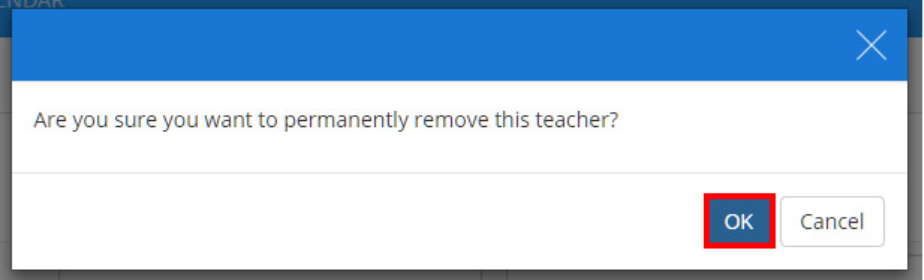
A popup dialog will appear, asking you to confirm your choice. Click on the OK button.
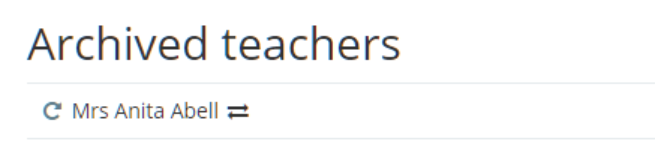
The selected staff member will now appear in the Archived teacher section at the bottom of the teachers list. Staff members in this list can be unarchived at any time.
Was this article helpful?
That’s Great!
Thank you for your feedback
Sorry! We couldn't be helpful
Thank you for your feedback
Feedback sent
We appreciate your effort and will try to fix the article