There may be times when a staff member is unable to log into Class Charts because they have forgotten their password. As a school admin user you can reset a staff member’s password on their behalf, allowing them to regain access to their account.
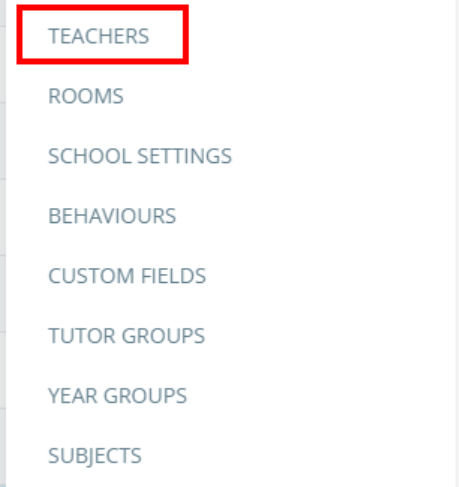
To reset the password for a staff member, click on the three lines menu in the top right hand corner of the page and select Teachers from the list of available options.
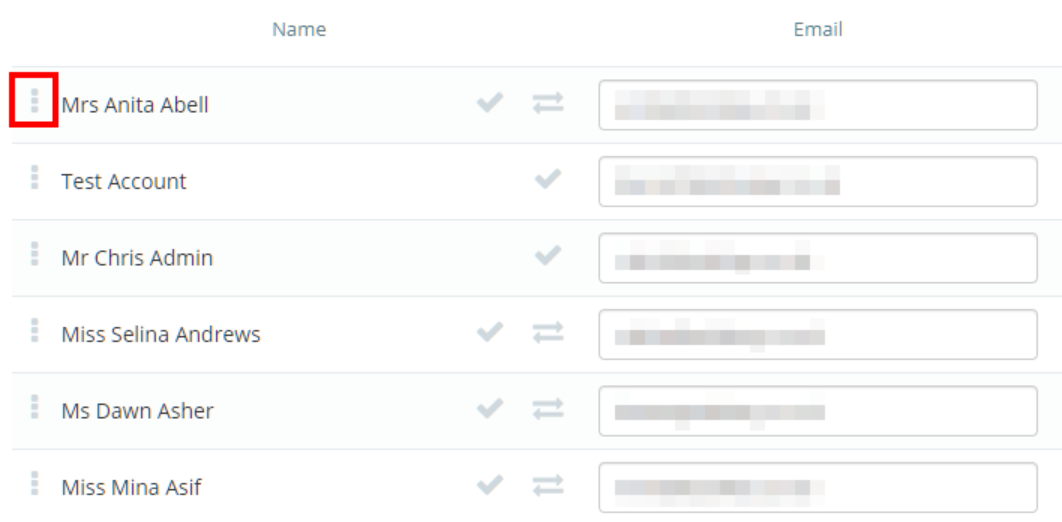
You will be presented with a list of staff members that have Class Charts accounts. To reset a password, click on the three dots menu for the staff member of your choice.
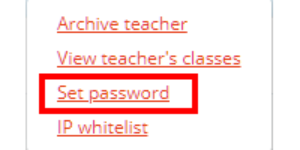
Next, select Set password from the list.
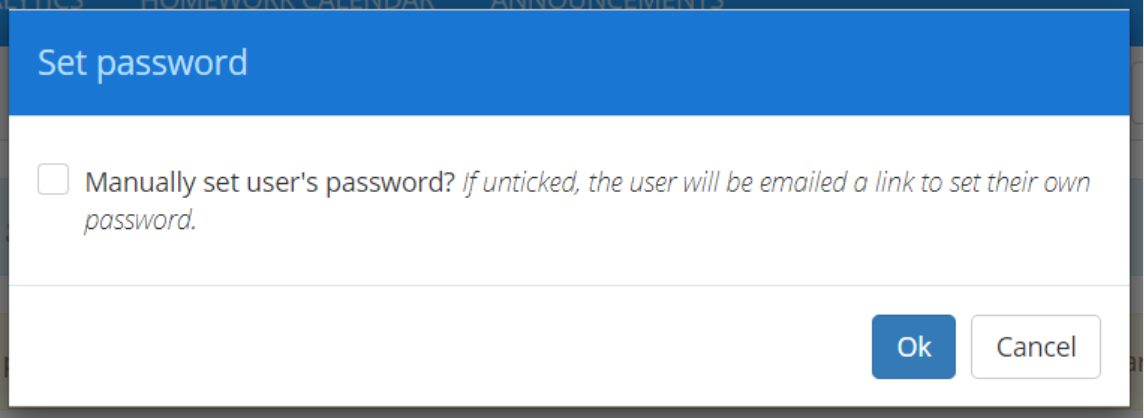
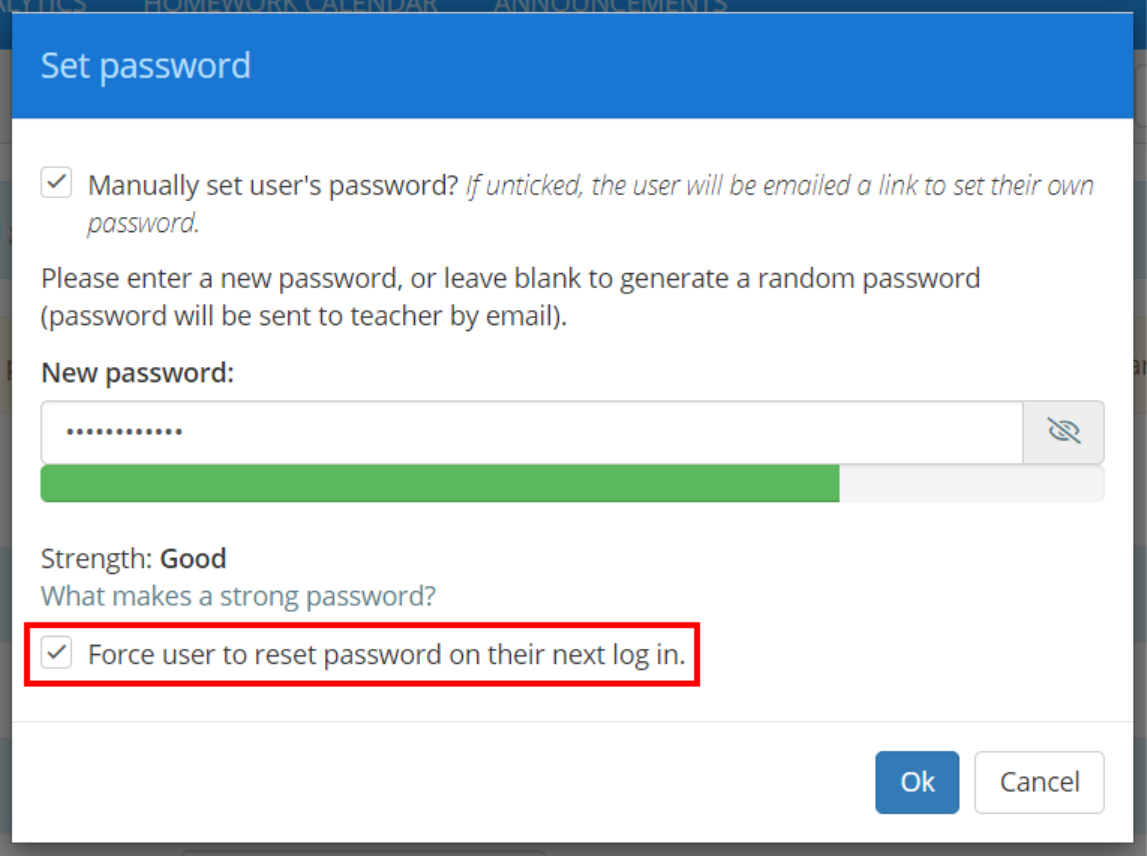
The Set password popup will appear. You can either set a password for the selected staff member, or provide them with a link to set their own password. To set a password on their behalf, tick the checkbox labelled Set user’s password.
Next, enter the password of your choice. If you would like the staff member to change the password as soon as they gain access to their account, tick the checkbox labelled Force user to reset password on their next log in.
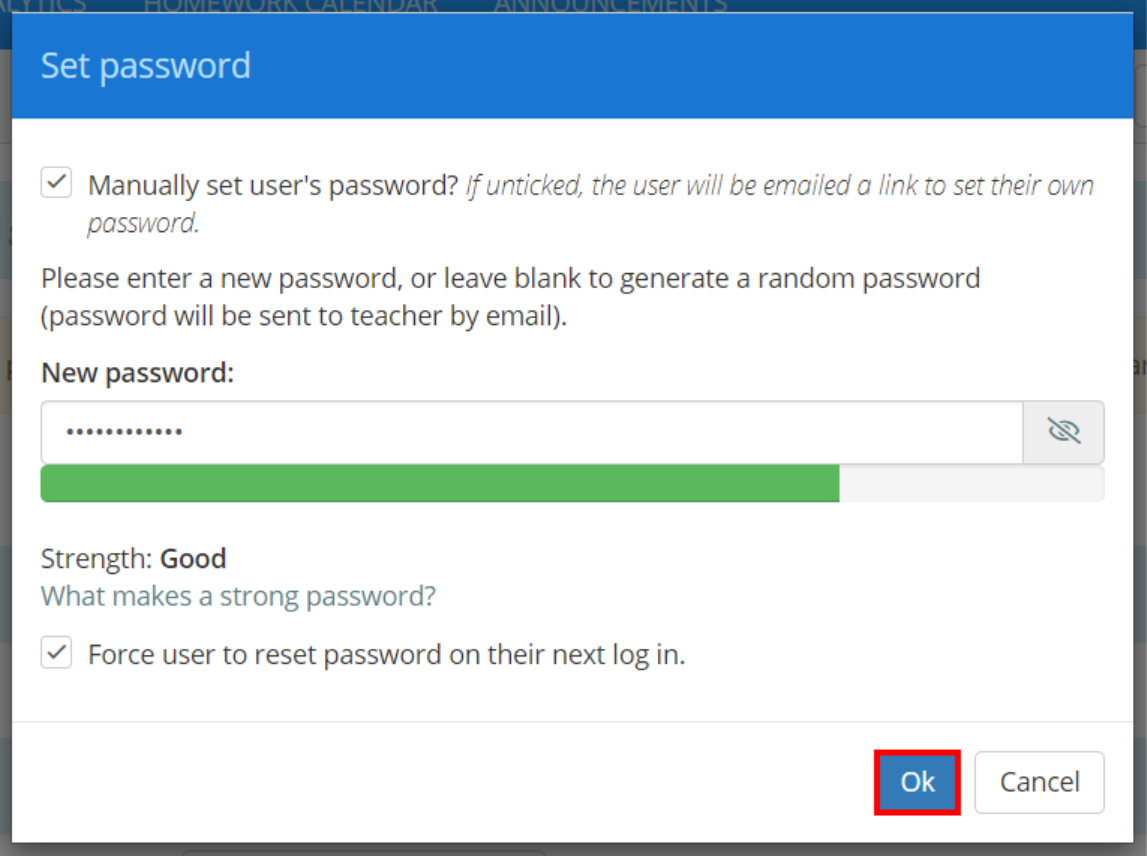
Click on the OK button when you are ready to send the new password to the selected staff member.
The new login details will be sent to the staff member’s email address, which is shown under the Email column on the Manage teachers page.
Was this article helpful?
That’s Great!
Thank you for your feedback
Sorry! We couldn't be helpful
Thank you for your feedback
Feedback sent
We appreciate your effort and will try to fix the article