Class Charts supports the use of dual authentication, which adds an extra layer of security for login attempts. Instead of just supplying a username and a password, staff members will also have to supply information that is specific to your school.
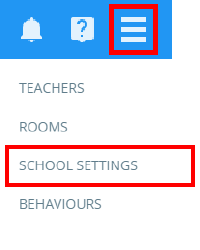
To enable dual authentication for your school, click on the three lines menu in the top right hand corner of the page and select School Settings from the list of available options.
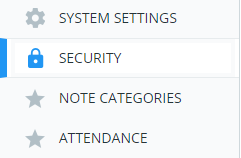
Next, click on Security from the menu on the left hand side.
Finally, select an authentication method from the Dual authentication drop down menu. The available options are explained below:
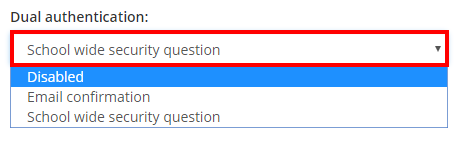
Disabled
Selecting this option will not apply dual authentication to your school’s Class Charts account.
Email confirmation
Selecting this option will send a user an email that contains a verification link if an unusual login is detected.
School wide security question
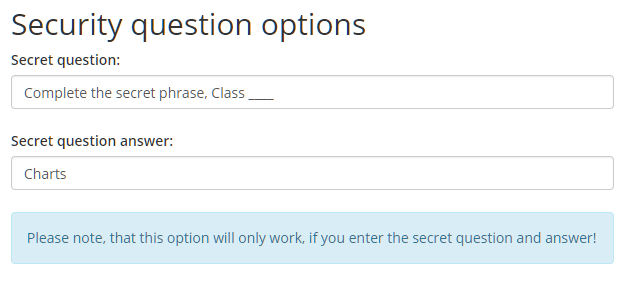
Selecting this option will prompt the user to answer a security question if an unusual login is detected. You can create your own secret question and answer by entering them into the Secret question and Secret question answer fields.
Was this article helpful?
That’s Great!
Thank you for your feedback
Sorry! We couldn't be helpful
Thank you for your feedback
Feedback sent
We appreciate your effort and will try to fix the article