There may be times when you will need to disable a class manually, in order to prevent it from being used.
To disable a class, click on the Classes tab along the top of the page.

Next, click on the Edit class button for the class of your choice.
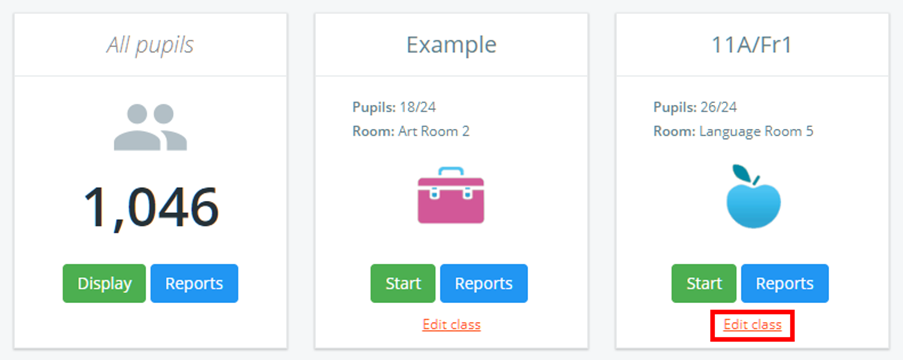
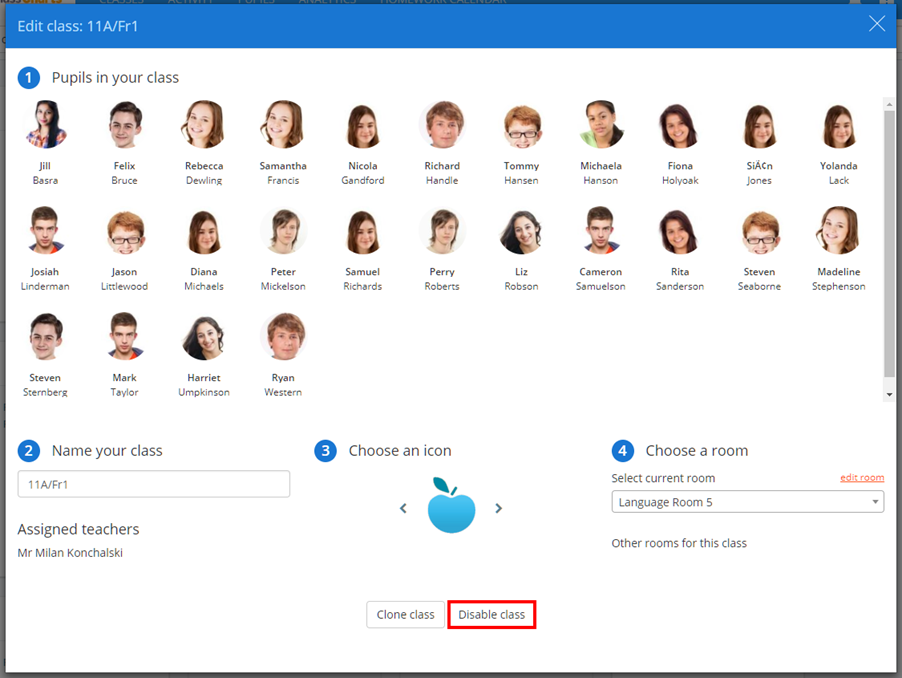
The Edit class popup will appear. Click on the Disable class button in order to disable the class. You cannot disable a manually created class, only delete them. Only synced classes can be disabled/enabled.
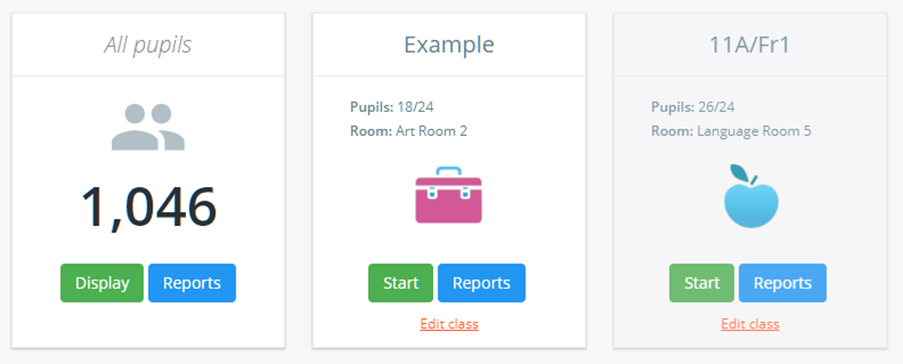
The class will now display as a greyed out archived class, which can be re-enabled by a school admin.
Enabling a disabled class
To re-enable a disabled class, click on its Edit class button on the Classes page.
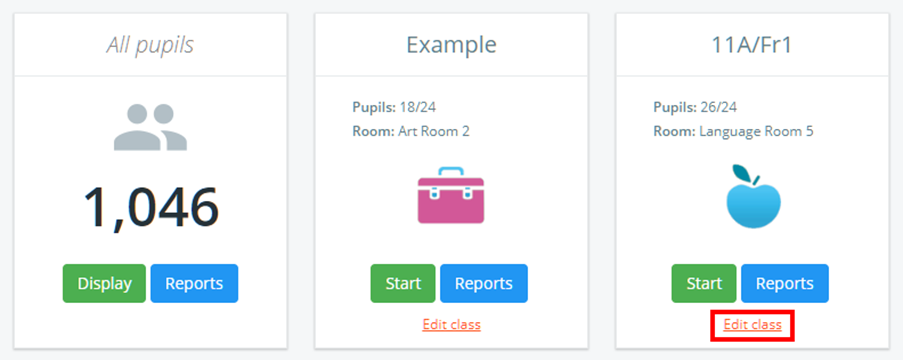
The Edit class popup will appear. Click on the Enable class button.
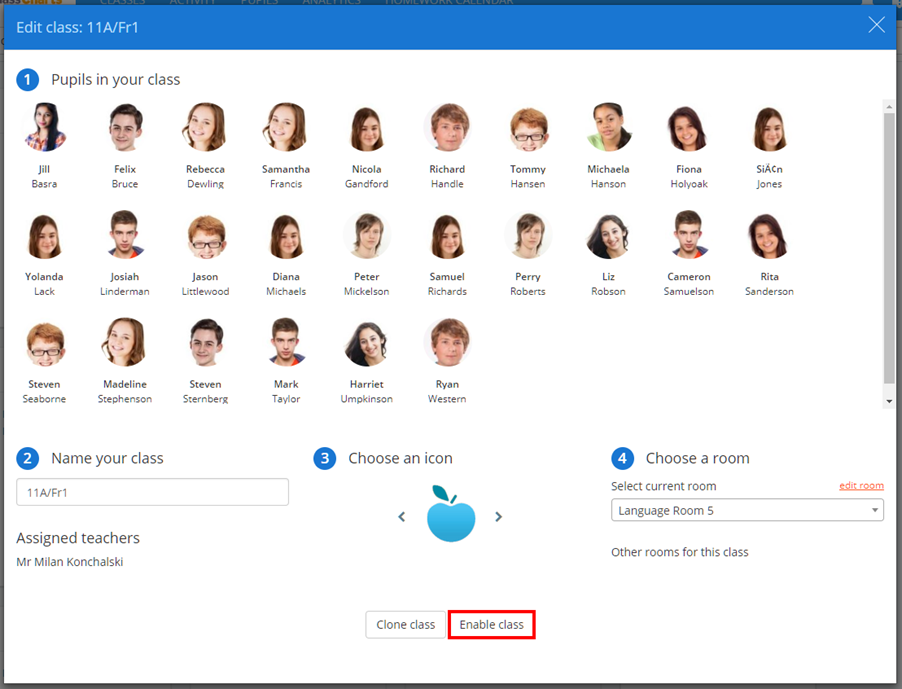
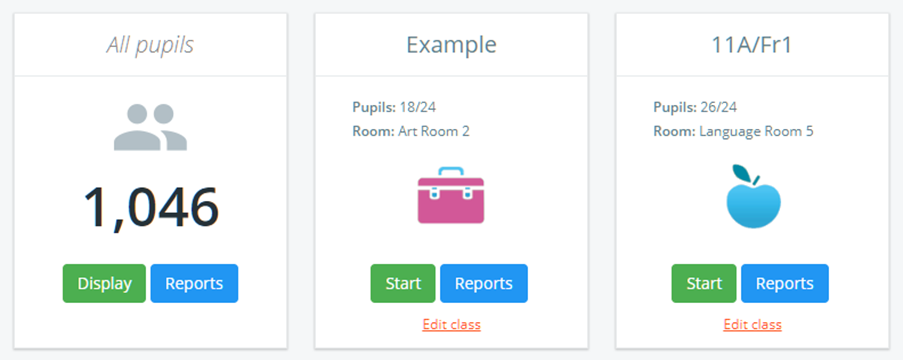
The disabled class will now become enabled again, no longer appearing greyed out as a result.
Was this article helpful?
That’s Great!
Thank you for your feedback
Sorry! We couldn't be helpful
Thank you for your feedback
Feedback sent
We appreciate your effort and will try to fix the article