When taking attendance in Class Charts, you may find that you prefer to use a list to record the register instead of the class view.
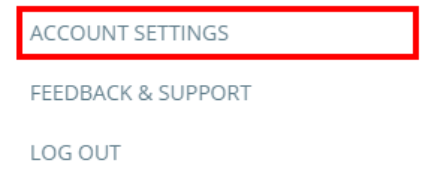
To change the default view when taking attendance in Class Charts, click on the three lines menu in the top right hand corner of the page and select Account settings from the list of available options.
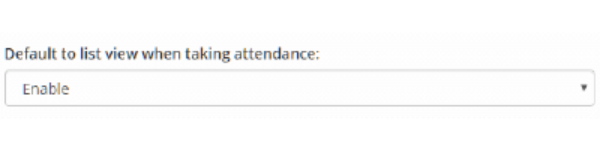
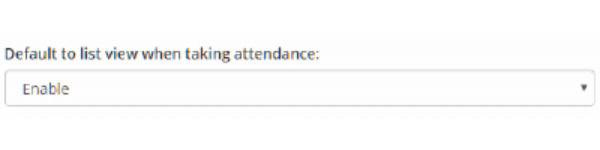
You will be presented with a setting labelled Default to list view when taking attendance. The available options for this setting are explained below:
List view
To set list view as your preferred method of taking attendance, select Enable from the drop down menu.
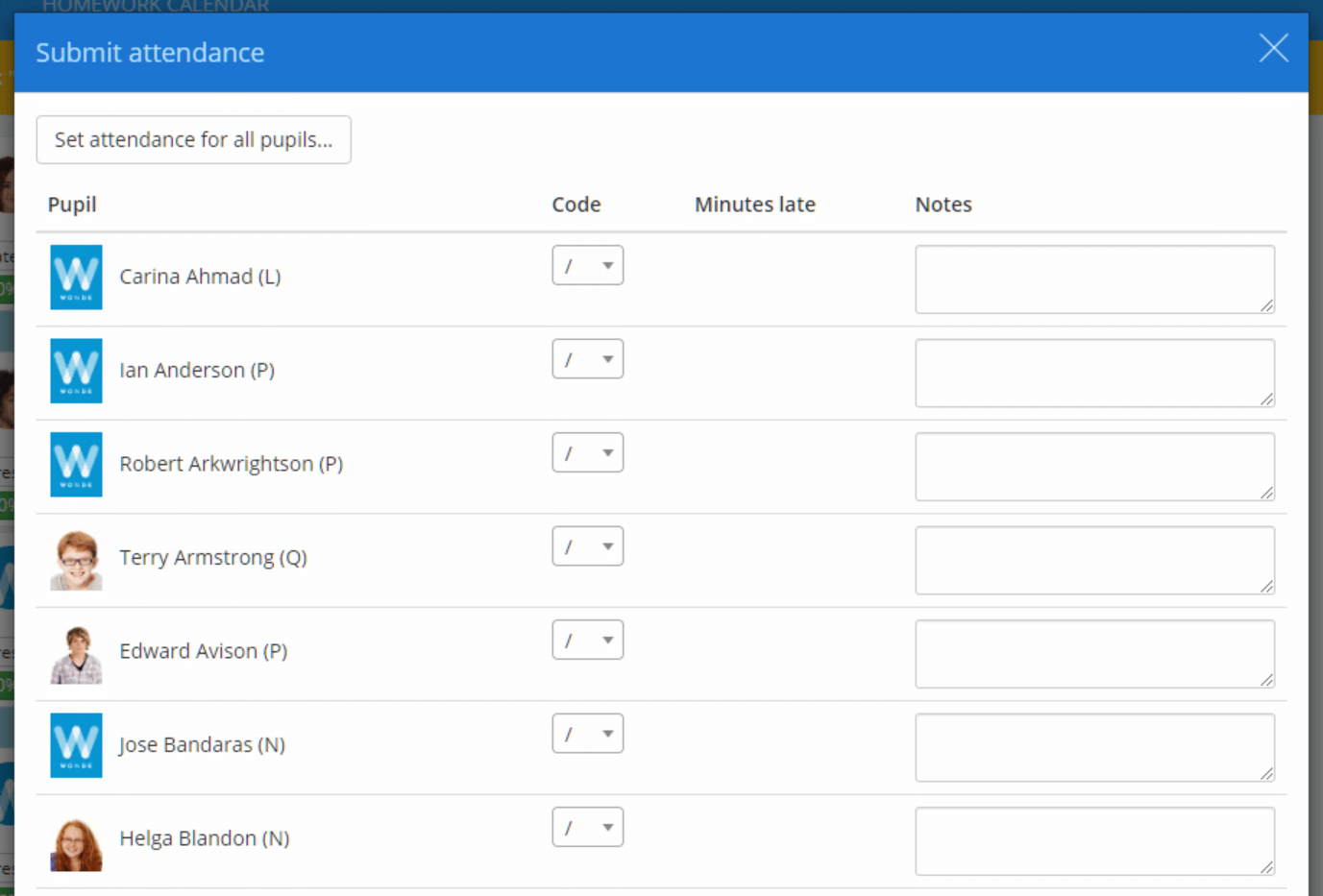
The next time you take attendance in a lesson, clicking on the Attendance button will automatically display the Submit attendance popup containing the register list.
Class view
To set class view as your preferred method of taking attendance, select Disable from the drop down menu.
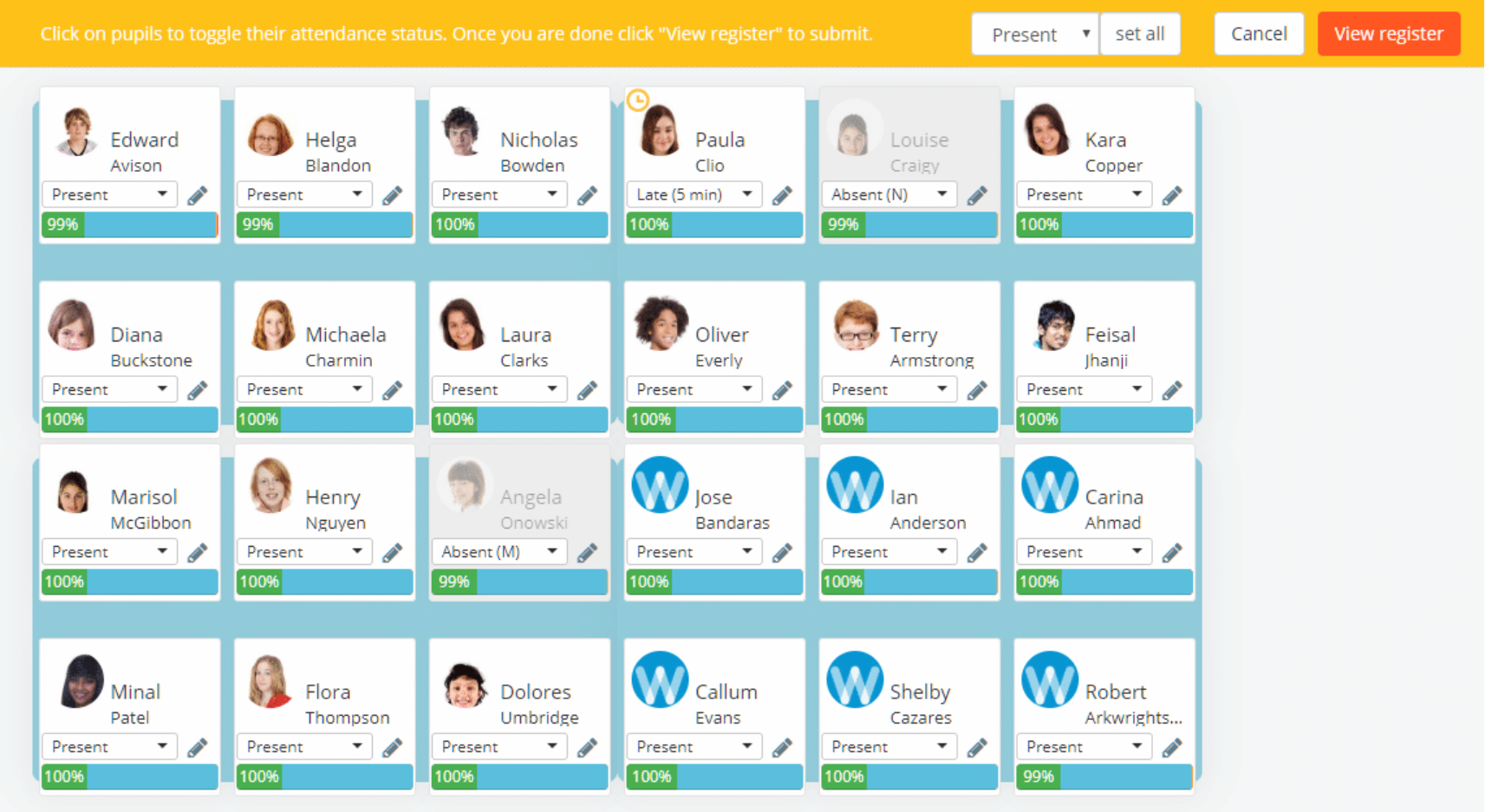
The next time you take attendance in a lesson, clicking on the Attendance button will display attendance options on each pupil tile.
Was this article helpful?
That’s Great!
Thank you for your feedback
Sorry! We couldn't be helpful
Thank you for your feedback
Feedback sent
We appreciate your effort and will try to fix the article