There may be times when it will be necessary to see an overview of attendance in your school, such as identifying trends in absences. Class Charts allows you to view attendance records across your school using the whole school attendance records table.
To view the whole school attendance records for your school, click on the Analytics tab along the top of the page

Next, click on the Attendance tab on the left hand side and select the Display all option.
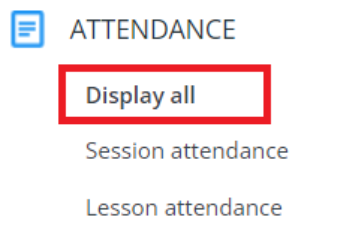
You will be presented with the interface shown below. Before the whole school attendance records table can be displayed, you will need to select a week to display attendance for.

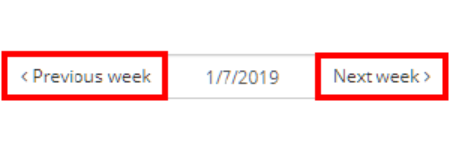
The whole school attendance records table displays attendance information for the current week by default. To view other weeks in the academic year, use the Previous week and Next week buttons to move between the records.
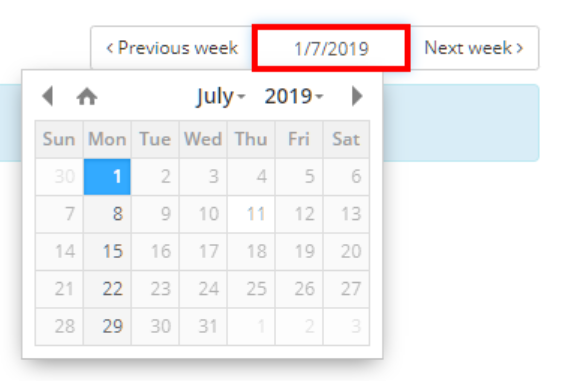
To view a specific week, click on the date picker provided and select the week of your choice from the calendar.
Click on the Generate report button once you are happy with your chosen week.

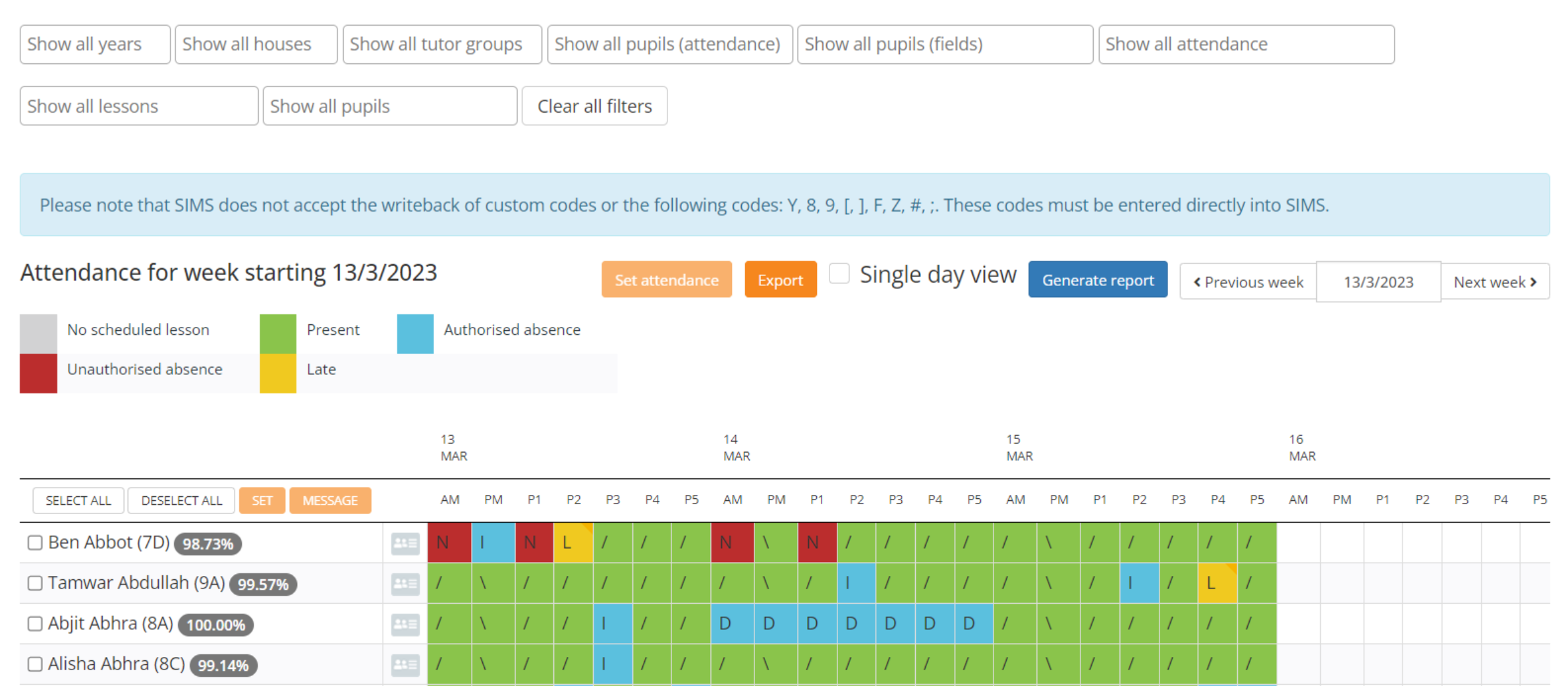
The whole school attendance records table will be displayed, where attendance records for the current week will be listed for each pupil. By default this includes both session attendance (AM + PM) and lesson attendance (P1, P2, etc).
Filtering the whole school attendance records
To filter the whole school attendance by a specific group of pupils, select an option from the Show all years, Show all houses, Show all tutor groups, Show all pupils, Show all pupils (fields), Show all attendance, Show all lessons or Show all pupils drop down menus and click on the Generate report button.
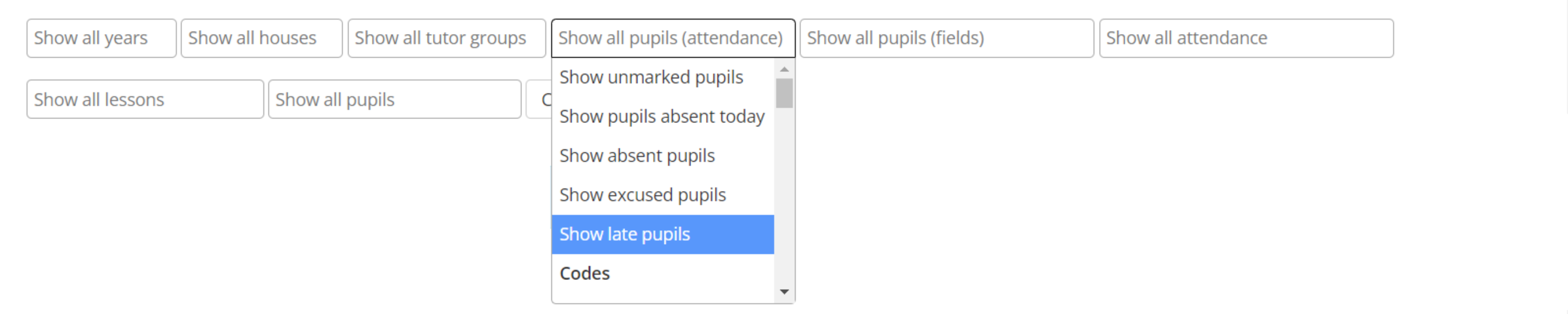
The whole school attendance records table will now be filtered to your chosen search criteria.
Displaying whole school attendance records for today
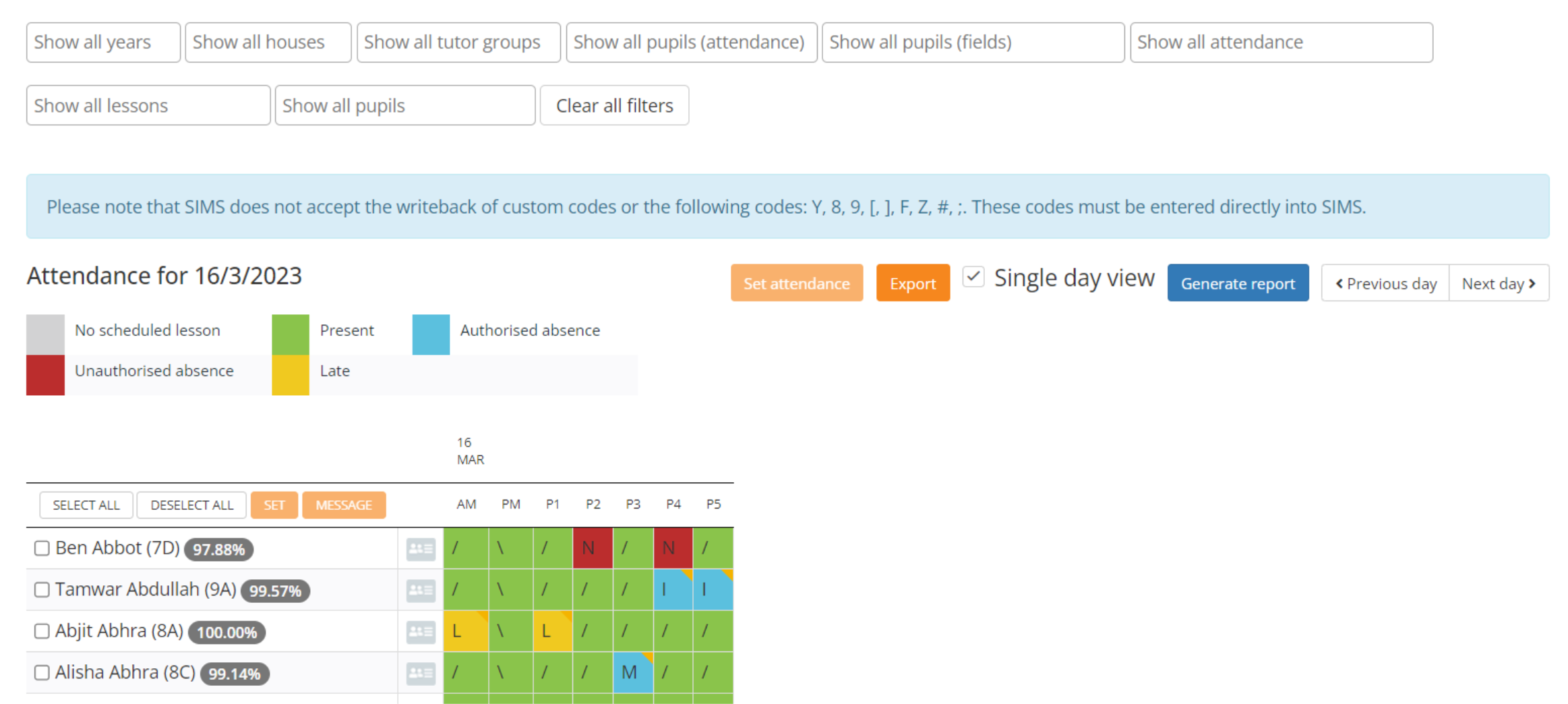
To only show the current day when viewing whole school attendance records, click on the checkbox labelled Single day view before generating the report.

The whole school attendance records table will now show attendance records for the current day.
Exporting the whole school attendance records
To export the whole school attendance records table, click on the Export button in the top right hand corner of the page.

An Excel spreadsheet copy of the whole school attendance records table will be generated.
Setting an attendance record
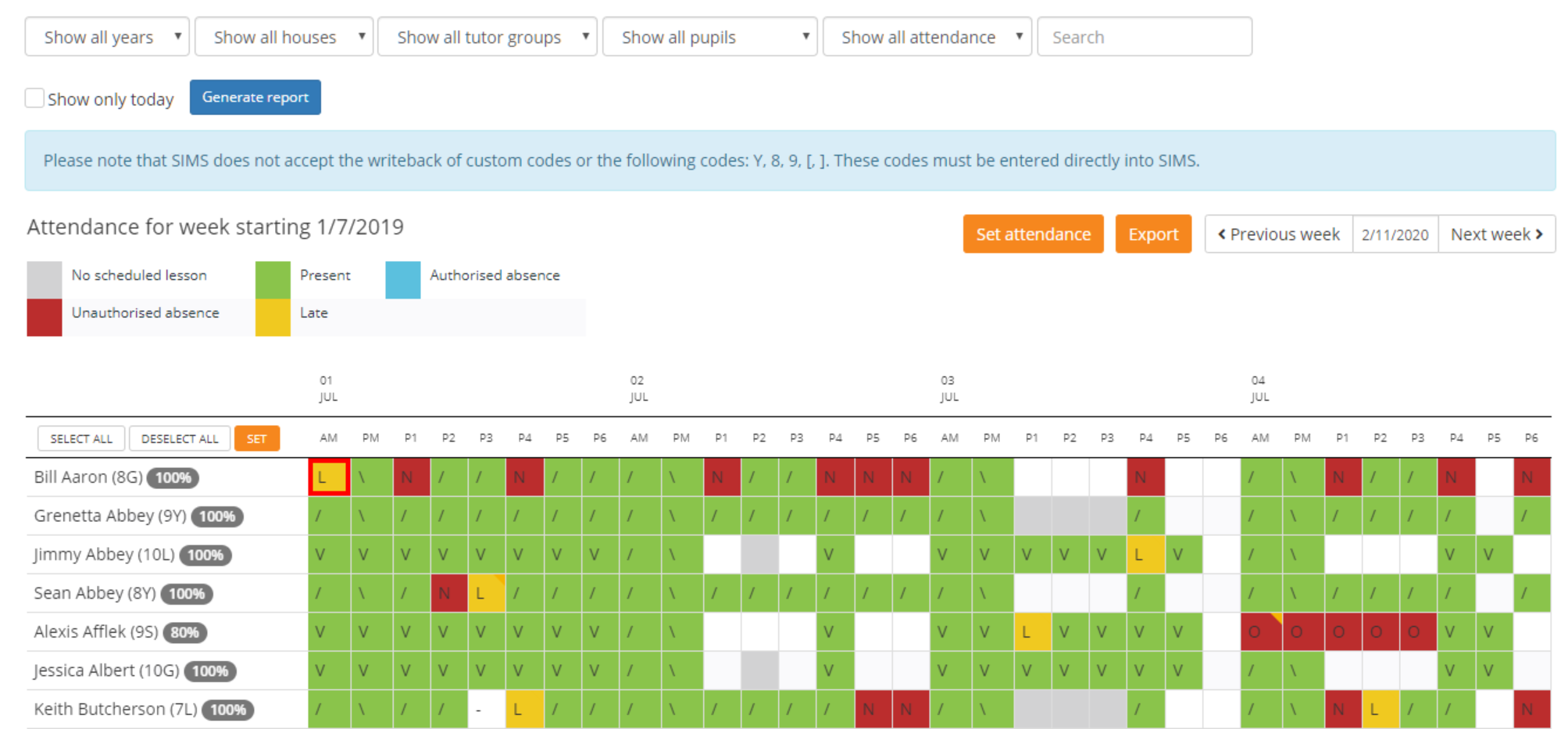
To set an individual attendance record from the whole school attendance records table, click on the record that you would like to change.
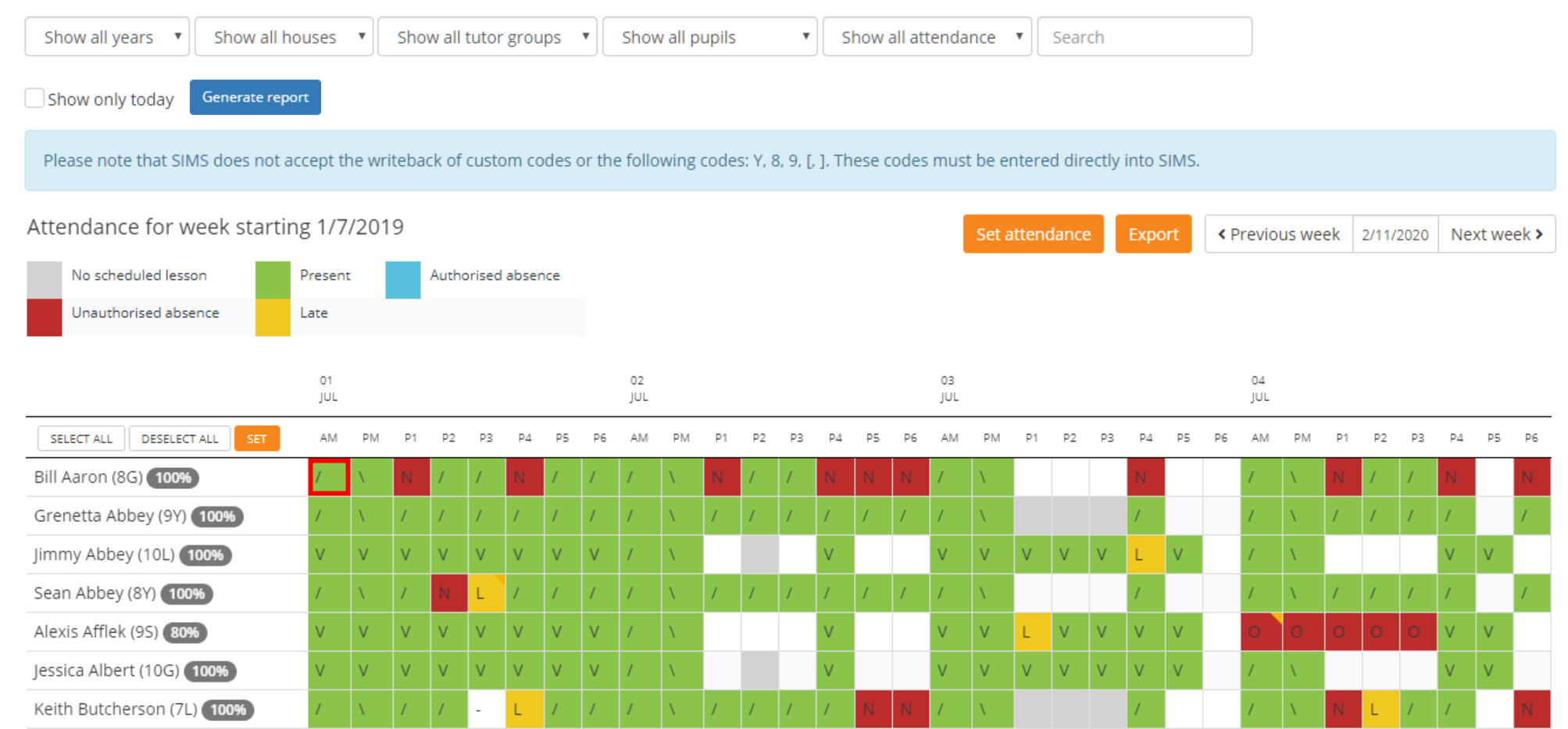
The Attendance code popup will appear. Here, you can select a new attendance code to apply along with an optional attendance note. Click on the OK button to confirm your changes.
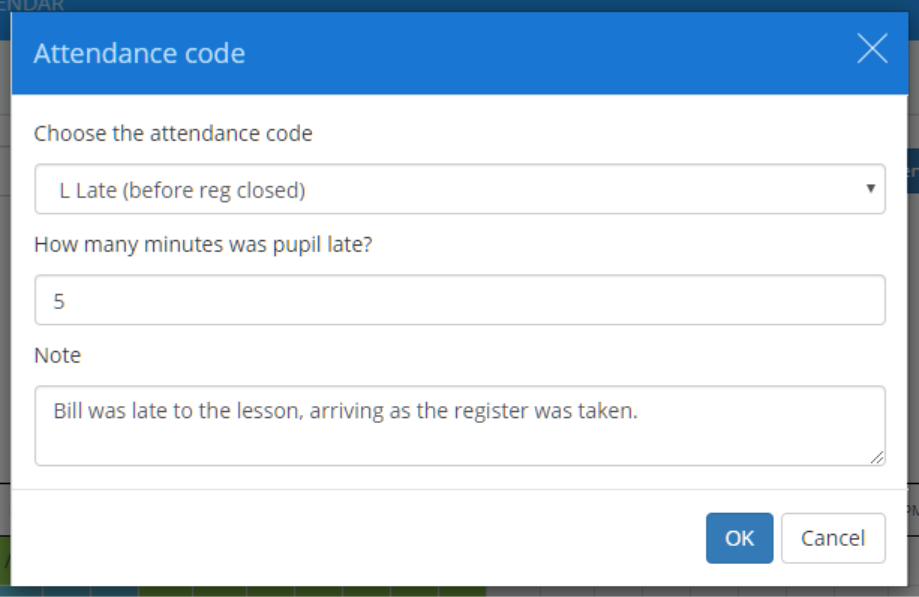
The whole school attendance records table will be updated with the new attendance code applied.
Bulk setting attendance
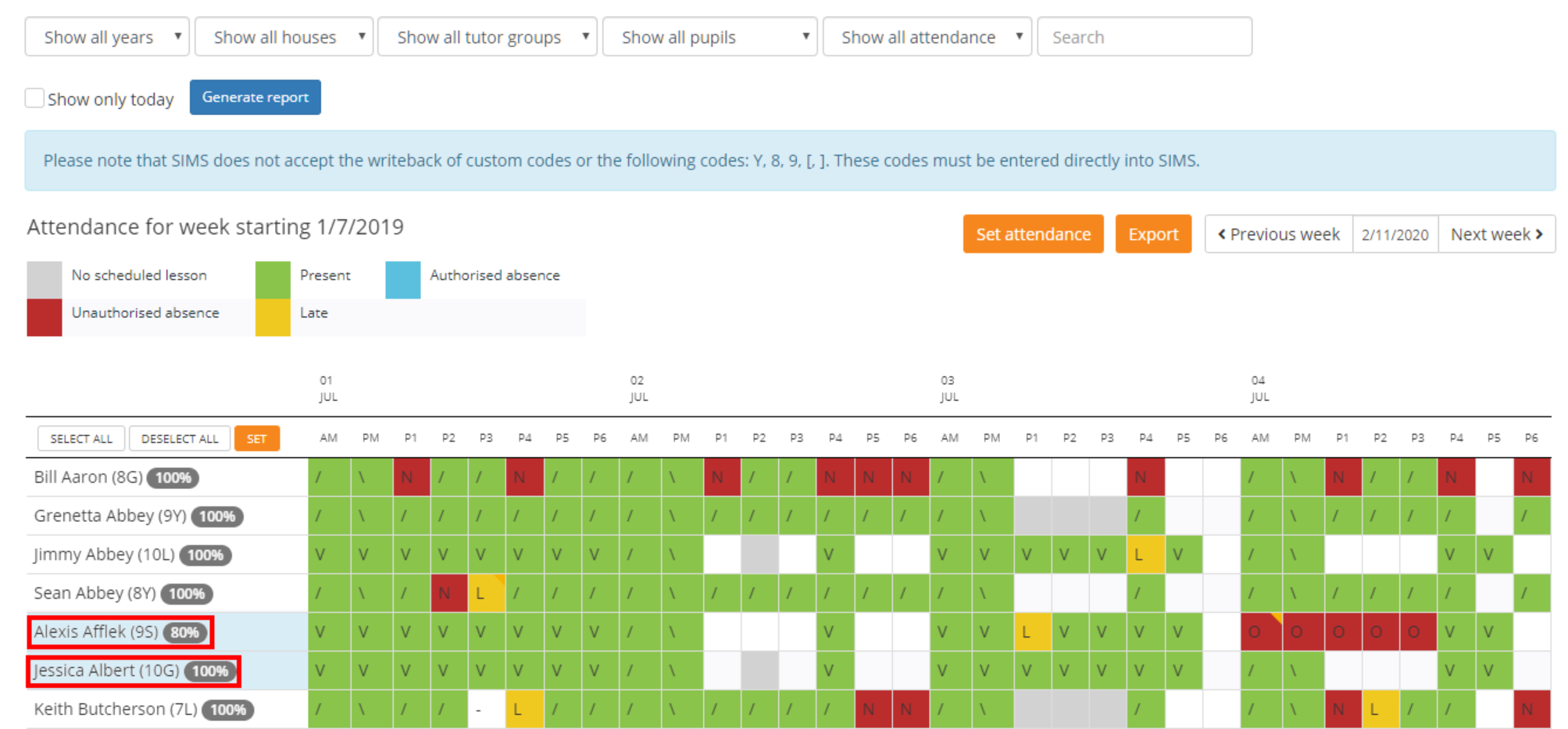
To bulk set attendance for multiple pupils, click on their name in the whole school attendance records table. Alternatively, use the Select all and Deselect all buttons provided.
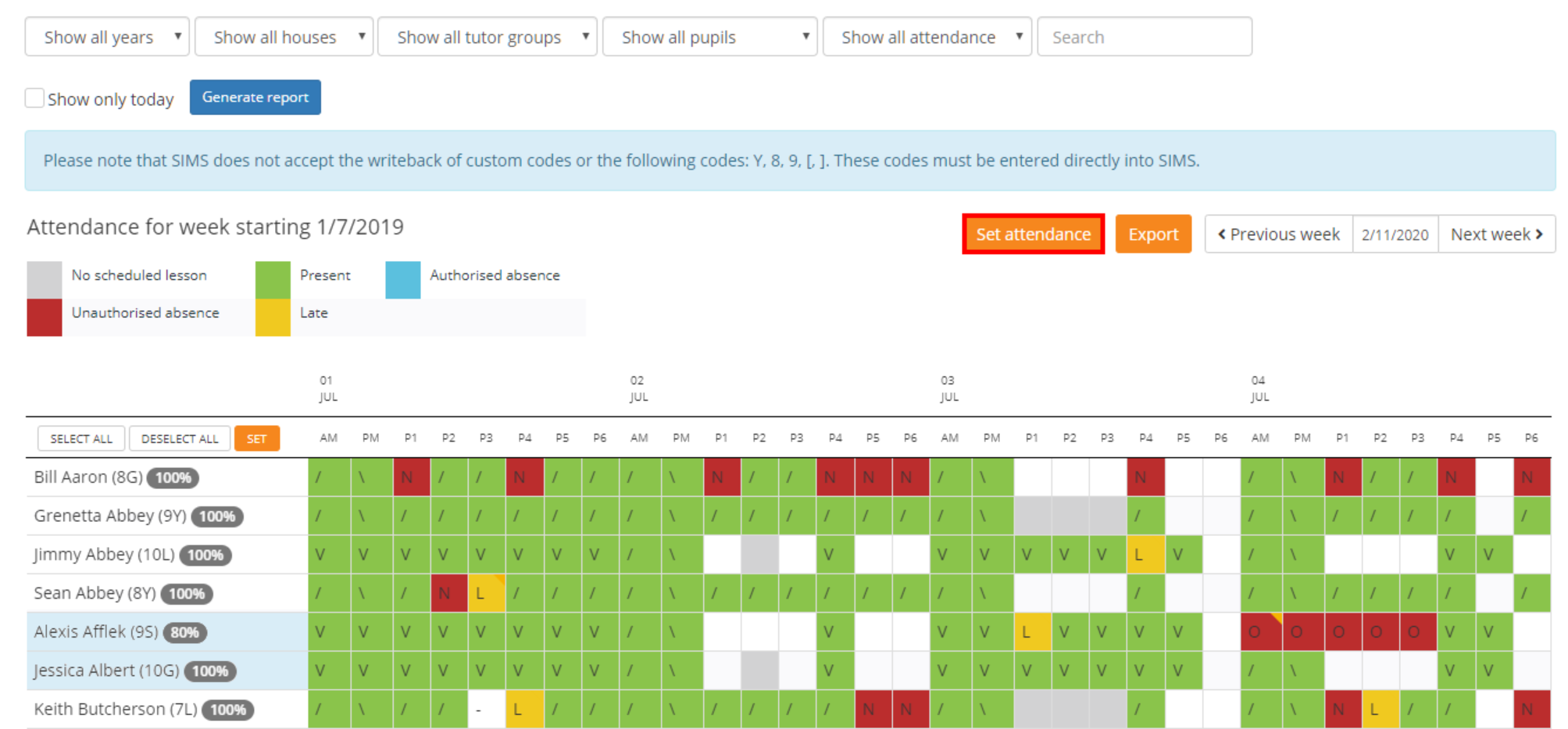
Next, click on the Set attendance button.
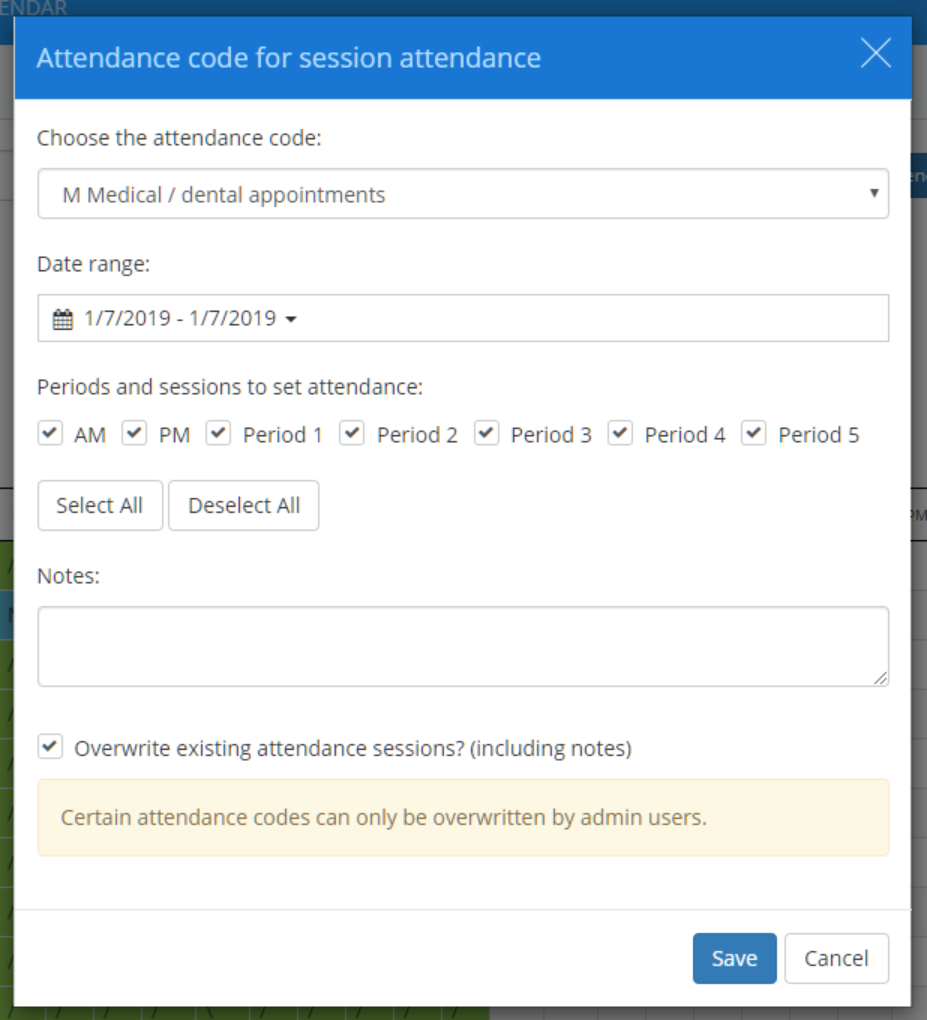
The Attendance code for session attendance popup will appear. Here, you can choose which attendance code to apply, the date range to apply the code to, the periods and sessions to apply the code to, and an optional note for each attendance record.
If you would like to overwrite any existing attendance records that fall under the selected date range, tick the checkbox labelled Overwrite existing attendance sessions? (including notes).
Once you are happy with your selections, click on the Save button to continue.
A popup will appear with a summary of your proposed attendance record changes. Click on the OK button to apply the new attendance records.
The whole school attendance records table will update with the bulk set attendance applied.
Sending messages via the whole school records attendance table
If your school has Two way messaging to parents/carers and / or Two way messaging to pupils set to Enabled, you will also be able to send messages from the whole school attendance records table.
To message pupils and parents from this page, select the pupils of your choice and click on the Message button.
A popup will appear. Select the recipients of you choice by clicking on the Pupils or Parents buttons.
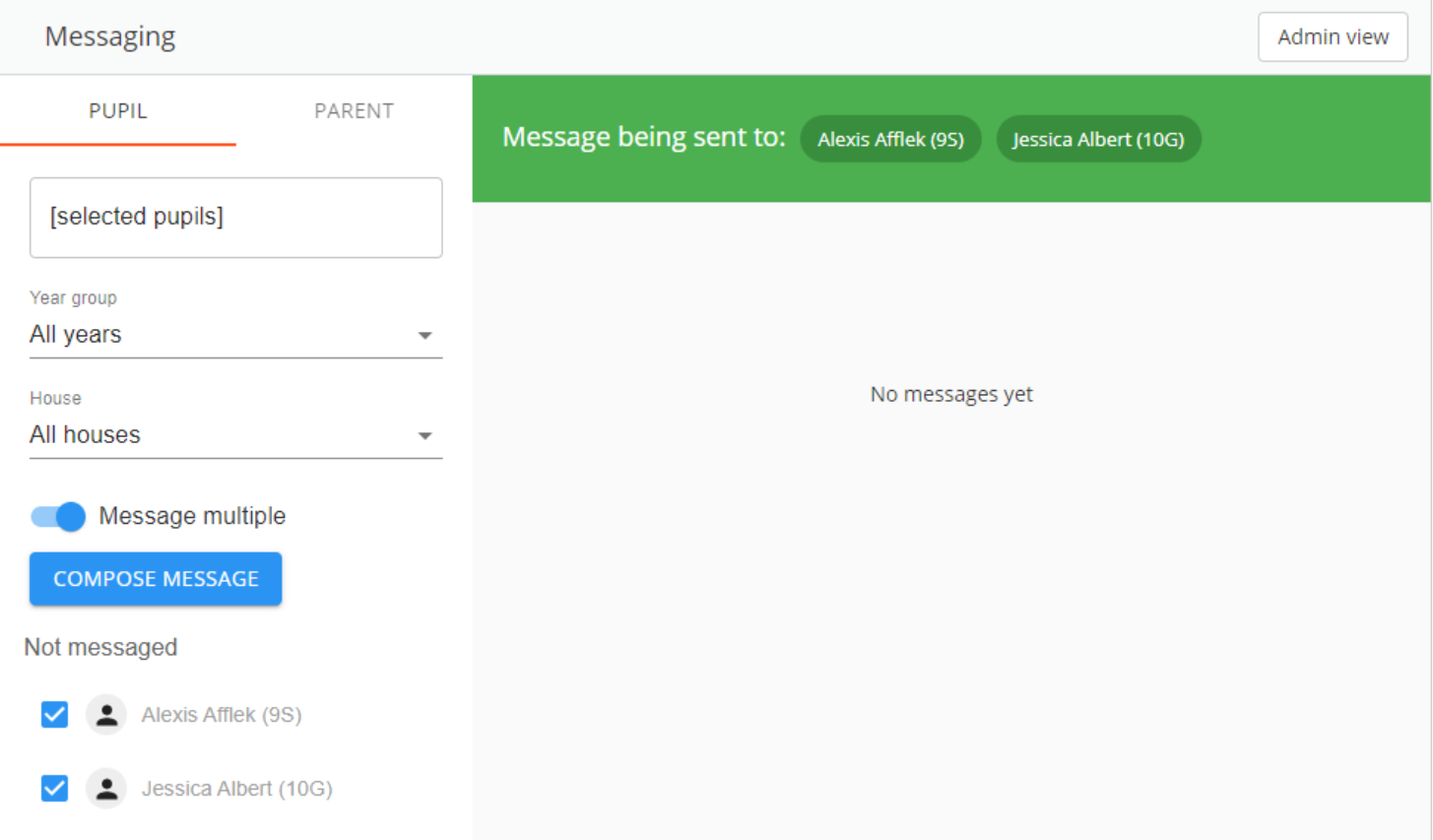
The messaging page will appear, with the chosen pupils already selected.
Was this article helpful?
That’s Great!
Thank you for your feedback
Sorry! We couldn't be helpful
Thank you for your feedback
Feedback sent
We appreciate your effort and will try to fix the article