From this screen, you will be able to begin marking attendance for each pupil. Marking attendance falls under 3 categories: present, absent and late.
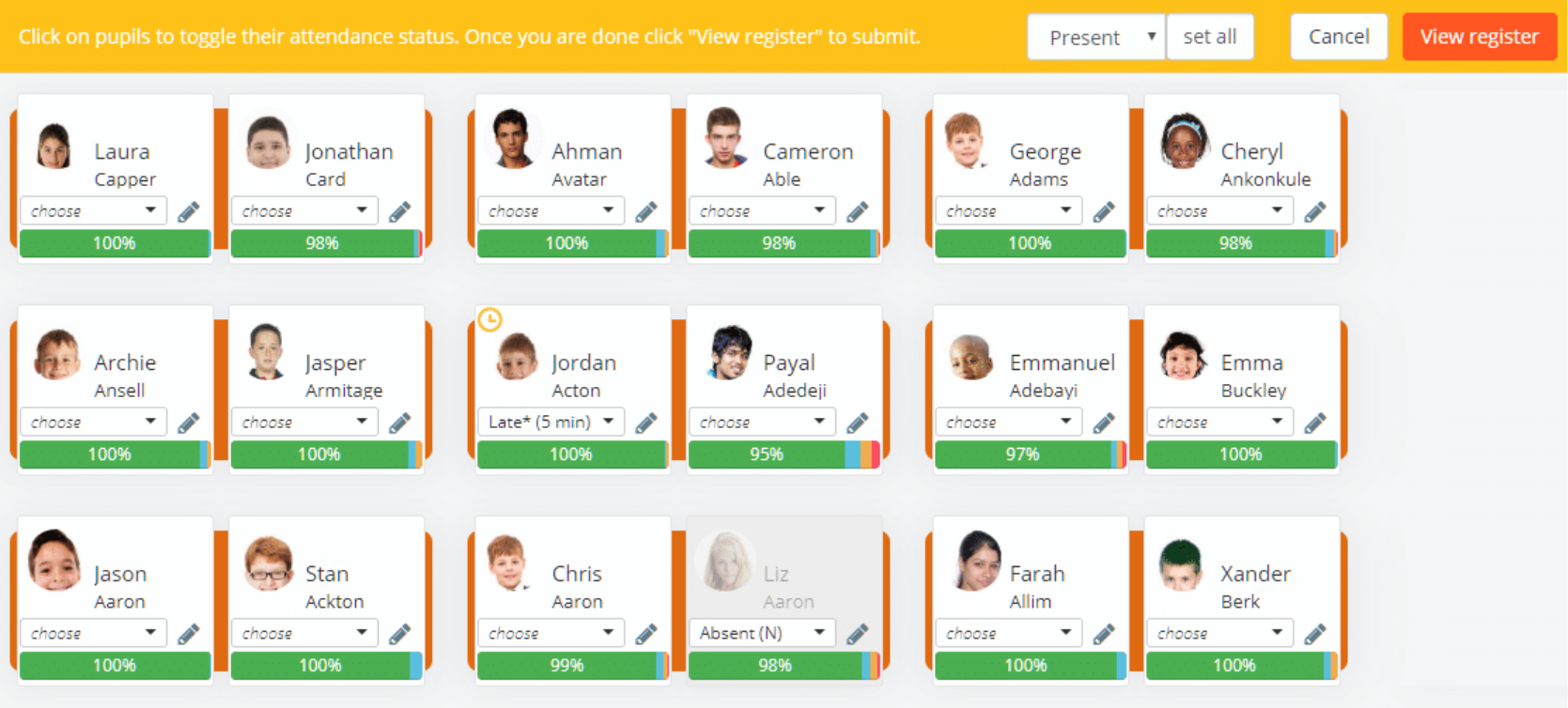
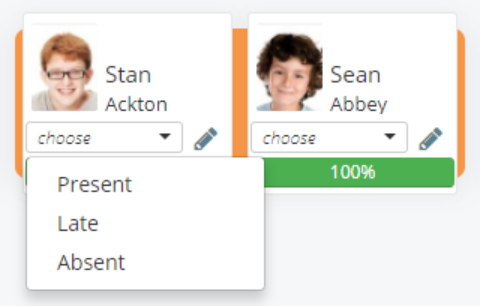
To mark attendance for a pupil, select the attendance option of your choice from the drop down menu on a pupil card.
Marking a pupil as late
To mark a pupil as late, select the late option from a pupil card’s drop down menu when taking attendance.
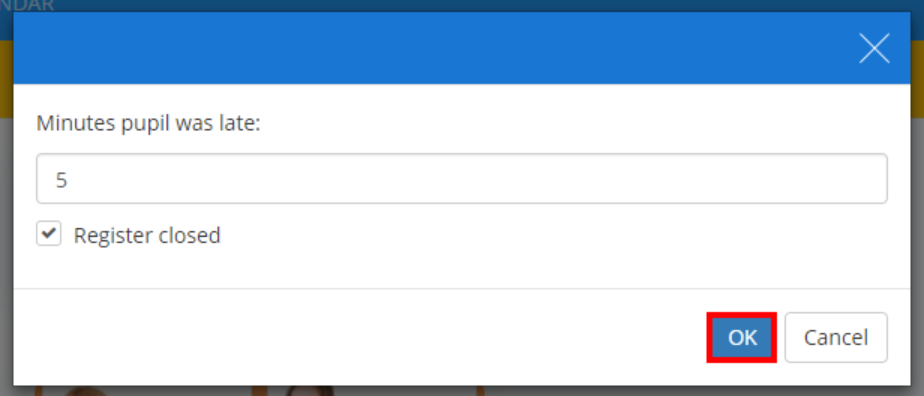
Click OK. The chosen pupil card will now display a small clock icon (to indicate that the pupil was late, along with a record of how many minutes the pupil was late by.

Marking a pupil as absent
To mark a pupil as absent, select the absent option from a pupil card’s drop down menu when taking attendance.
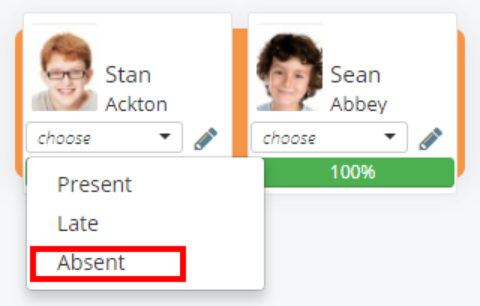
You will then be given the option to specify the attendance code that the absence falls under. Select an attendance code from the drop down menu and click on the OK button.
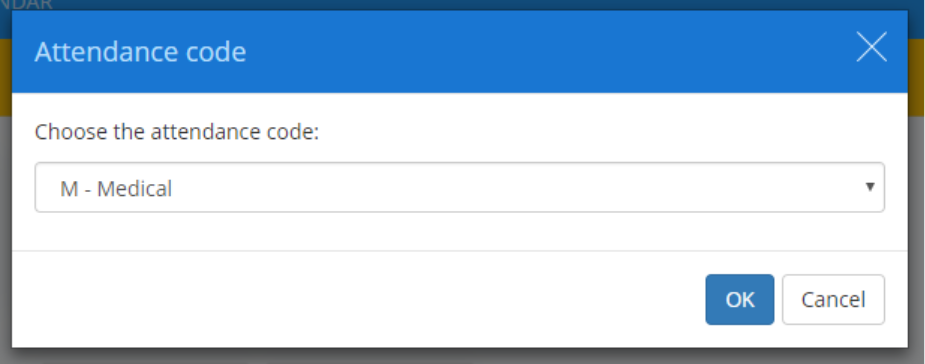
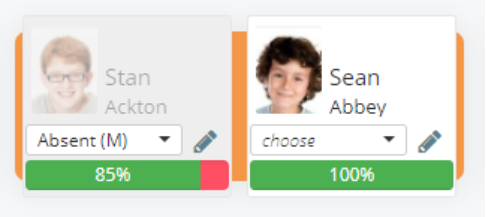
The chosen pupil card will now appear to be greyed out, with the attendance code you specified appearing in the drop down menu.
Adding an attendance note for a pupil
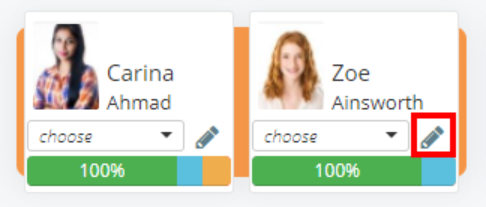
You can add notes about a pupil’s attendance on the attendance screen. Click on the pencil icon on a pupil card to begin writing an attendance note.
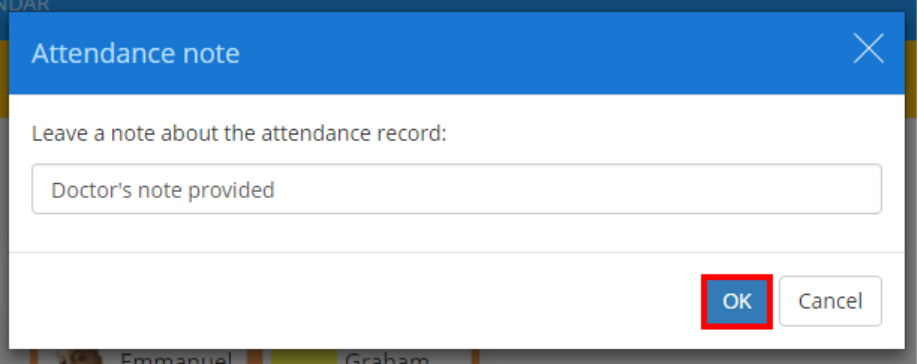
A pop up with a text field will then appear, where you can enter your note. Once you are finished click the OK button.
Setting attendance records for multiple pupils
To mark attendance for all pupils within the class simultaneously, simply choose the attendance option of your choice from the dropdown menu in the top right corner and click the set all button.

On each pupil card is an attendance bar, which represents a pupil’s attendance percentage across all of their lessons. The colours within the attendance bar indicate the ratio of present marks to absent marks, and are represented as follows:

Green: present
Yellow: late
Blue: authorised absence
Red: unauthorised absence
Submitting the register for a lesson
Once you have finished marking attendance for the lesson, click on the View register button to close the register.

You will be presented with a list that displays each pupil’s attendance code, minutes late (if applicable) and any optional attendance notes. Click on any of these fields to make changes to their values.
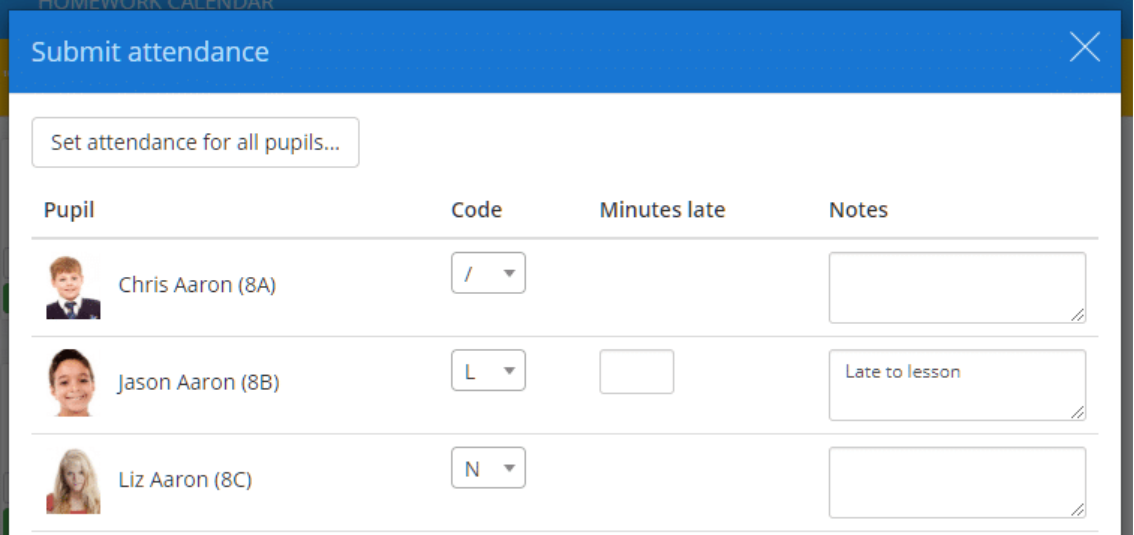
As you mark attendance for each pupil, you will notices that the Pupils present count at the bottom of the popup updates. If a teacher tries to submit the register without marking every pupil, they will receive a popup warning informing them that there are missing attendance records.
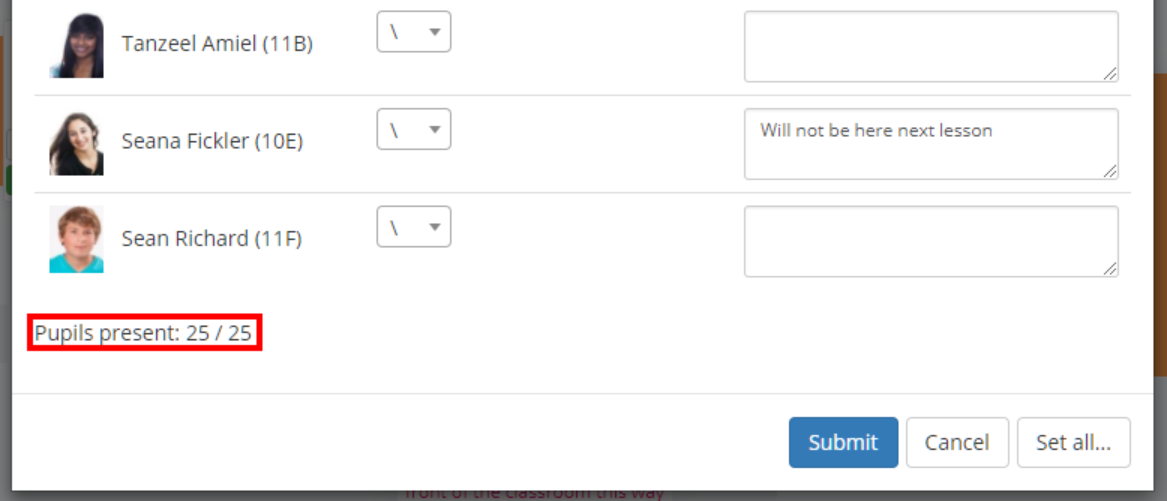
After you have reviewed the attendance records, click on the Submit button to save the register.
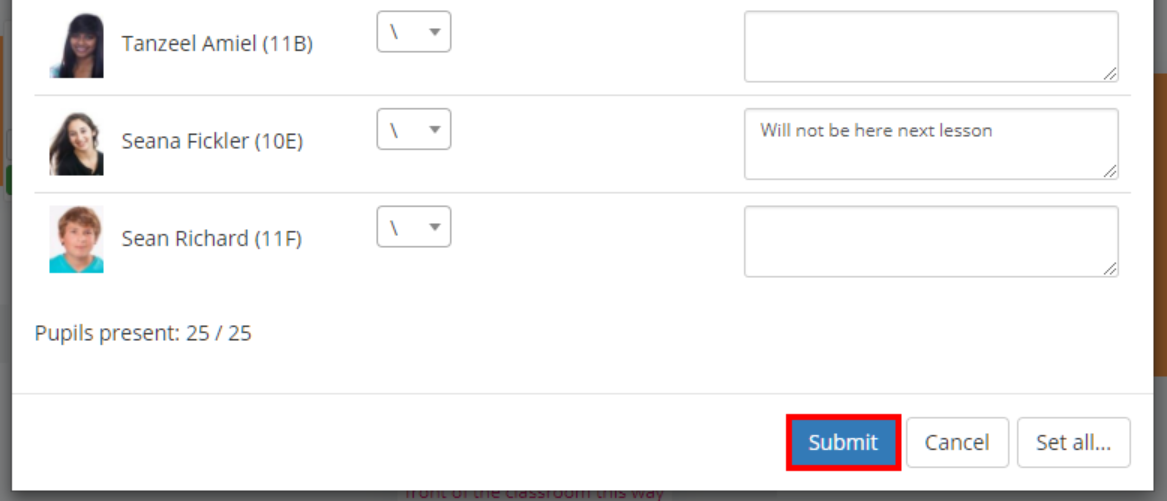
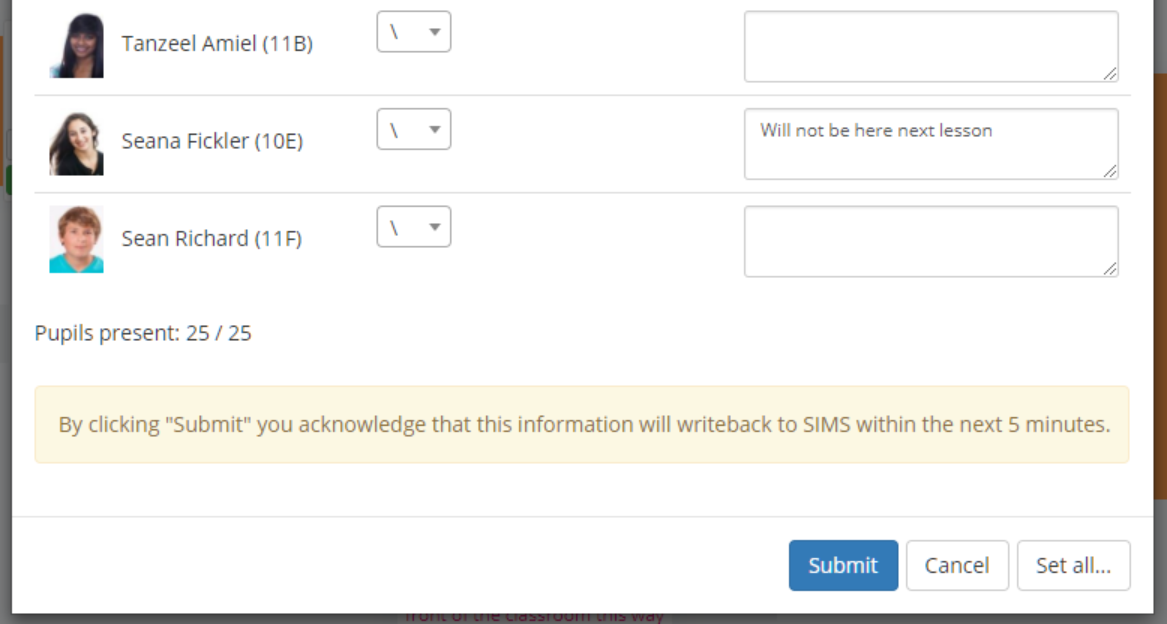
If session attendance was recorded, attendance records will be sent to SIMS within 5 minutes of clicking Submit.
Was this article helpful?
That’s Great!
Thank you for your feedback
Sorry! We couldn't be helpful
Thank you for your feedback
Feedback sent
We appreciate your effort and will try to fix the article