If your school has been integrated with Class Charts via Wonde, you will be able to take attendance within Class Charts. Please Note: Only session attendance will write back to SIMS.
To take attendance within a lesson, start the class of your choice and click on the Attendance tab at the top of the page.

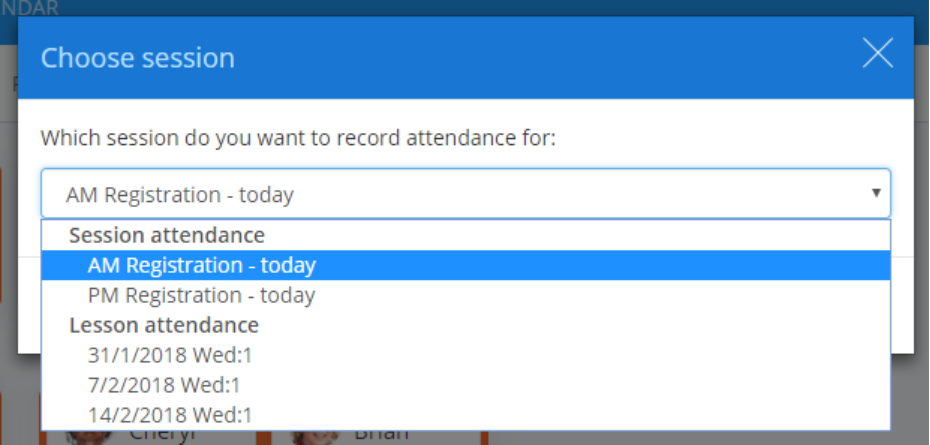
A popup menu will appear which provides the options of taking Session attendance (AM or PM), or Lesson attendance (e.g. Thursday Lesson 3). Select a session and click on the OK button.
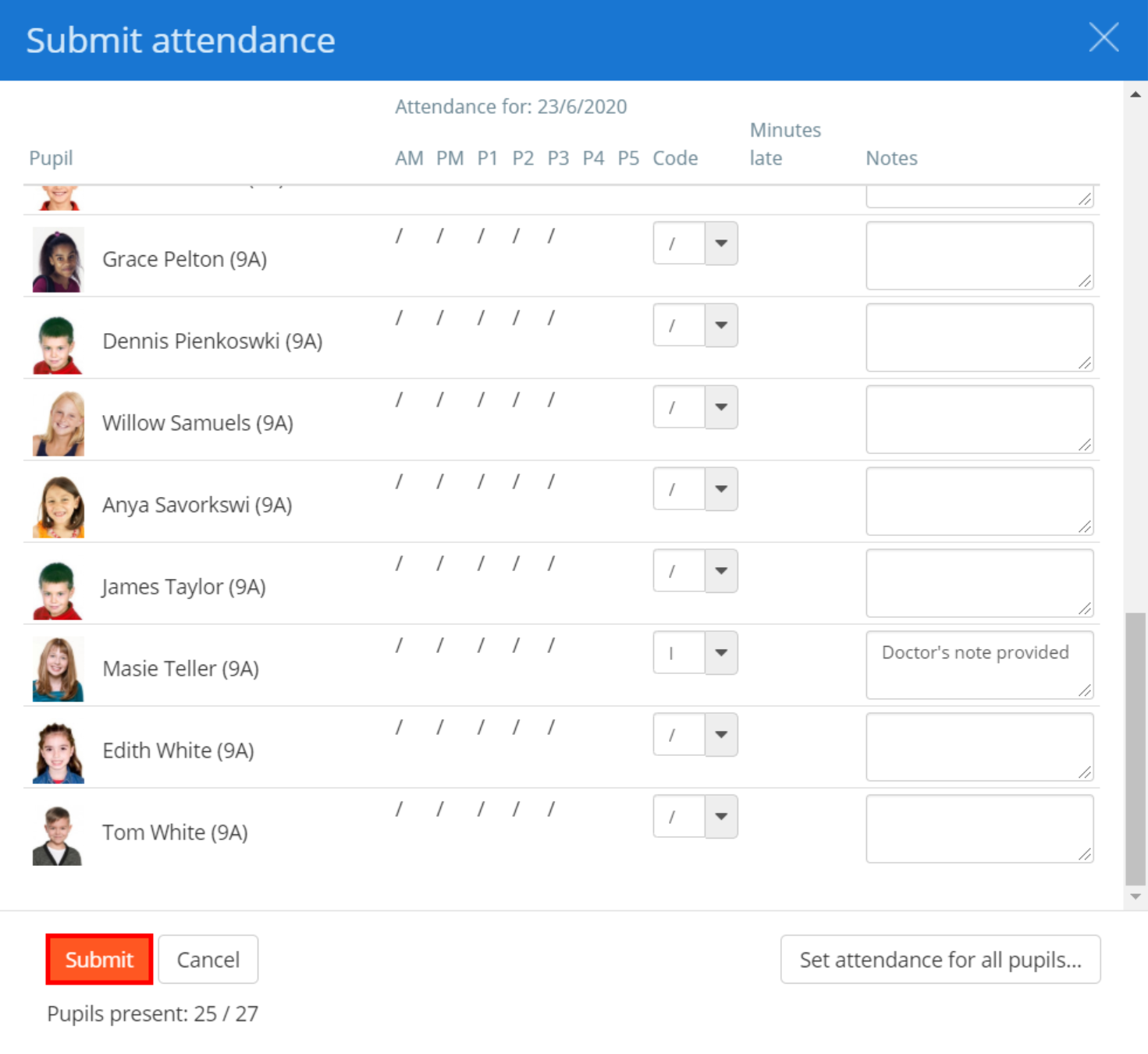
You will be presented with the Submit attendance popup, where every pupil in the class will be listed by alphabetical order of surname. To the right of their name are their attendance records for the current day.
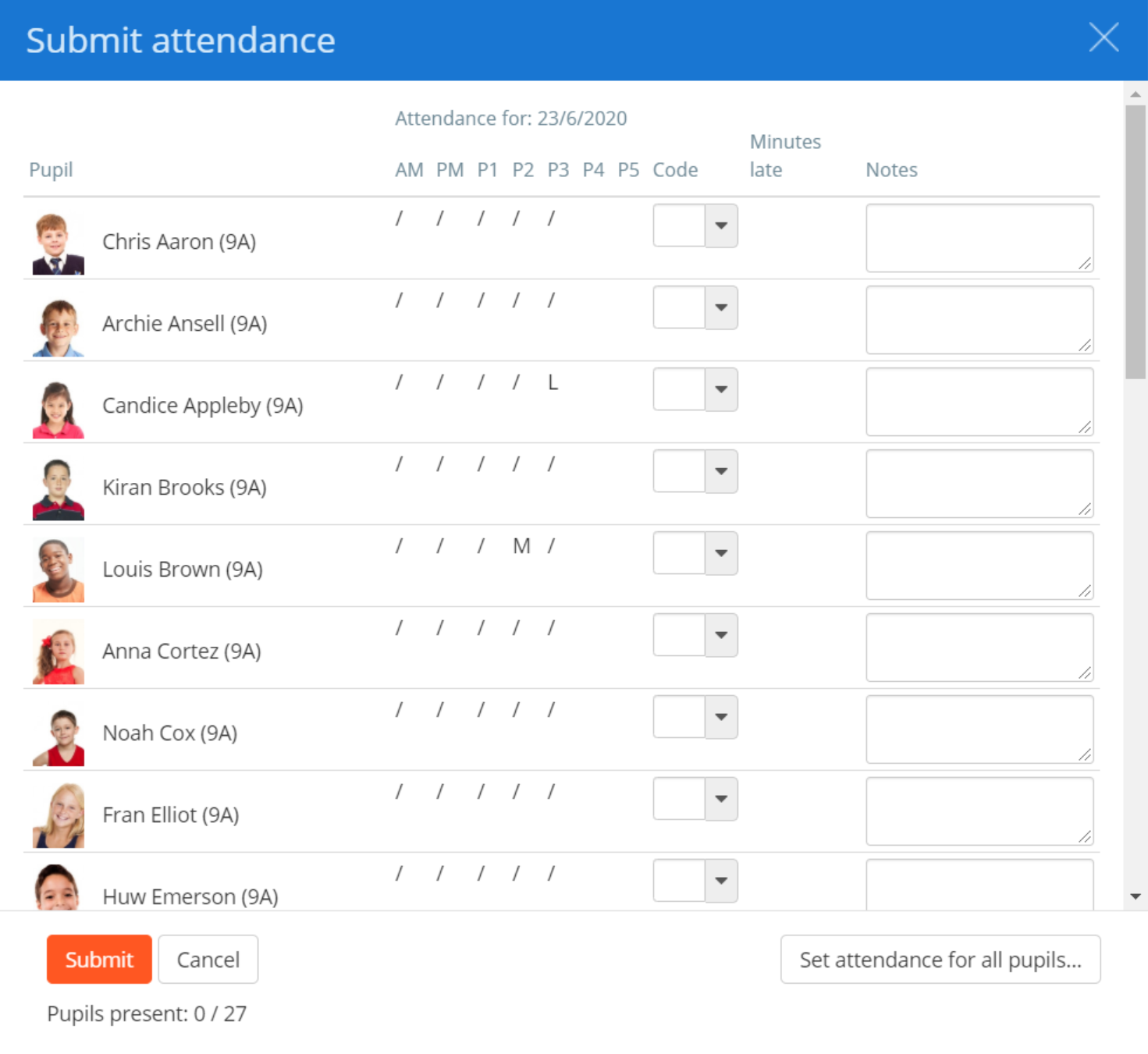
To mark attendance for a pupil, click on their entry in the Code column and select the code of your choice from the drop down menu.
Alternatively, click on a pupil’s entry in the Code column and select the attendance code of your choice from the drop down menu. The cursor will autofocus on the next blank attendance record.
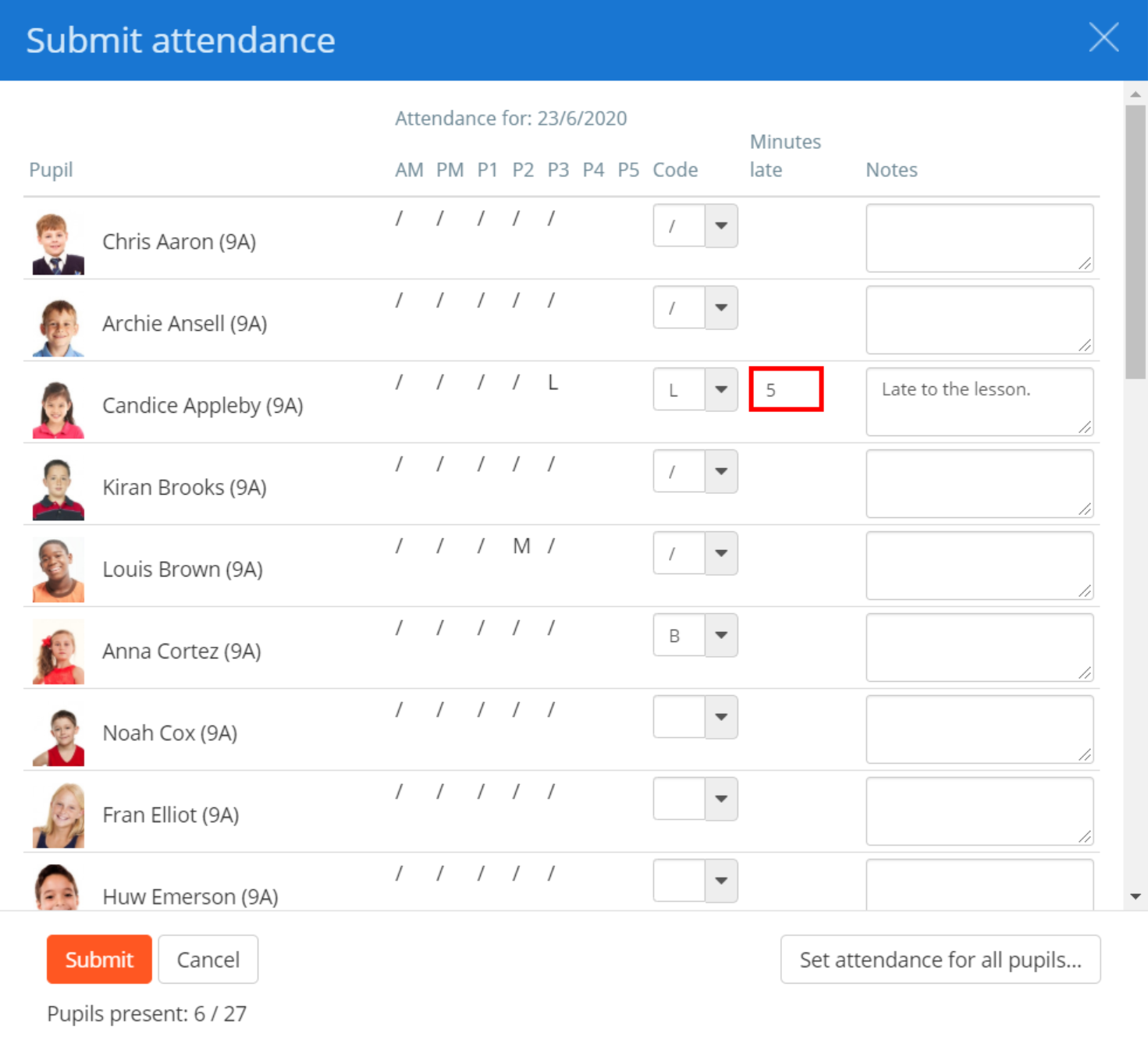
If a pupil has been marked as late to the lesson, an additional field will appear in the Minutes Late column. Use this to specify how many minutes the pupil was late by.
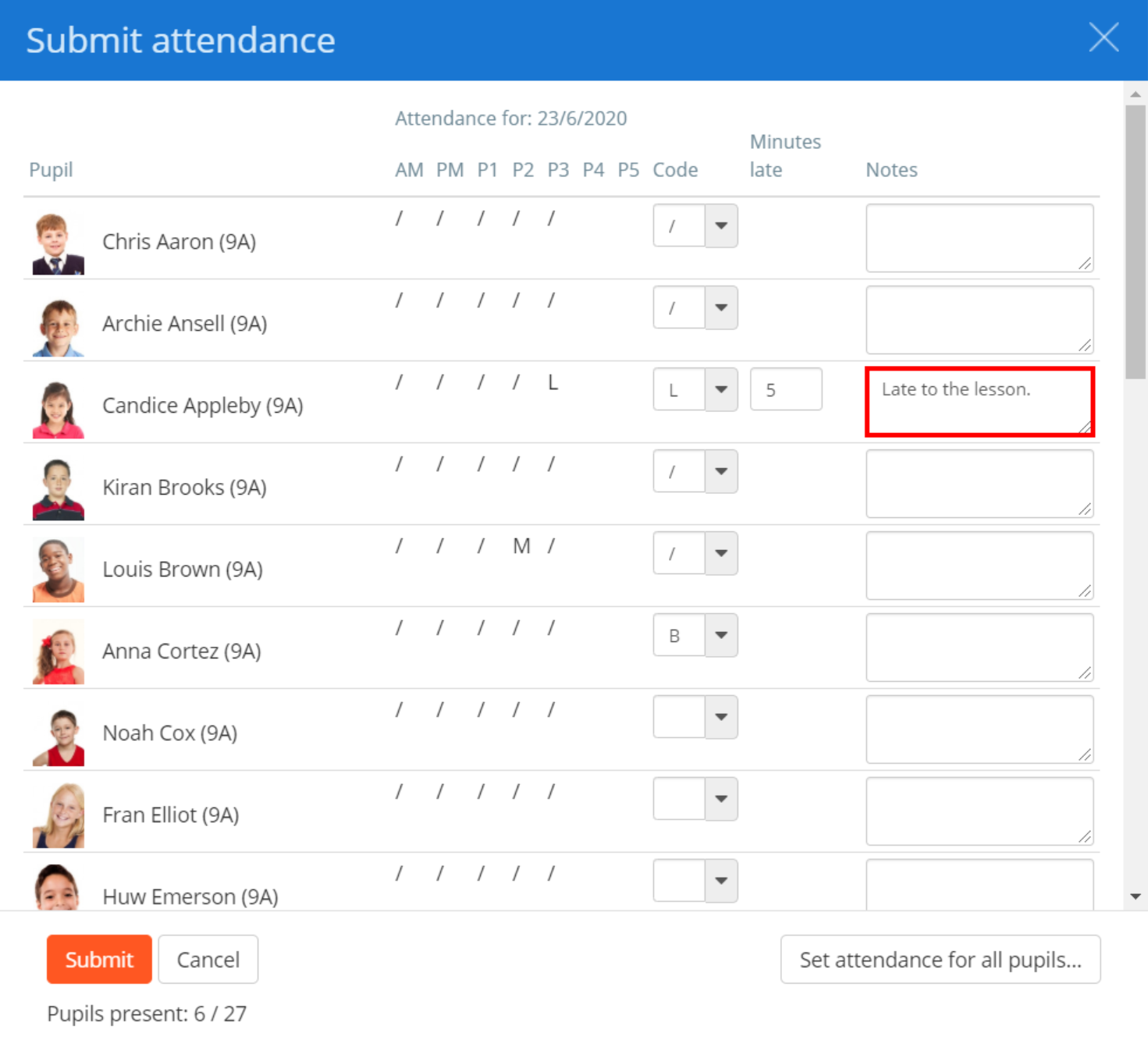
If you would like to provide additional information about a specific attendance record, enter an attendance note into the Notes column.
Marking attendance for multiple pupils
To mark attendance for all pupils within the class simultaneously, click on the set attendance for all pupils button.
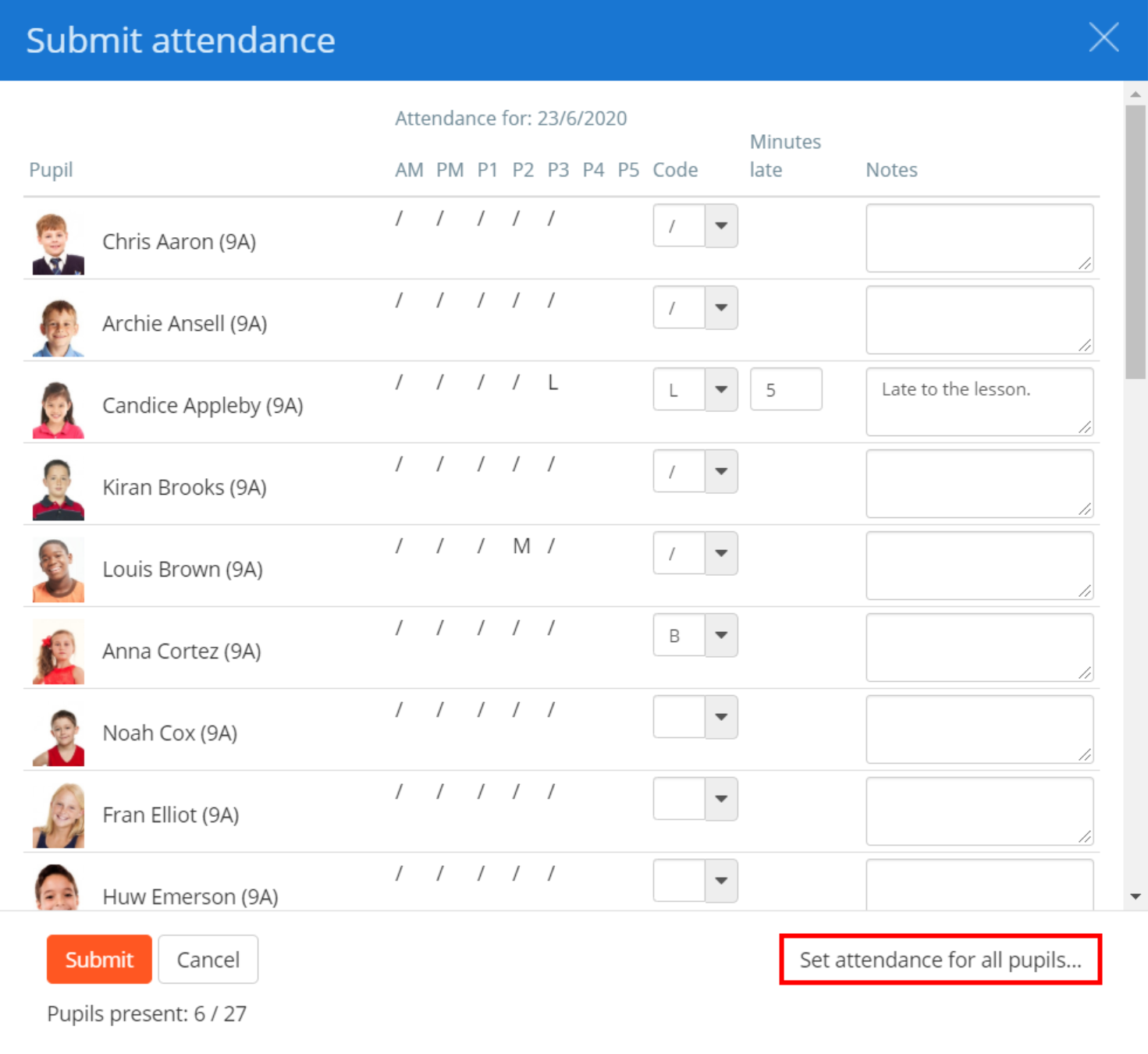
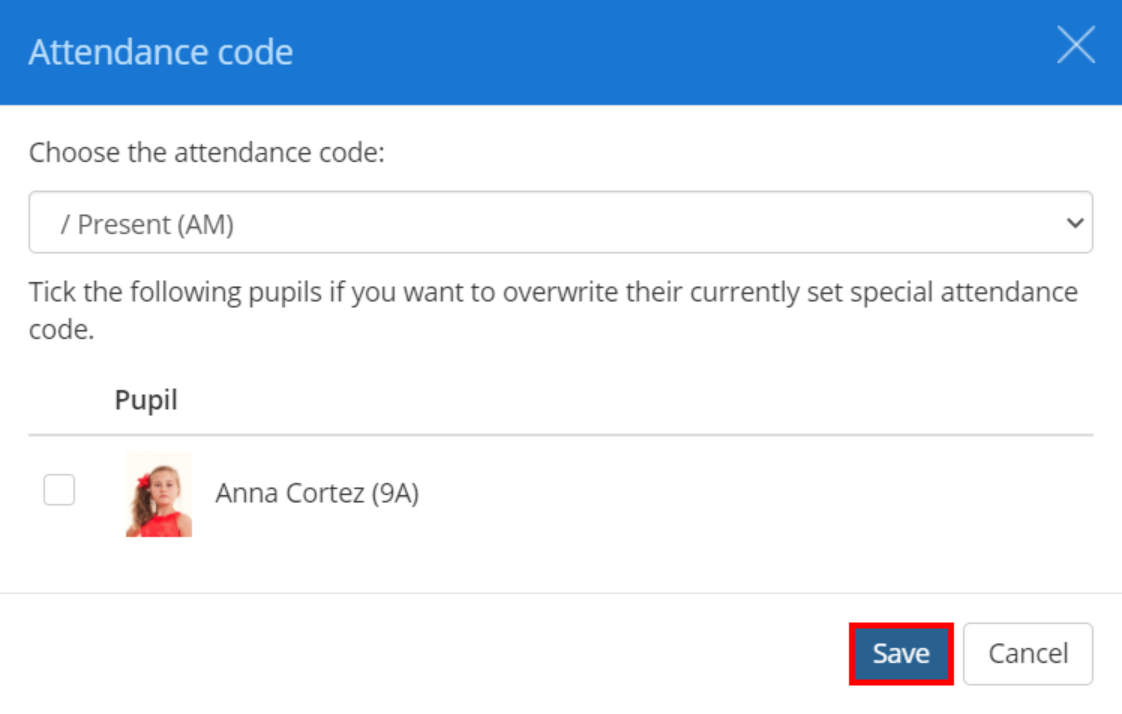
Next, select the attendance code of your choice from the drop down menu and click on the Save button.
If pupils have been marked with a special attendance code on the Submit attendance popup, you can tick to overwrite their current record.
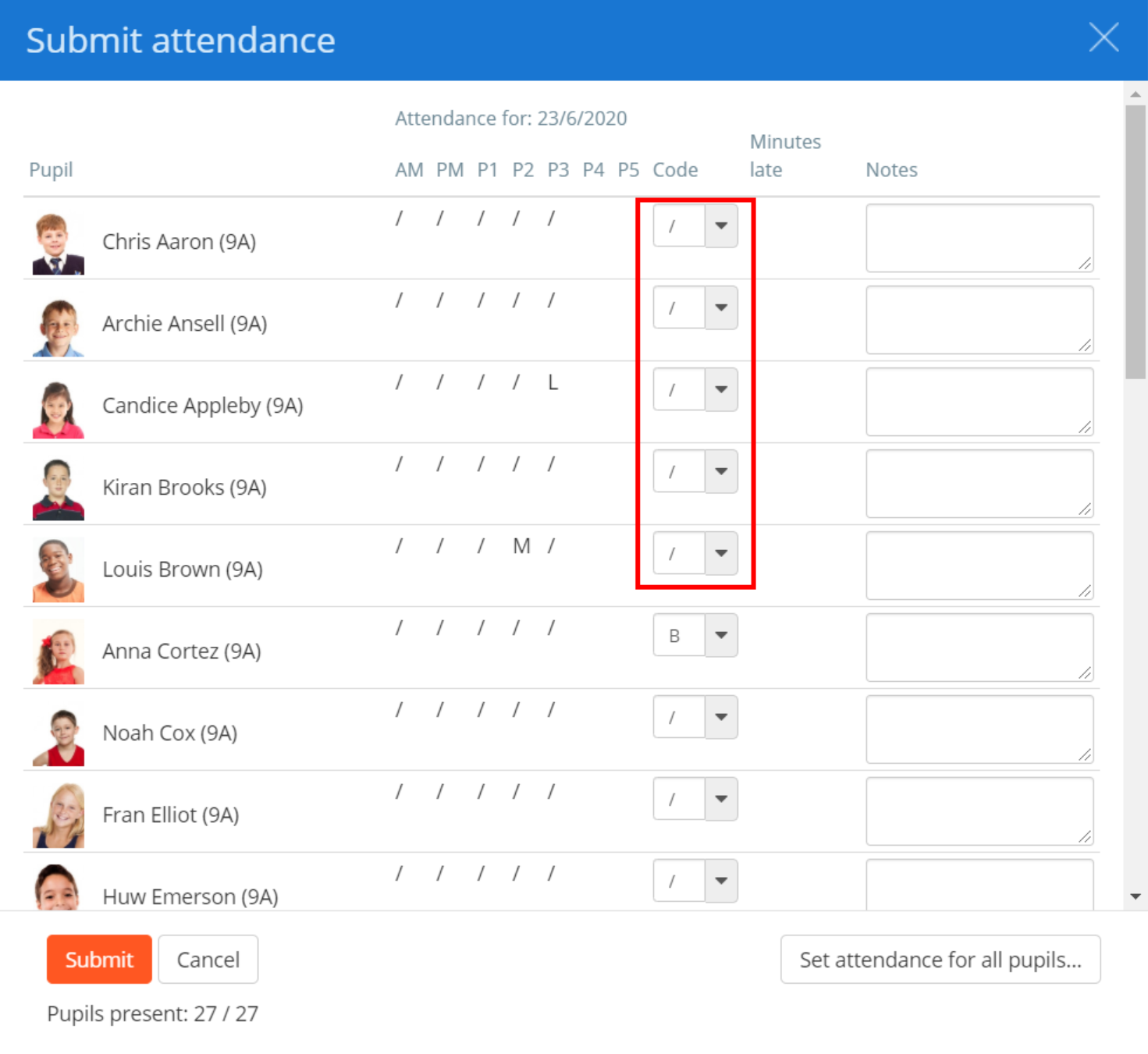
The Submit attendance popup will then be updated with the new attendance code for each pupil.
Submitting the register
As you mark attendance for each pupil, you will notice that the Pupils present count at the bottom of the popup updates. If a teacher tries to submit the register without marking every pupil, they will receive a popup warning informing them that there are missing attendance records.
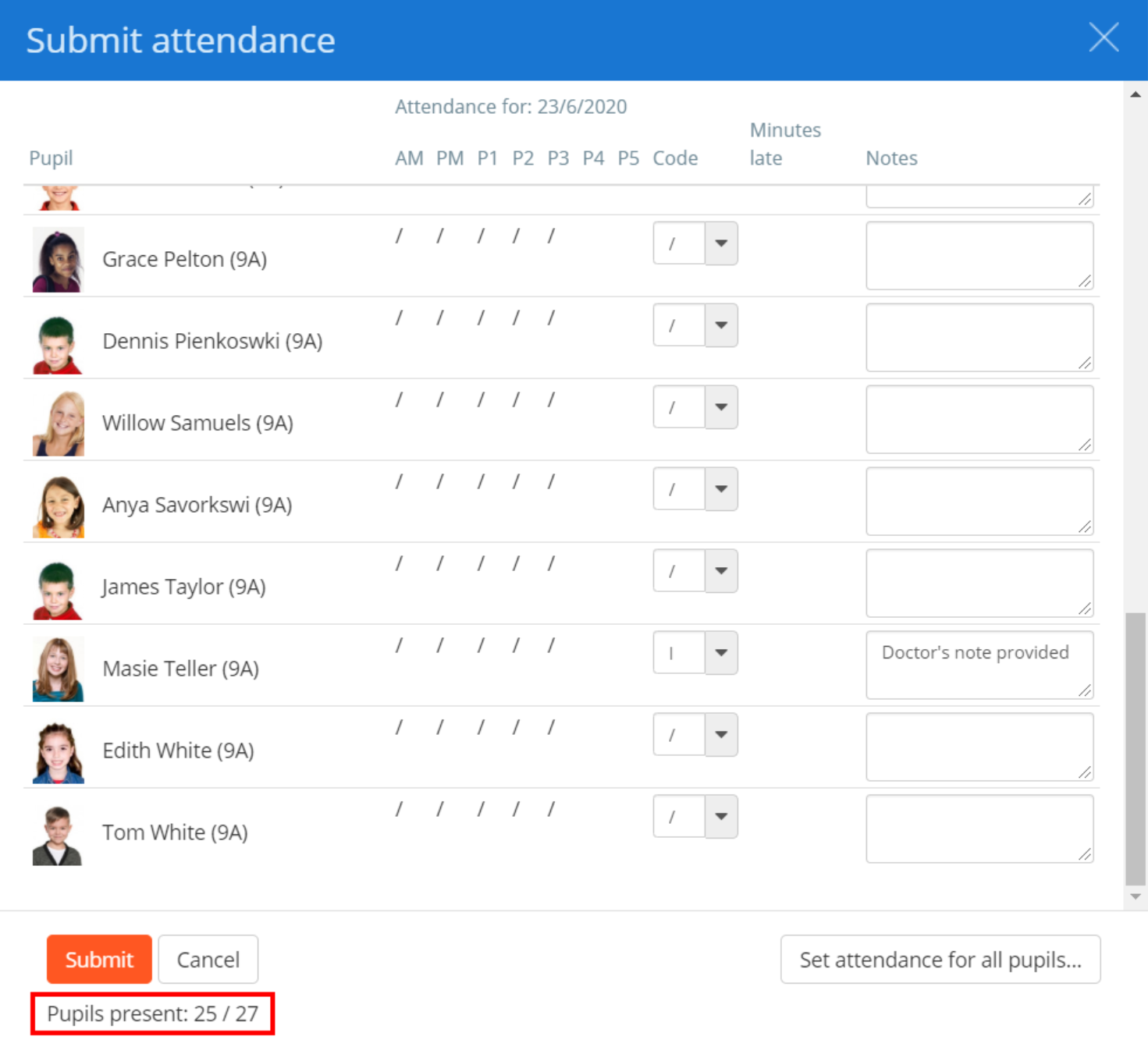
After you have reviewed the attendance records, click on the Submit button to save the register.
If session attendance was recorded, attendance records will be sent to SIMS within 5 minutes of clicking Submit.
Was this article helpful?
That’s Great!
Thank you for your feedback
Sorry! We couldn't be helpful
Thank you for your feedback
Feedback sent
We appreciate your effort and will try to fix the article