If you have created or cloned rooms in Class Charts, they can also be removed.
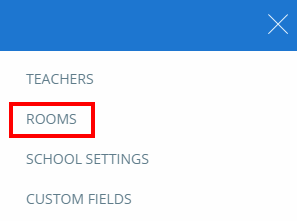
To delete a manually added room, click on the three lines menu in the top right hand corner and select Rooms from the list of available options.
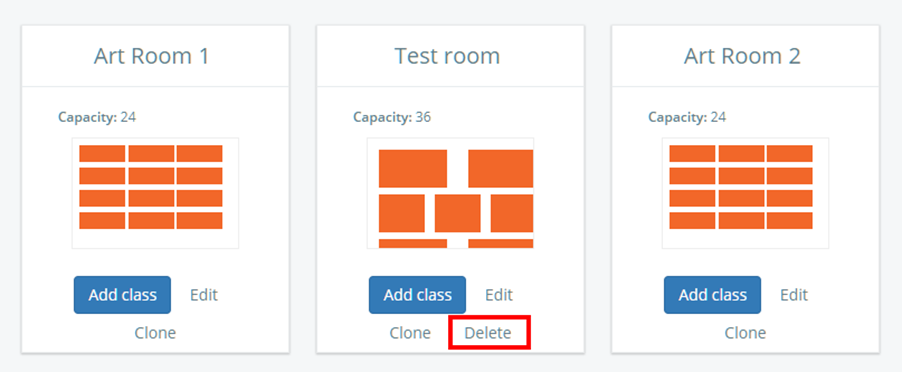
You will be presented with a list of rooms that have been set up in your school’s Class Charts account. Click on the Delete button for the room of your choice.
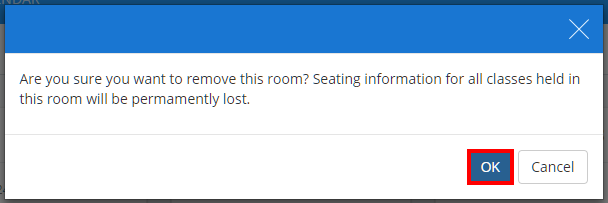
A confirmation popup will appear, informing you that deleting the class will permanently wipe seating plans for classes that use the room. Click on the OK button to confirm your choice.
The manually added room will now be removed from the list of available rooms.
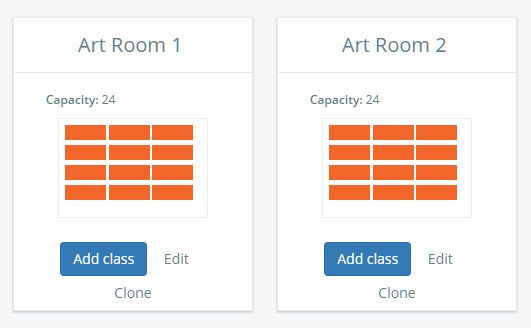
The room is now deleted.
Was this article helpful?
That’s Great!
Thank you for your feedback
Sorry! We couldn't be helpful
Thank you for your feedback
Feedback sent
We appreciate your effort and will try to fix the article