There may be times when staff may wish to make changes to a room without affecting other staff members that use the room. Class Charts allows you to clone rooms so that changes can be made without affecting the original.
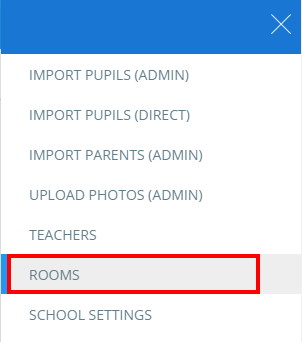
To clone a room, click on the three lines menu in the top right hand corner and select Rooms from the list of available options.
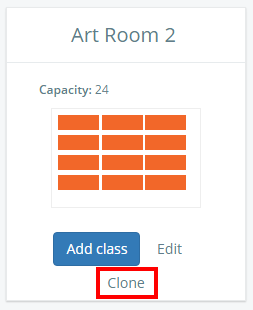
You will be presented with a list of rooms that have been set up in your school’s Class Charts account. Click on the Clone button for the room of your choice.
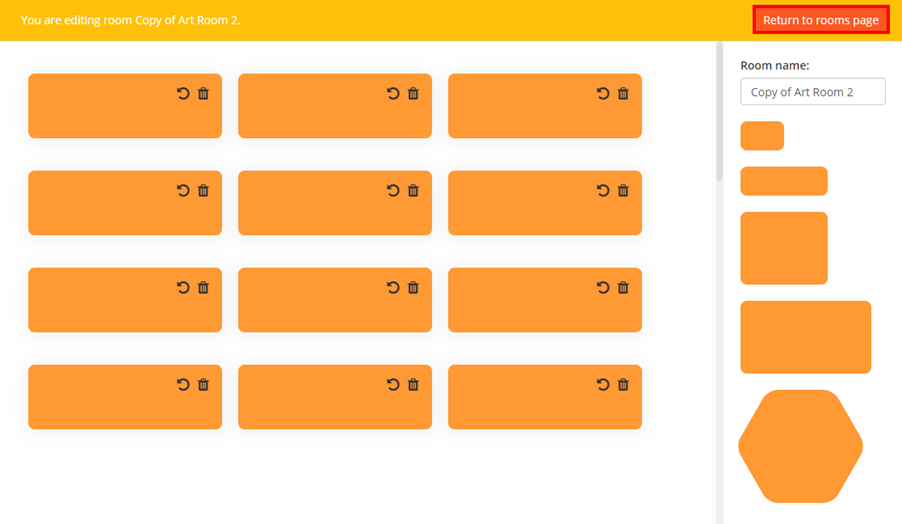
You will be redirected to the Edit room page. Make changes to the desk arrangement as you see fit and rename the room via the Room name field. Once you are happy with your changes, click on the Return to rooms page button.
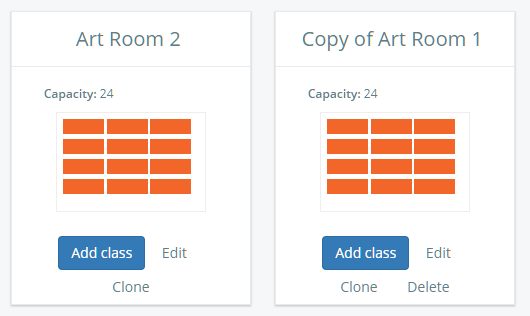
The cloned room will now be present in the rooms list.
Was this article helpful?
That’s Great!
Thank you for your feedback
Sorry! We couldn't be helpful
Thank you for your feedback
Feedback sent
We appreciate your effort and will try to fix the article