Class Charts allows you to create note categories which you can to differentiate between notes on different topics.
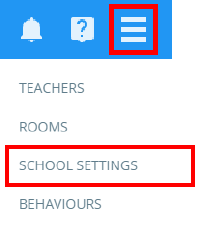
To create a note category, click on the three lines menu in the top right-hand corner and select School Settings from the list of available options.
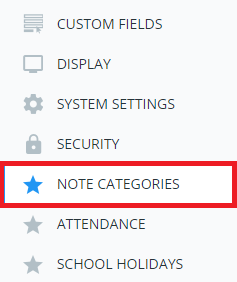
Next, select Note categories from the left hand side navigation menu.
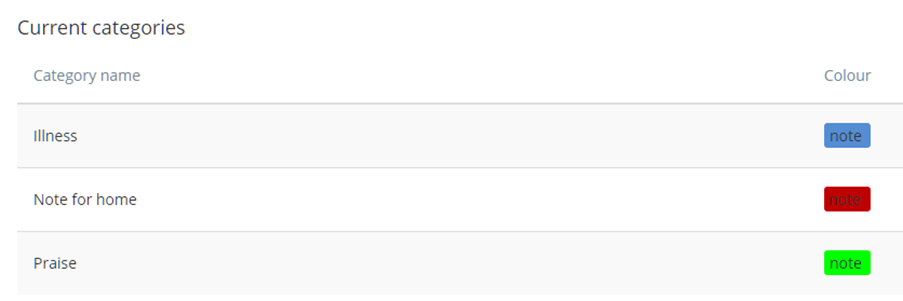
You will be presented with a list of note categories that are currently set up in your school.
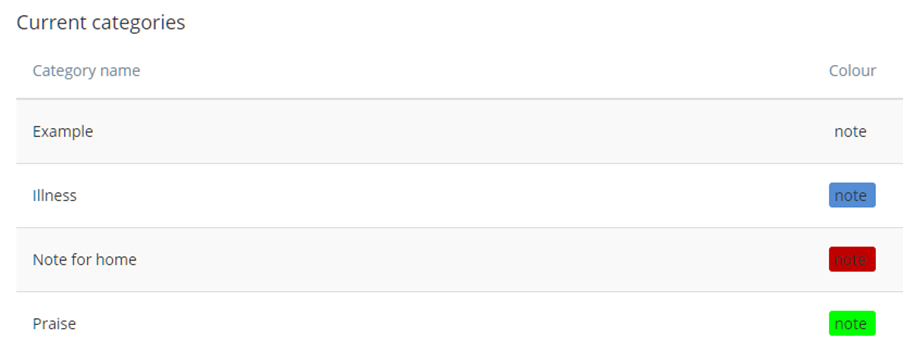
Enter a category name into the Add category field and click on the Add button.

The new note category will be added to the Current categories list.
Editing a note category
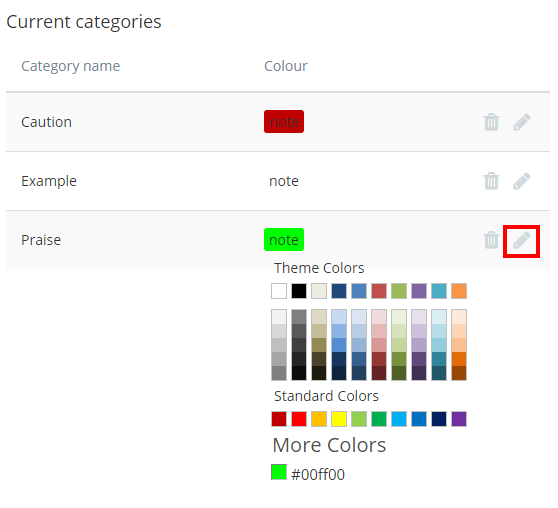
To change the colour of a note category, click on the pencil icon next to the note category of your choice.
A colour picker will appear, allowing you to select a new colour for the note category.
Deleting a note category
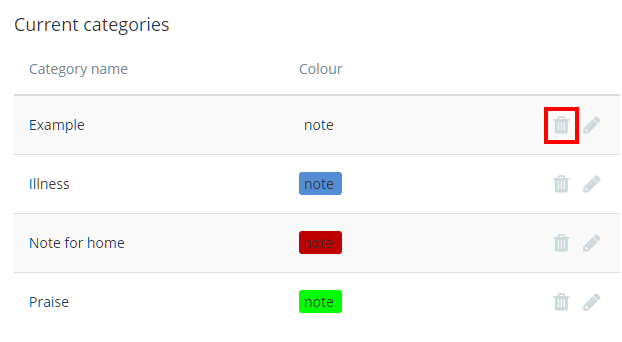
To delete a note category, click on the bin icon next to the note category of your choice.
A popup will appear, asking you to confirm your choice. Click on the OK button to finish deleting the note category.
Applying a note category to a note
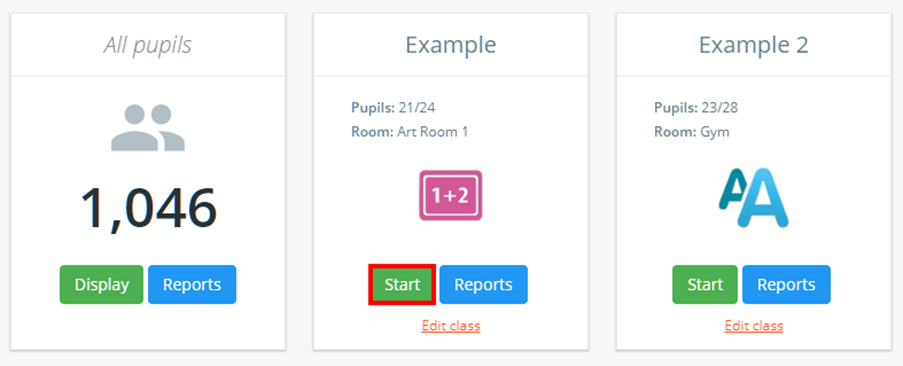
To apply a note category to a pupil note, click on the Classes tab along the top of the page and start the class of your choice by clicking on the Start button.

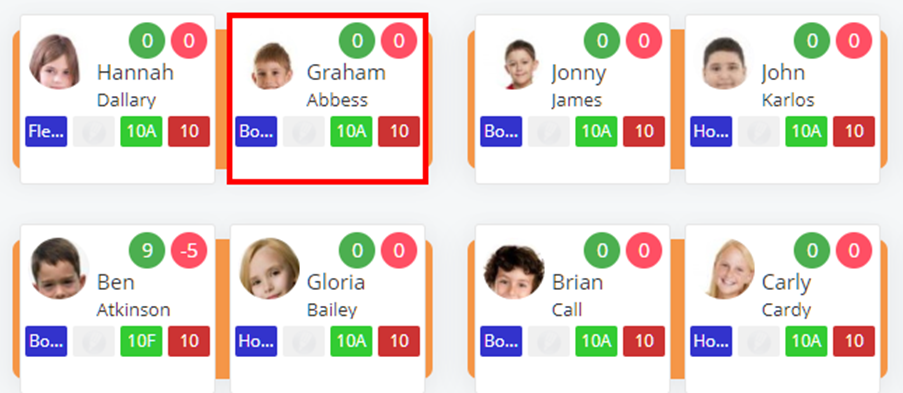
Next, select the pupil of your choice by clicking on their pupil card.
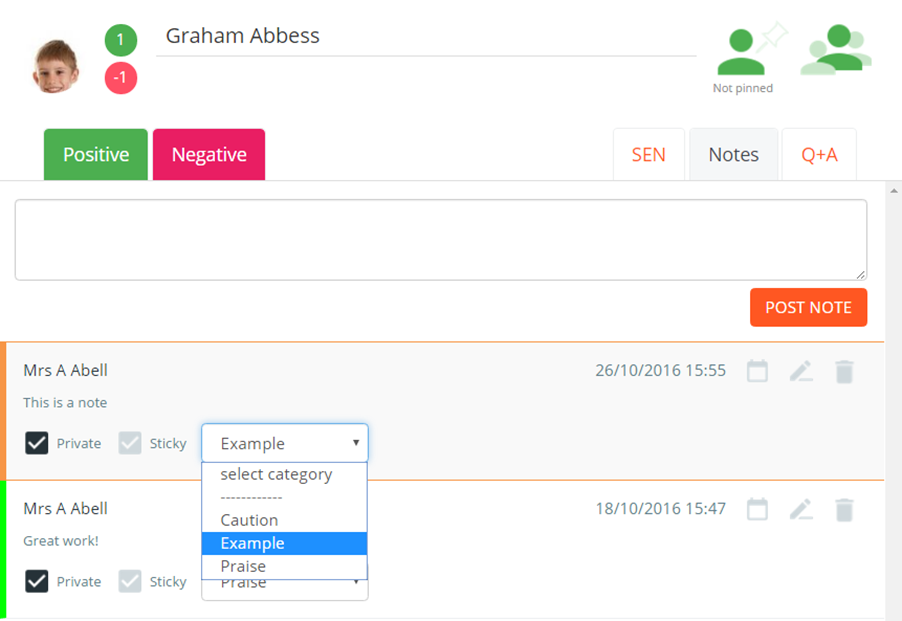
The pupil sidebar will appear. Click on the Notes tab to view the pupil’s notes.
To apply a note category to the note of your choice, choose a note category from the select category drop down menu.
Was this article helpful?
That’s Great!
Thank you for your feedback
Sorry! We couldn't be helpful
Thank you for your feedback
Feedback sent
We appreciate your effort and will try to fix the article