There may be times during your lessons where you might want to choose a pupil at random to answer a question.
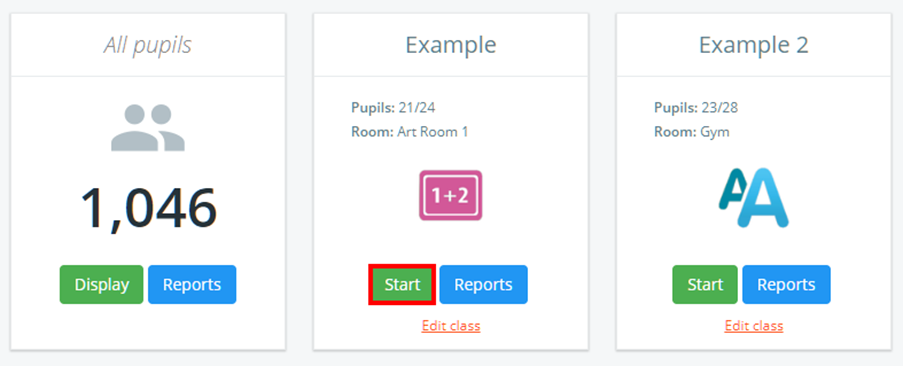
To randomly select a pupil, first begin by clicking the Start button for the class of your choice.
When inside the class, click on the Random pupil button along the top of the page.

You will then see the pupil card selector randomly move around the class, highlighting multiple pupils until it stops on a random pupil.
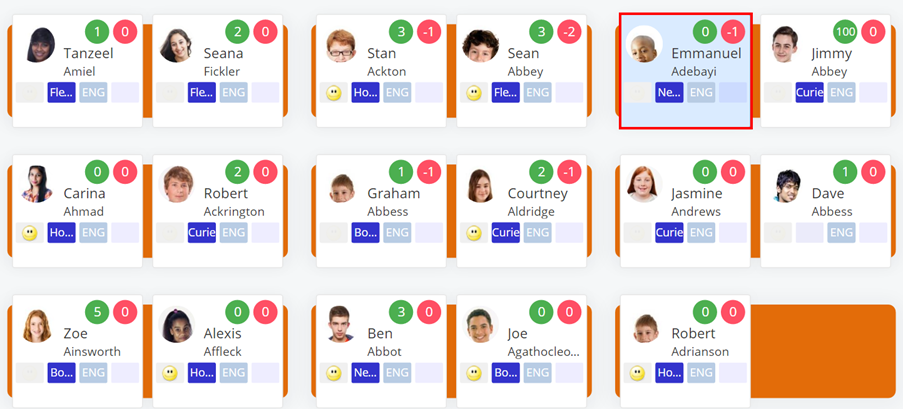
Once the random pupil generator has stopped, the pupil sidebar for the chosen pupil will open on the Q+A page.
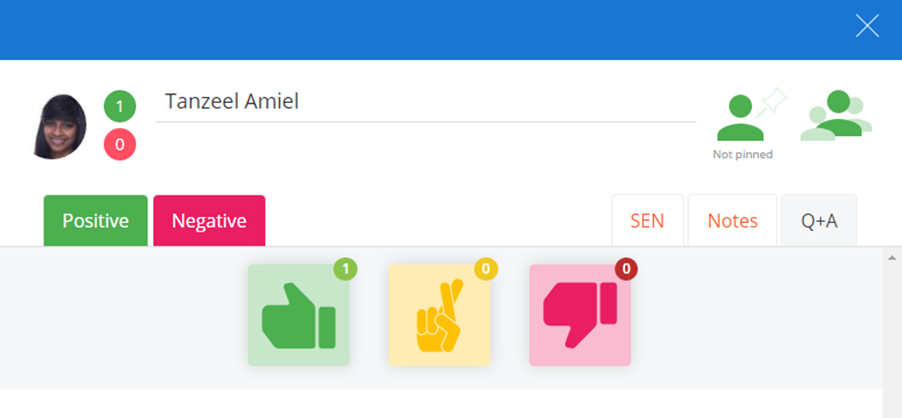
Here you will able to use the three answer buttons to determine how correctly the pupil answered the question. The green button represents Correct, yellow represents Nearly correct and red indicates incorrect.
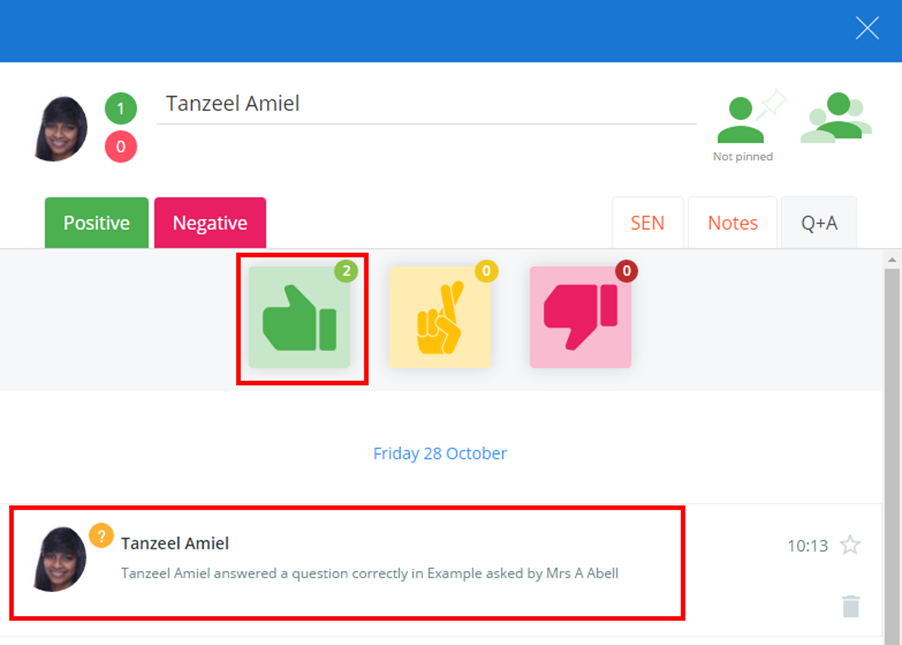
The result of the question will then appear in the pupil’s activity feed shown in the pupil sidebar, as well as the Activity feed for the school.
Was this article helpful?
That’s Great!
Thank you for your feedback
Sorry! We couldn't be helpful
Thank you for your feedback
Feedback sent
We appreciate your effort and will try to fix the article