There may be times when pupils move to and from classes with outstanding homework that still applies to them. Homework differentiation allows teachers to manage assigned homework tasks in these special cases and can also be used to set differentiated homework within a class.
To begin using the homework differentiation, start the class where the homework task was published.
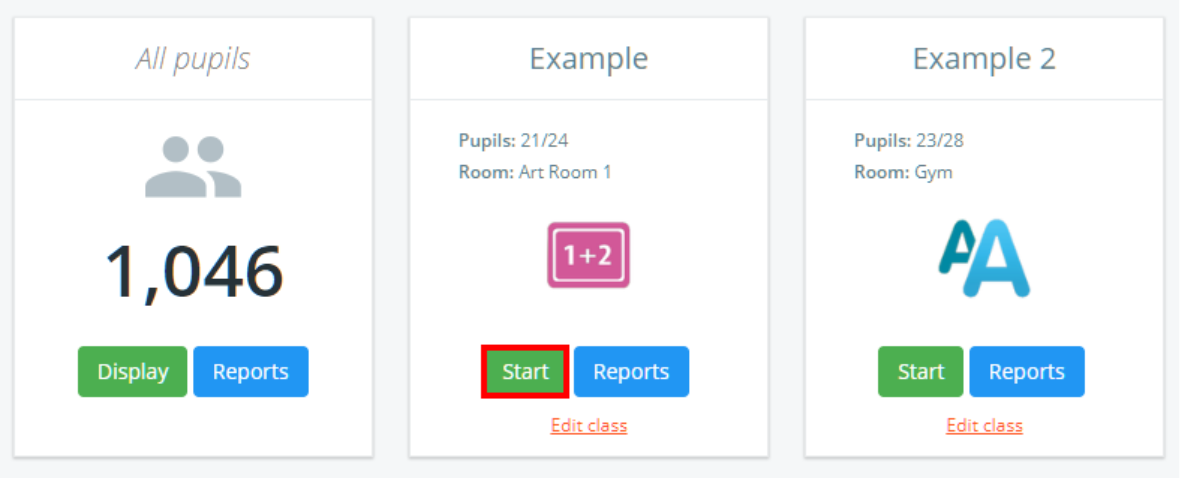
Next, click on the Homework tab along the top of the page.
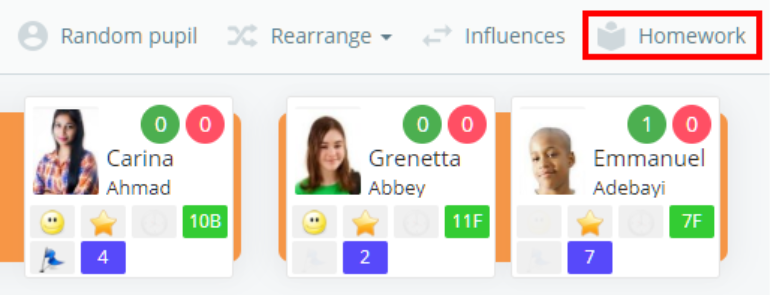
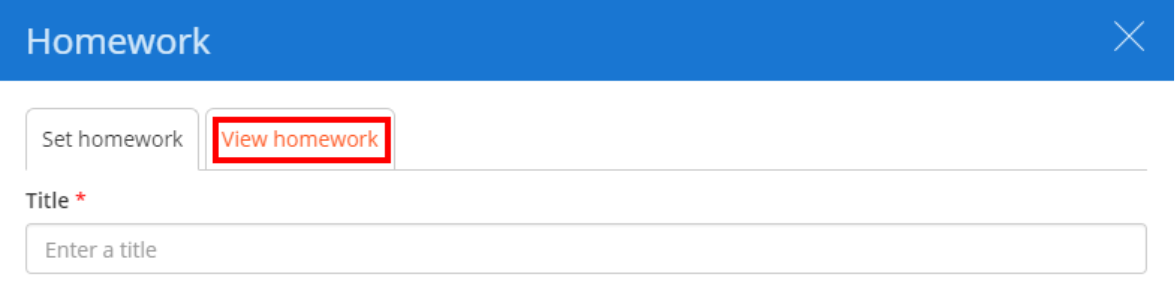
The homework sidebar will appear on the Set homework tab. Click on the View homework tab.
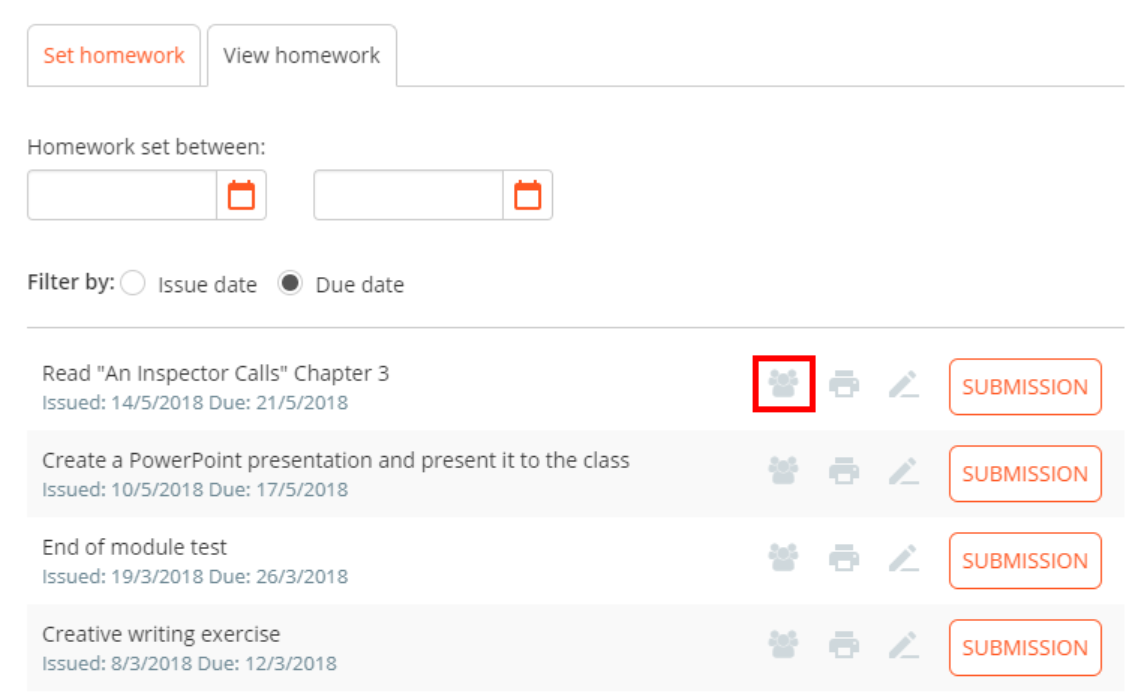
You will be presented with a list of published homework tasks for the class. Click on the people icon for a homework task to bring up its homework differentiation menu.
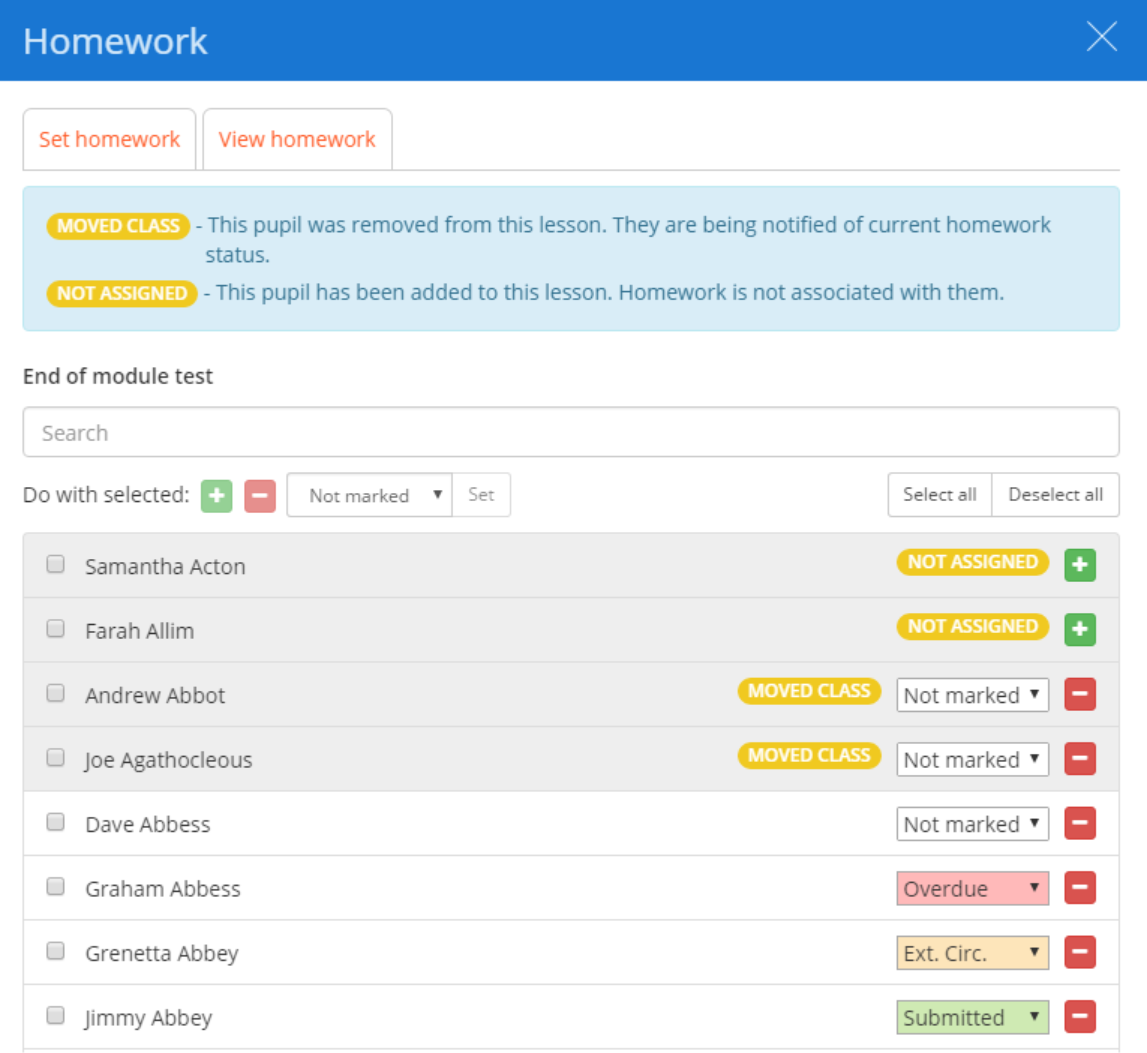
You will then be presented with a list of pupils in the class. This list will also contain pupils who have moved into the class, and pupils who were in the class when the homework was set but have since left the class.
As shown in the screenshot below, pupils who left the class are indicated by a Moved class banner next to their name, and new pupils are indicated with a Not assigned banner.
Unassigning a pupil from the homework task
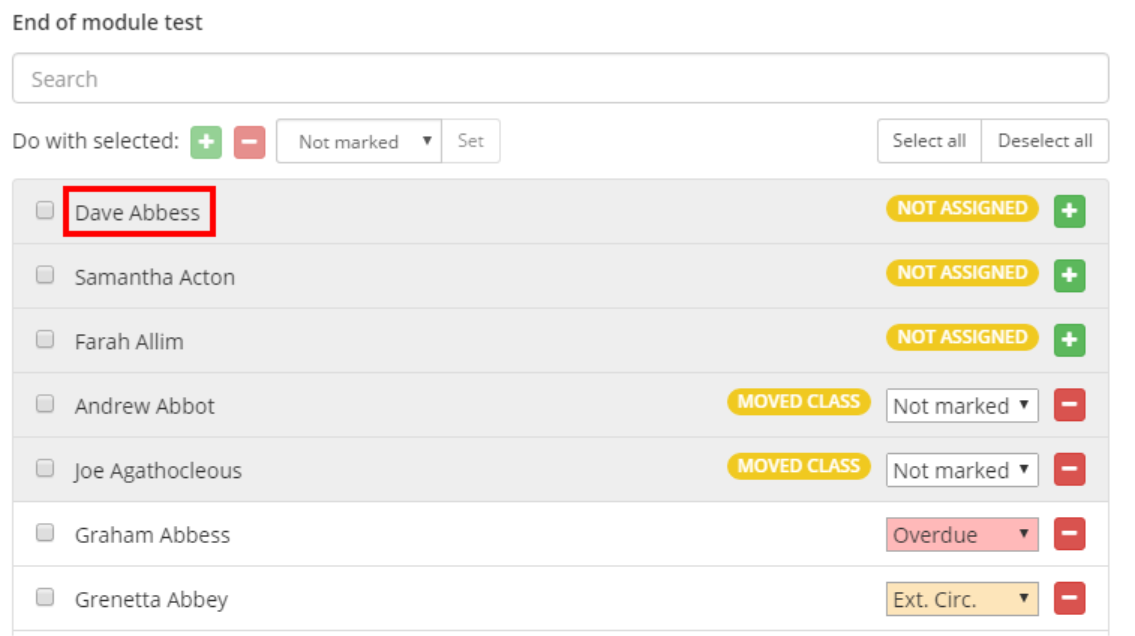
To un-assign a pupil from the homework task, simply on the minus symbol icon in their row.

The pupil (in this case Dave Abbess) will then appear in the greyed out section of the list with a Not assigned icon next to their name, indicating that they have been taken off the homework task.
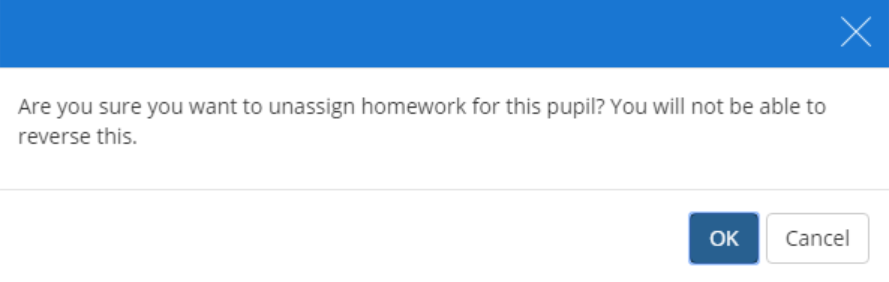
Pupils with the Moved class icon next to their name will still be notified about the homework task. To fully remove them from the homework task, click on the minus symbol icon next to their name.
A warning popup will appear. Click on the OK button to remove the pupil from the homework completely, with no way to reassign them.
Assigning a pupil to the homework task
To assign a pupil to the homework task, click on the plus symbol icon in their row.

The pupil (in this case Samantha Acton) will then be assigned the homework and appear in the homework list with the other pupils.

Marking homework submissions
You can also use the homework differentiation menu to mark submissions for the homework task. Pupils that have seen the homework task through their pupil account will have an eye icon displayed next to their name.
Select the submission status for each pupil using the drop down menu in their row.
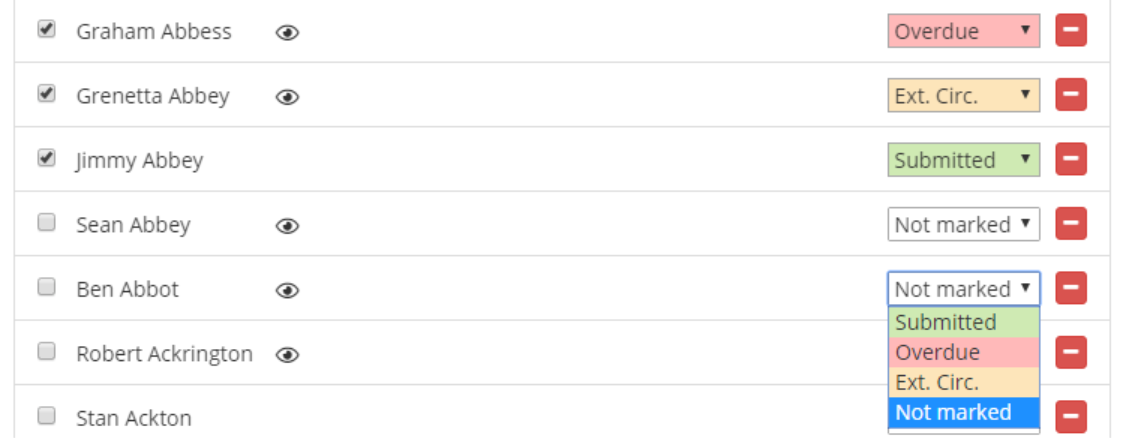
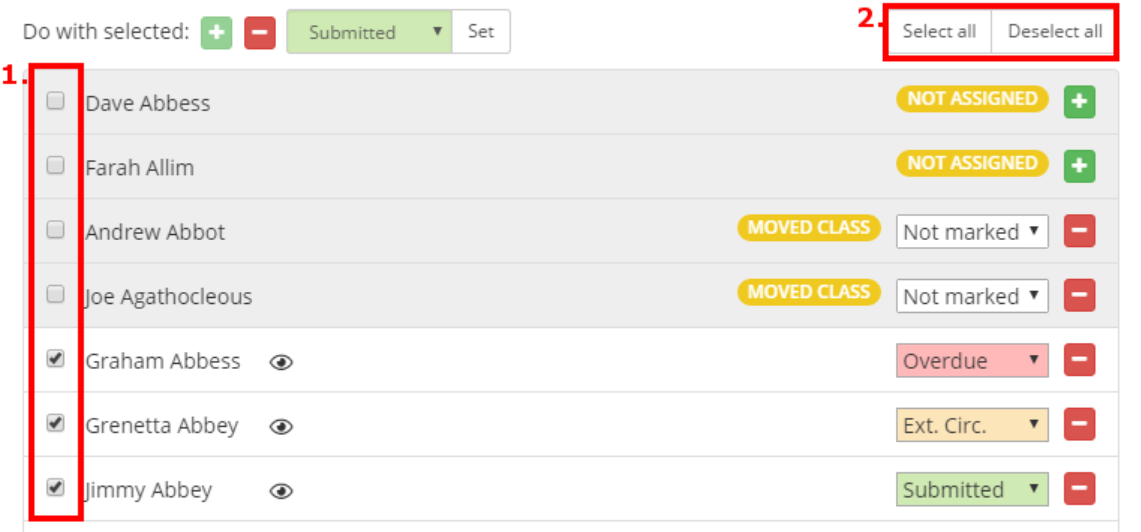
To mark homework submissions simultaneously, you can either select pupils by ticking the checkbox next to their name (1), or the Select all button (2). Once selected, select a homework submission status from the drop down menu and click on the Set button.
Was this article helpful?
That’s Great!
Thank you for your feedback
Sorry! We couldn't be helpful
Thank you for your feedback
Feedback sent
We appreciate your effort and will try to fix the article