If you find yourself creating multiple homework tasks in a similar format, it might be worth setting up homework templates in order to save some time.
There are three methods for creating homework templates in Class Charts:
Creating a homework template via the in class templates tab
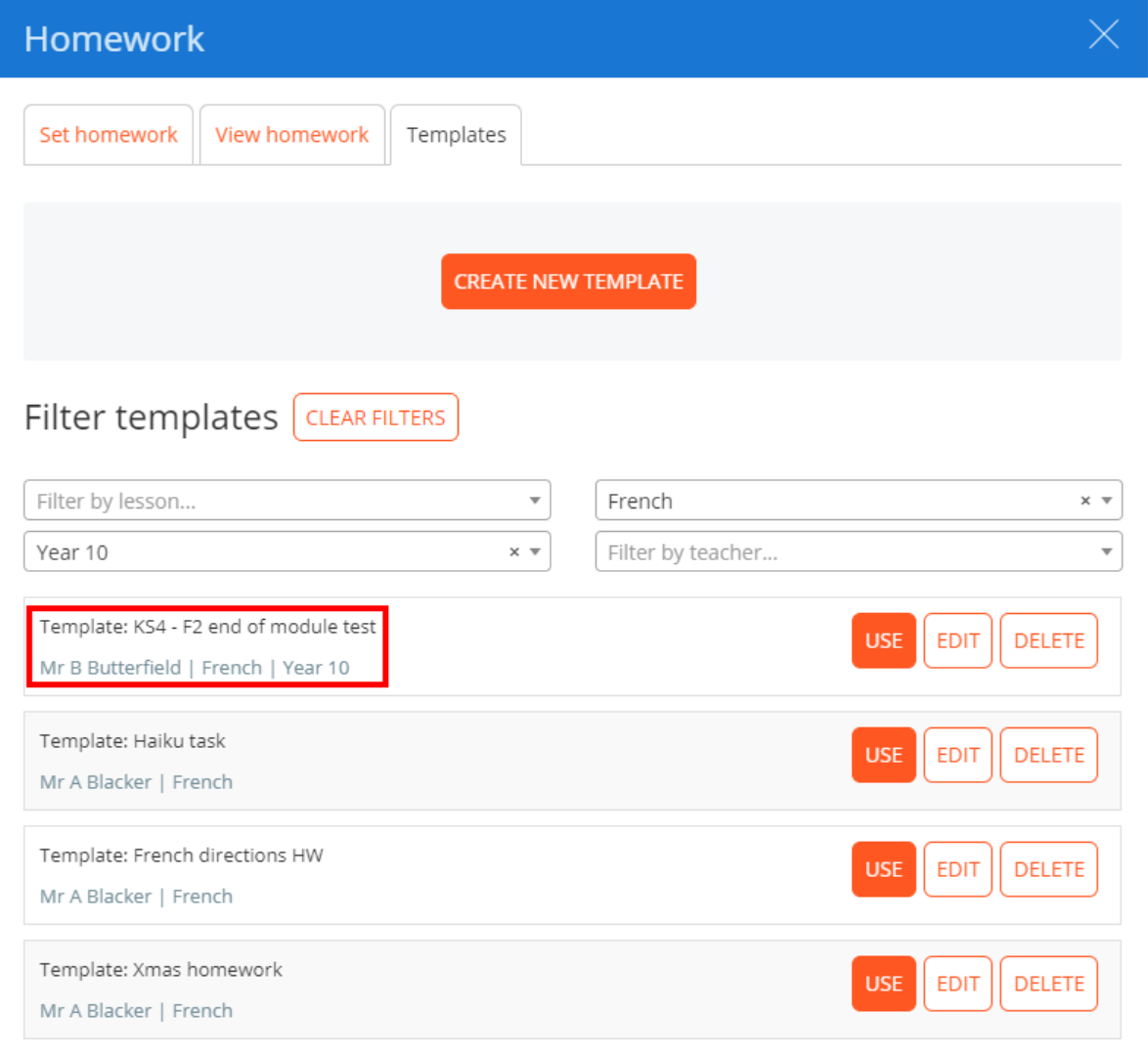
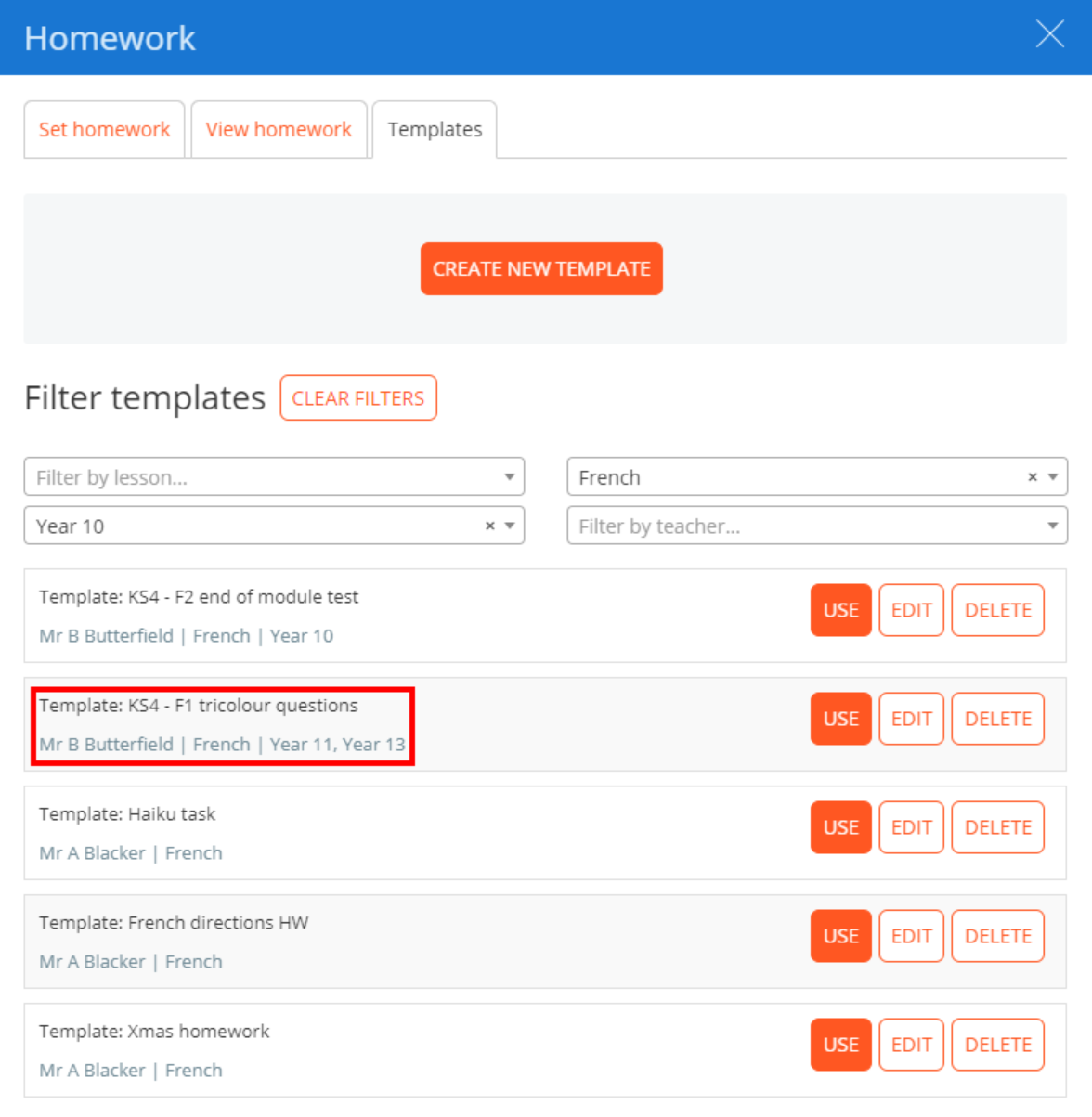
To create a new homework template from scratch in class, click on the Templates tab.

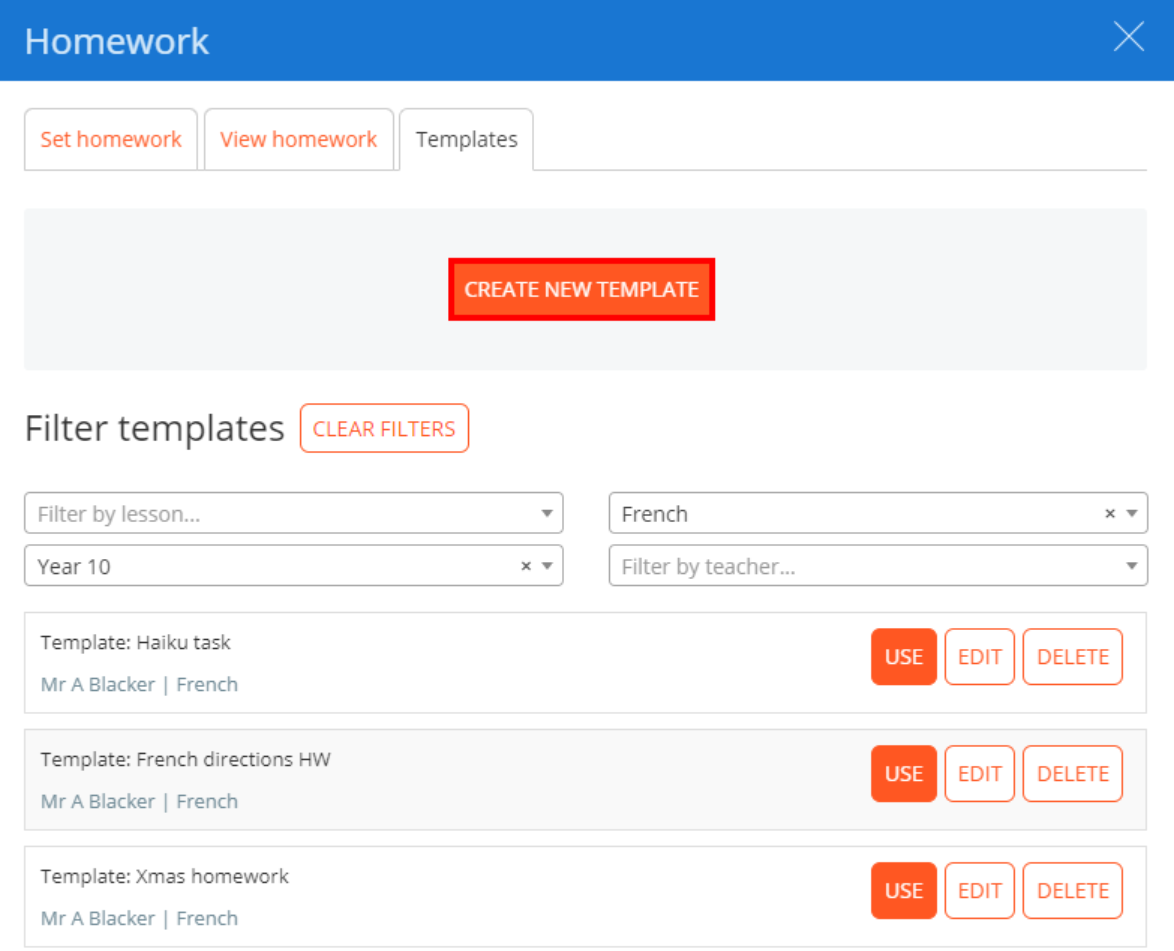
You will be presented with a list of homework templates, already filtered to your lesson’s subject and year group. Click on the Create new template button.
The Templates tab will now display a similar interface to the Set homework tab.
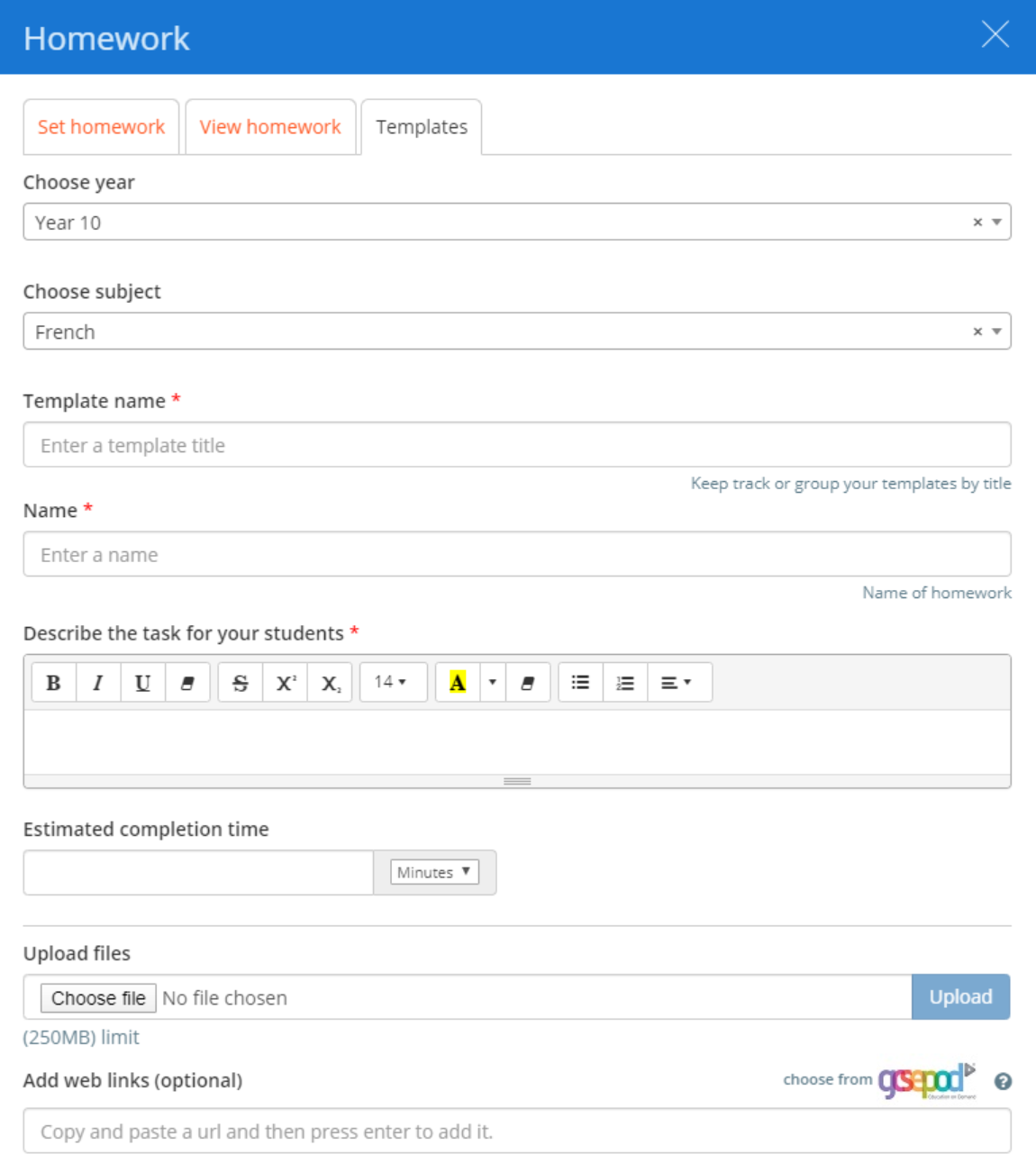
One key difference to the regular set homework tab is the inclusion of three additional template fields. These are explained in more detail below:
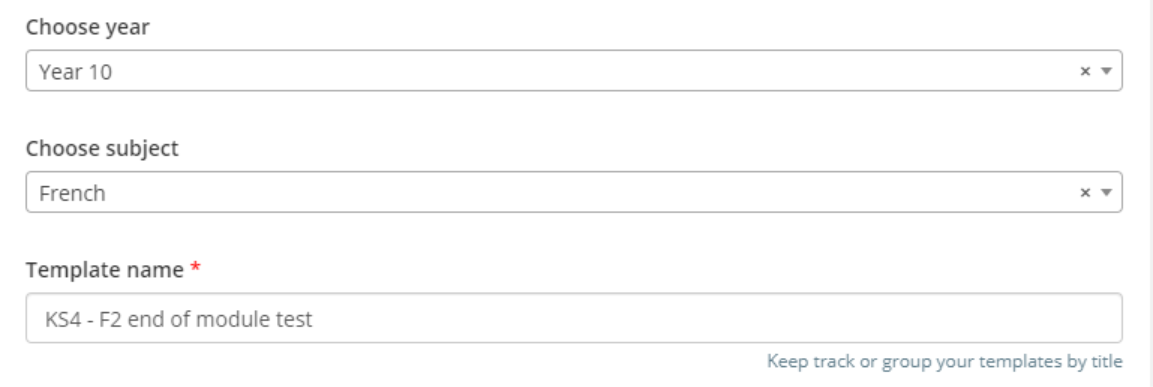
Choose year: The year group that the homework template is intended for.
Choose subject: The subject that the homework template is intended for
Template name: The template name that appears in the Templates section. Pupils do not see this name.
Enter the homework task details as you would a normal homework task. Once you are happy with your homework template, click on the Save template button.
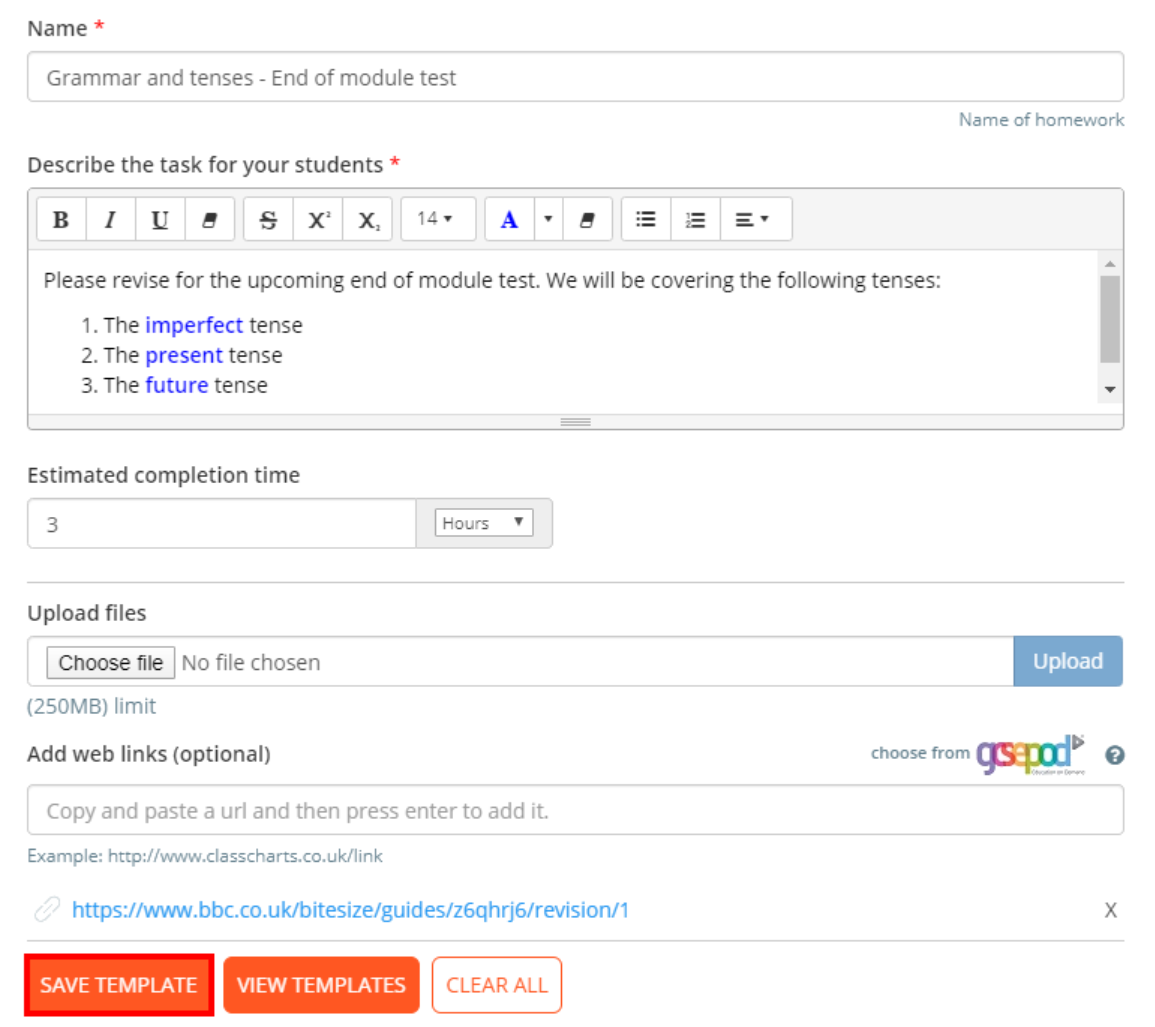
The new homework template will be saved successfully, appearing in the list of available templates.
Creating a homework template from an existing homework task
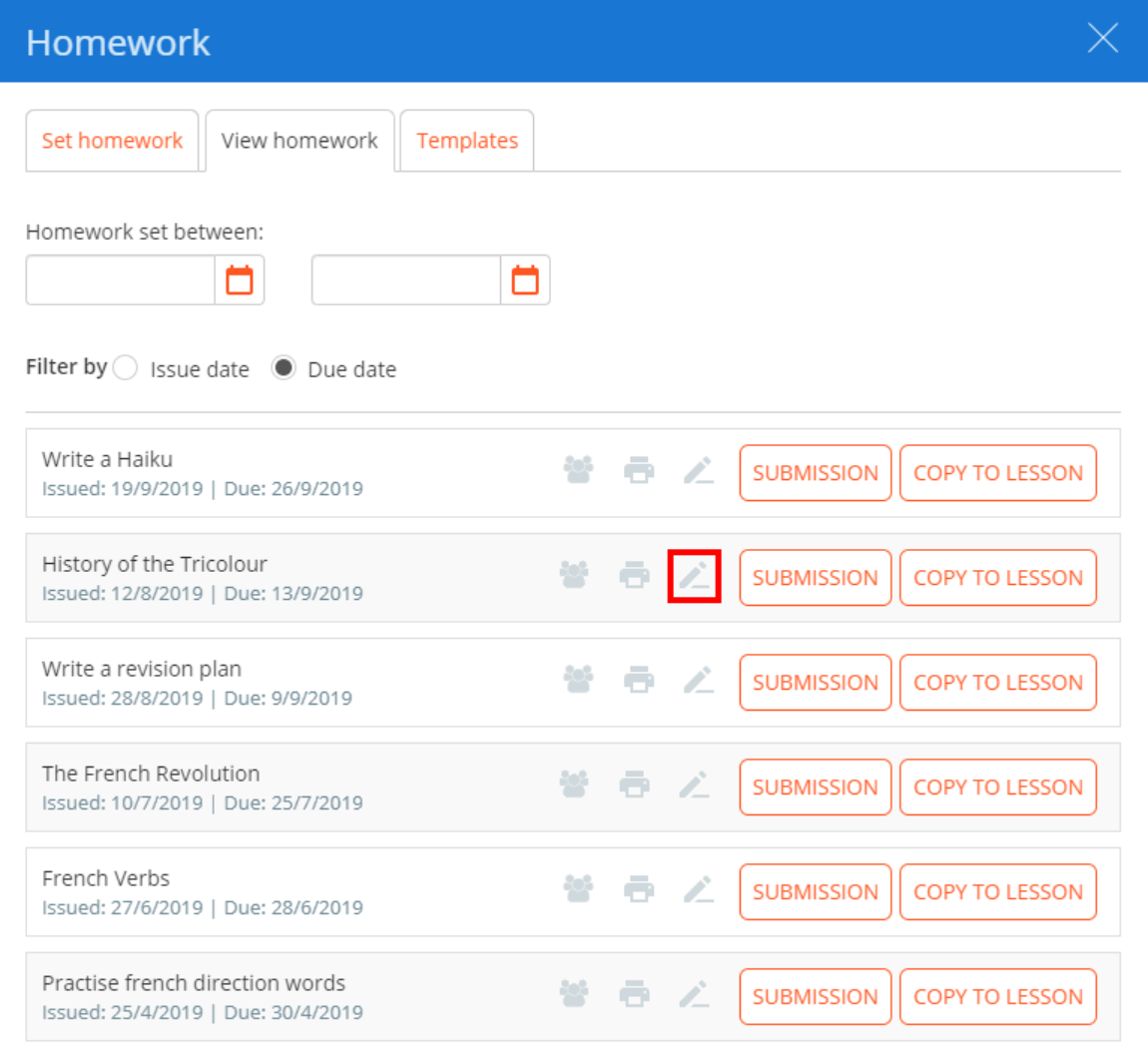
To create a new homework template from an existing homework task, click on the View homework tab.

You will be presented with a list of homework tasks that have previously been set for your class. Click on the pencil icon for the homework task of your choice.
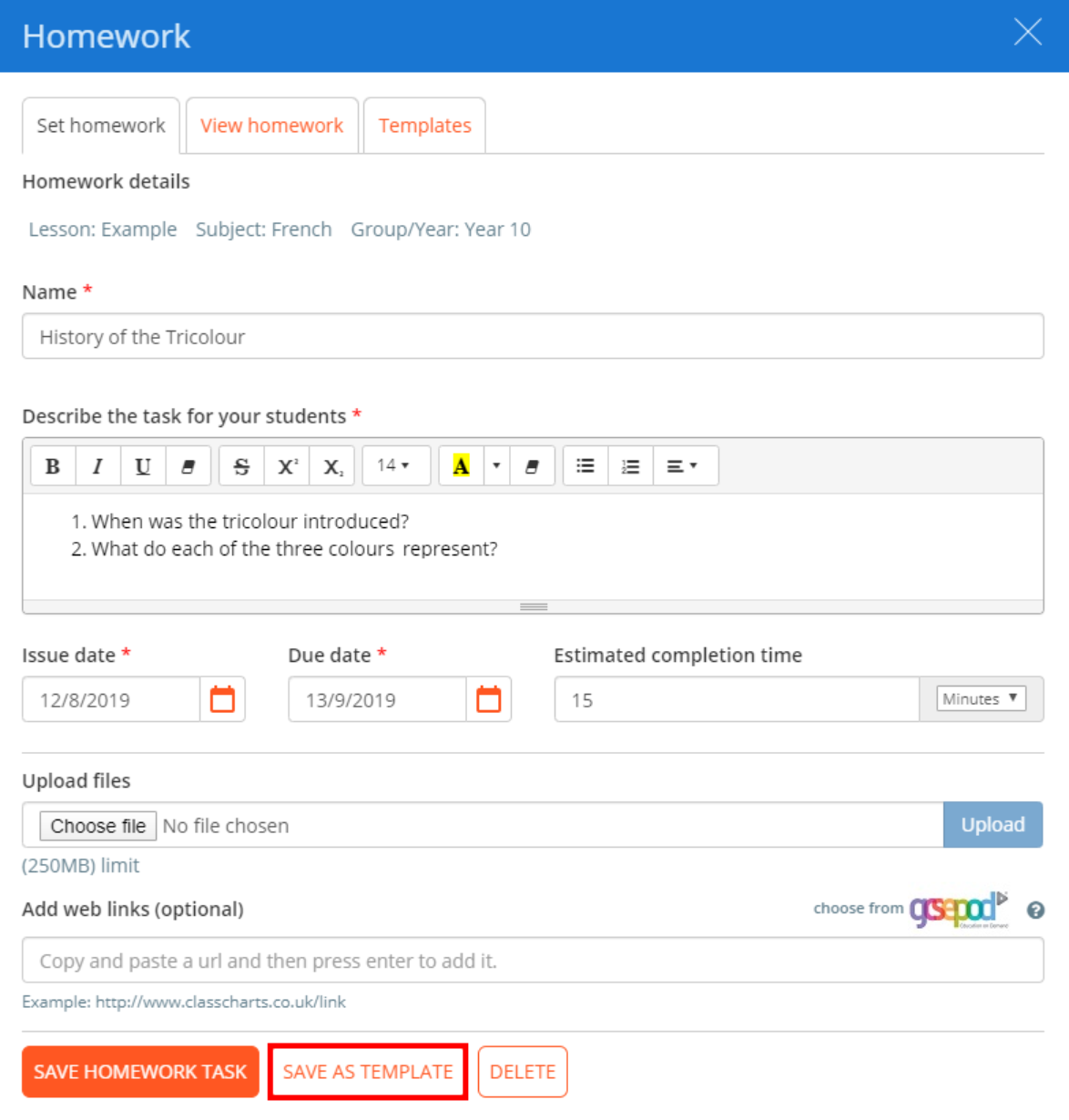
To save the homework task as a template, click on the Save as template button.
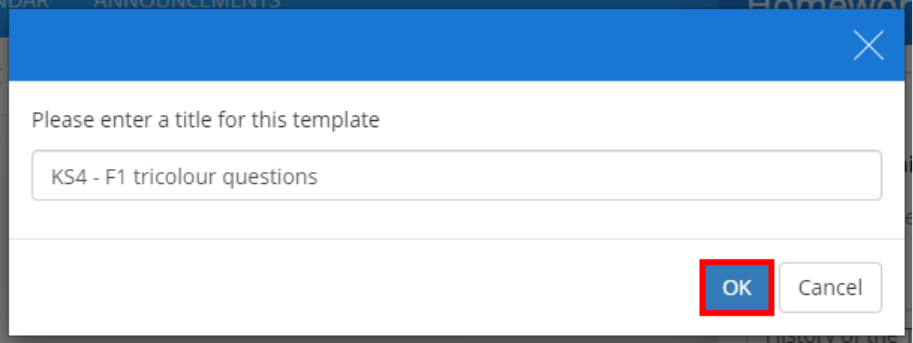
A popup will appear, prompting you to enter a name for the new homework template. Enter a name and click on the OK button.
The new homework template will be saved successfully, appearing in the list of available templates.
Creating a homework template via the homework calendar
To create a new homework template from scratch outside of a class, click on the Homework calendar tab along the top of the page.

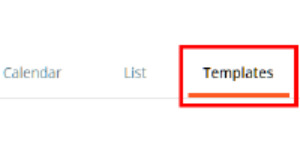
Next, click on the Templates tab.
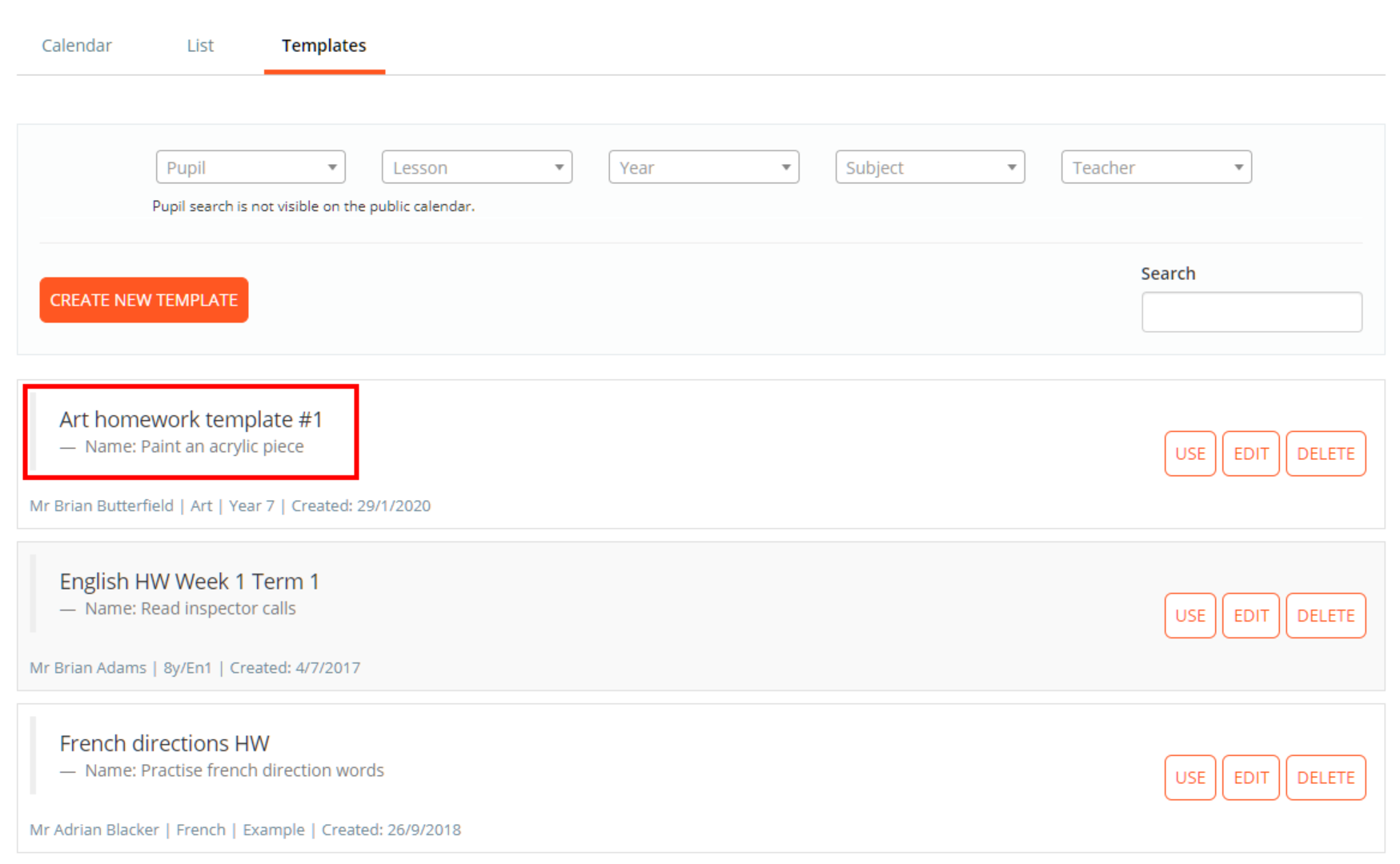
You will be presented with a list of homework templates that have been created in your school. Click on the Create new template button.
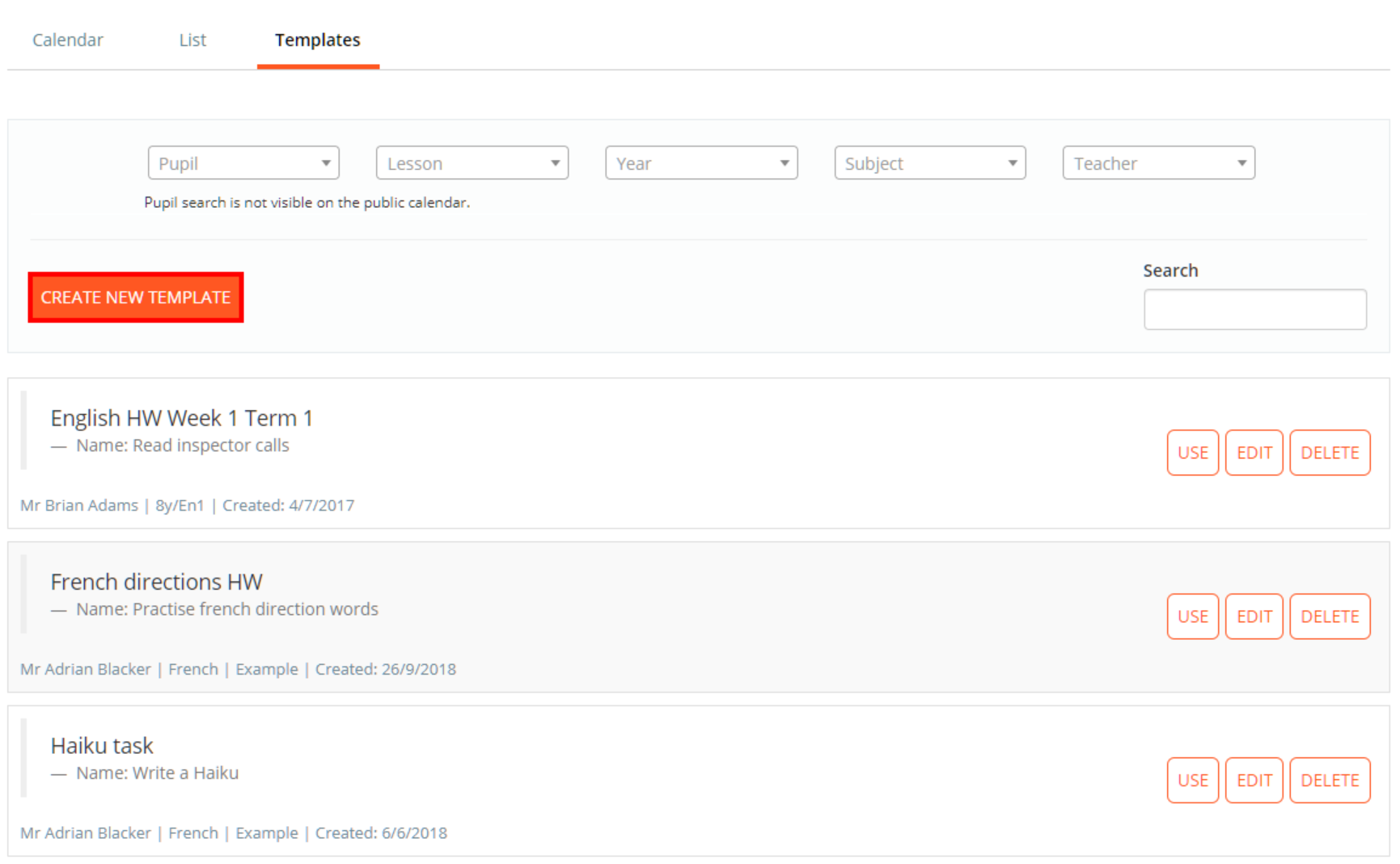
The Templates tab will now display a similar interface to the Set homework tab.
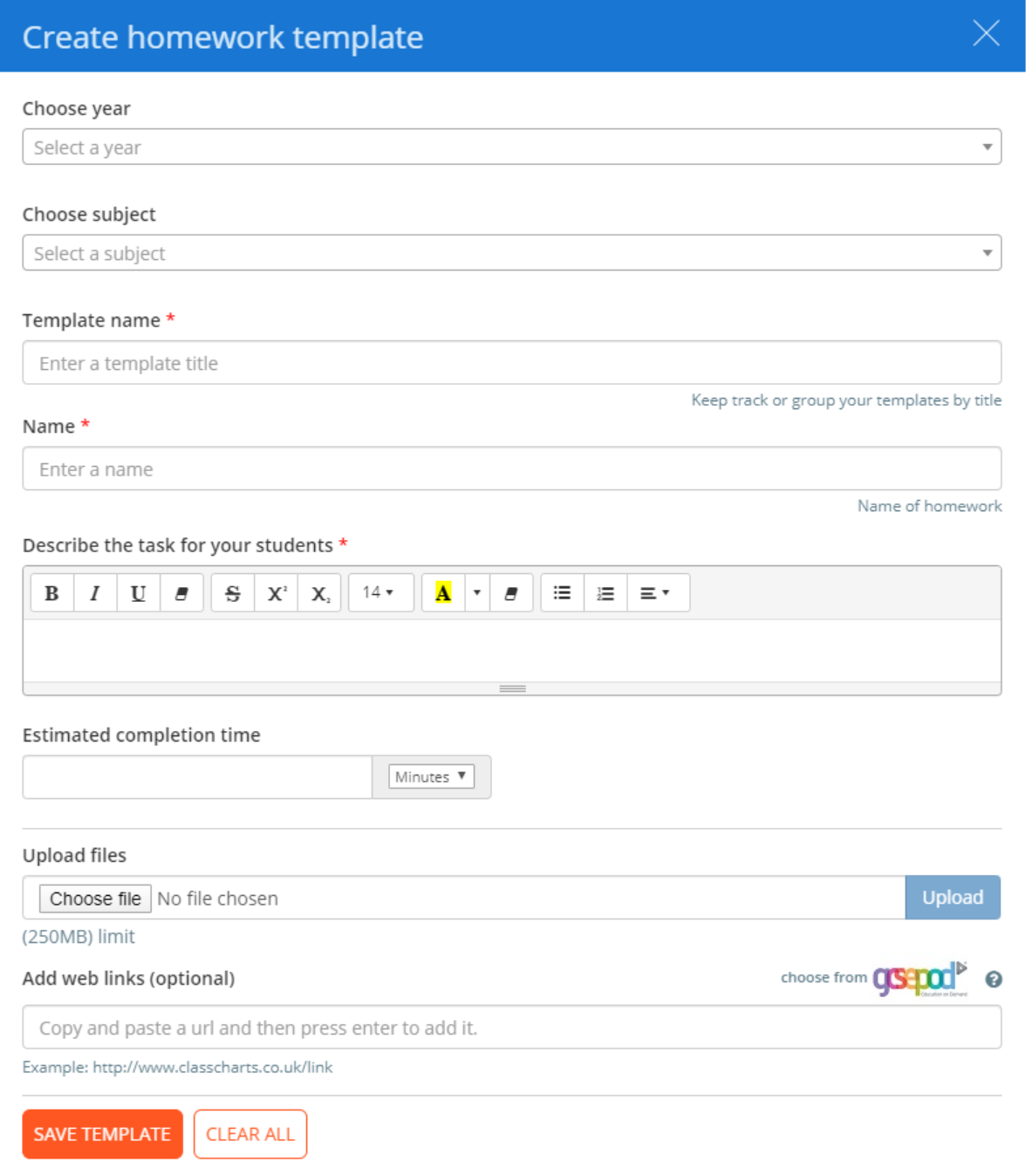
One key difference to the regular set homework tab is the inclusion of three additional template fields. These are explained in more detail below:
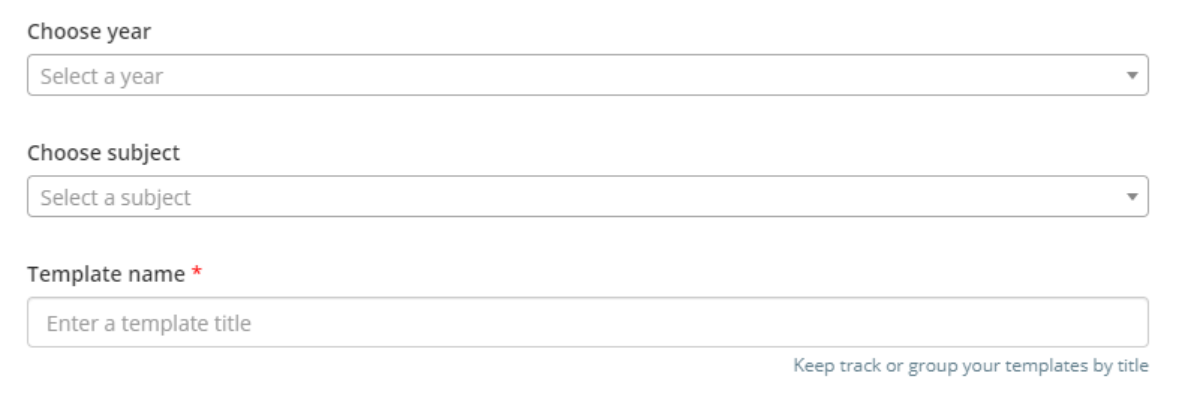
Choose year: The year group that the homework template is intended for.
Choose subject: The subject that the homework template is intended for
Template name: The template name that appears in the Templates section. Pupils do not see this name.
Enter the homework task details as you would a normal homework task. Once you are happy with your homework template, click on the Save template button.
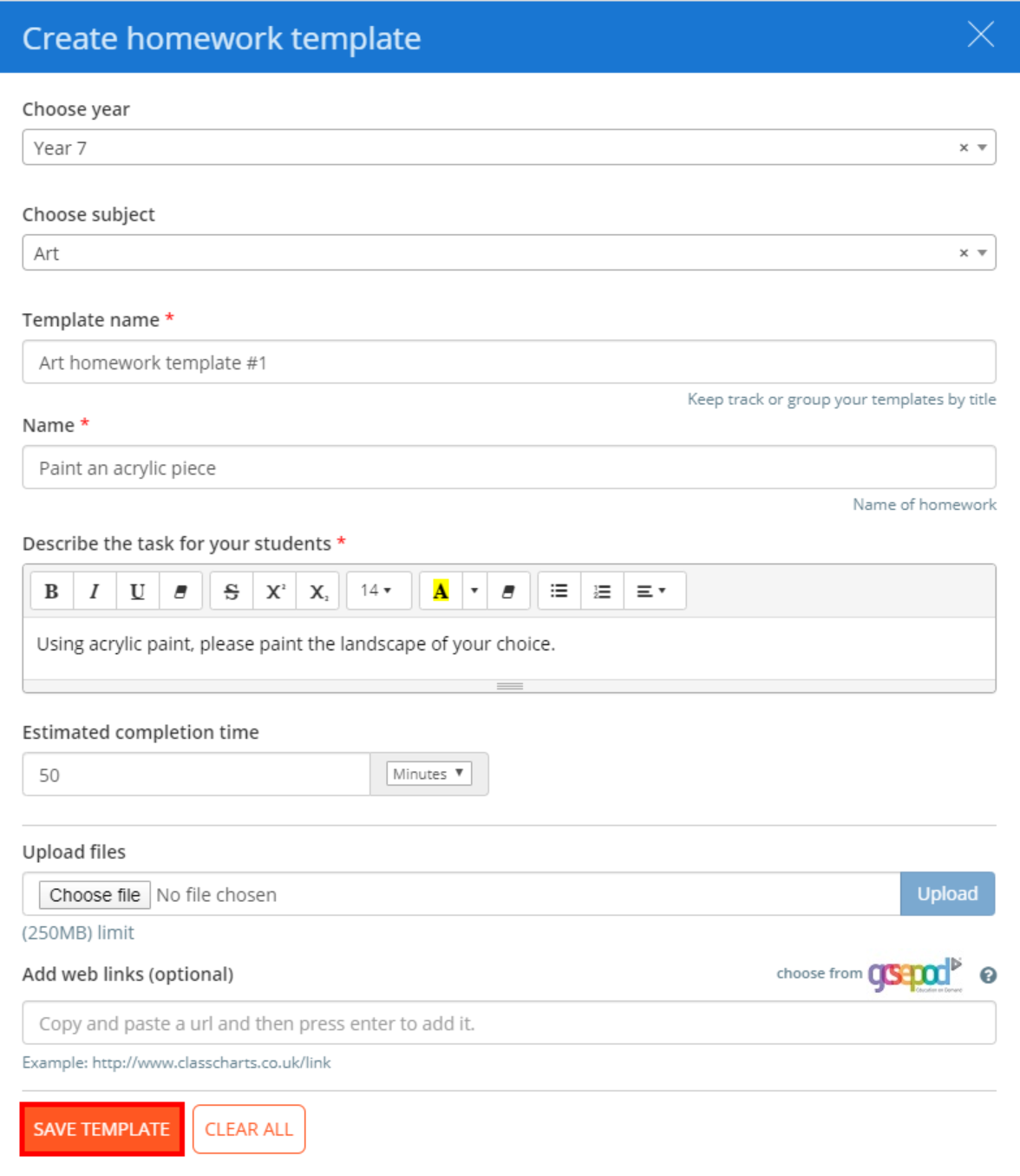
The new homework template will be saved successfully, appearing in the list of available templates.
Was this article helpful?
That’s Great!
Thank you for your feedback
Sorry! We couldn't be helpful
Thank you for your feedback
Feedback sent
We appreciate your effort and will try to fix the article