When setting homework, your staff may find it useful if they can mark homework submissions with a grade for each pupil. Class Charts allows you do to this through Homework mark schemes.
Enabling homework mark schemes
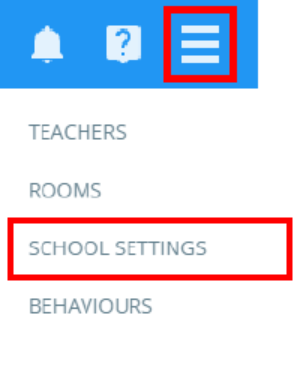
To set up a homework mark scheme, click on the three lines menu in the top right hand corner of the page and select School Settings from the list of available options.
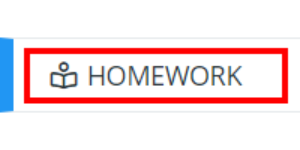
Next, select Homework from the left hand side menu.
You will be presented with a list of settings that control how homework works in your school’s Class Charts account. Set the setting labelled Mark schemes to Enabled.

Setting up a homework mark scheme
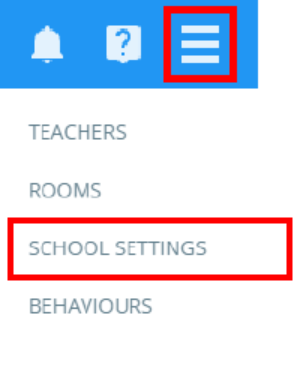
To begin creating a homework mark scheme, click on the three lines menu in the top right hand corner of the page and select School Settings from the list of available options
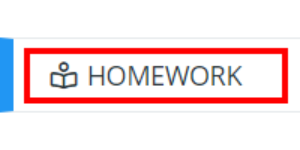
Next, select Homework from the left hand side menu.
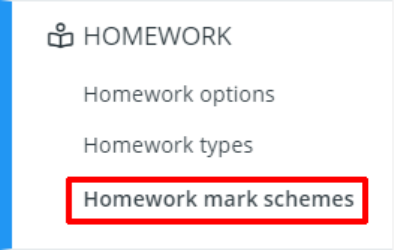
Finally, select Homework mark schemes from the Homework sub menu.
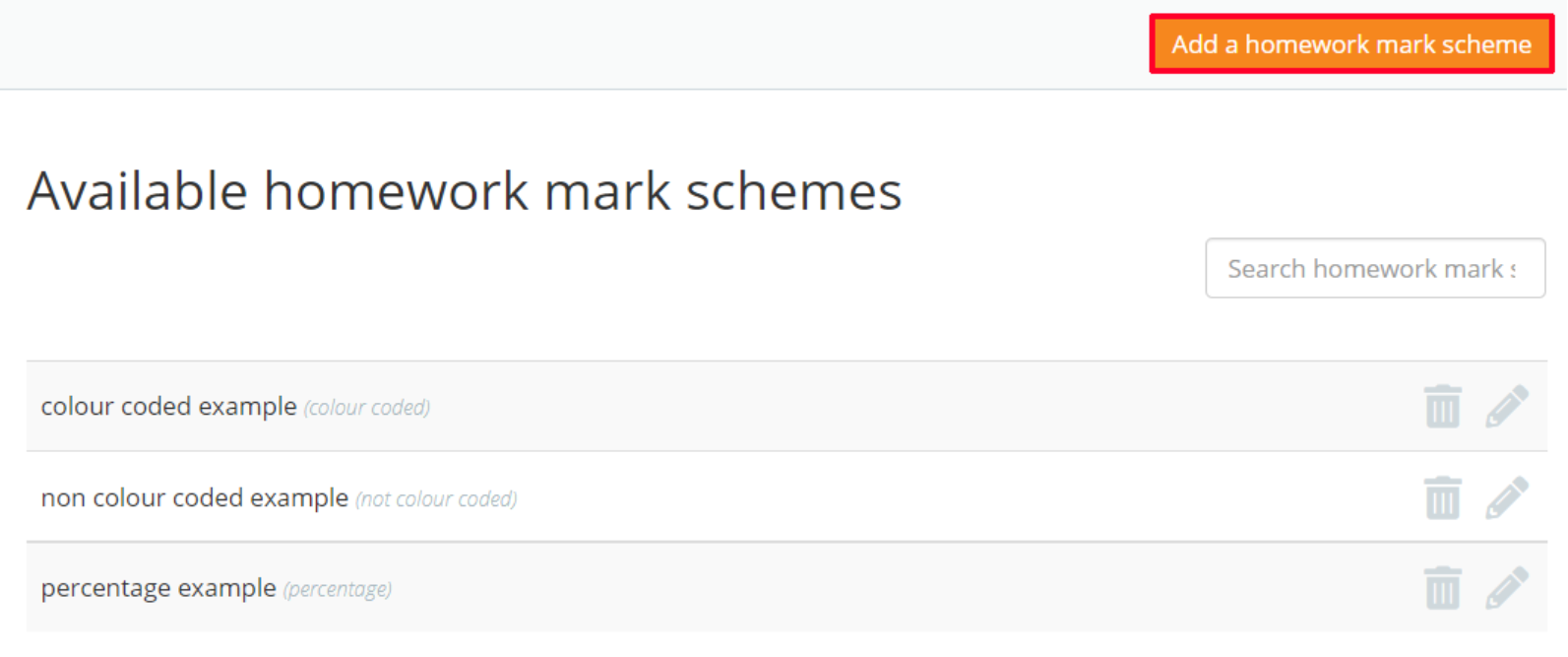
You will be presented with a list of homework mark schemes that have been set up in your school’s Class Charts account. To create a new homework mark scheme click on the button labelled Add a homework mark scheme.
The Add homework mark scheme popup will appear. Enter a name for your homework mark scheme and select from one of the three homework mark scheme types. The available options are explained in more detail below:
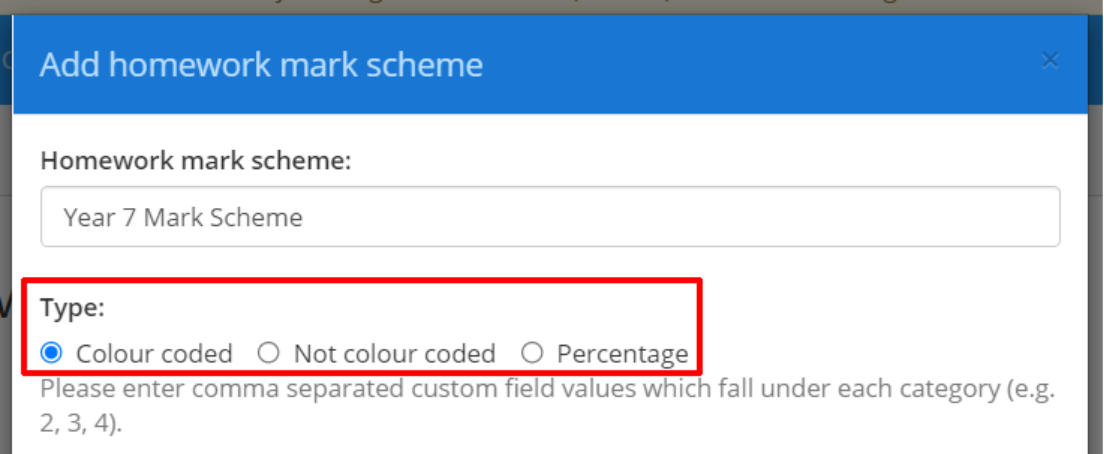
Colour coded: Homework tasks will be graded by custom values, which are categorised by colour.
Not colour coded: Homework tasks will be graded by custom values.
Percentage: Homework tasks will be graded using a percentage value (1-100).
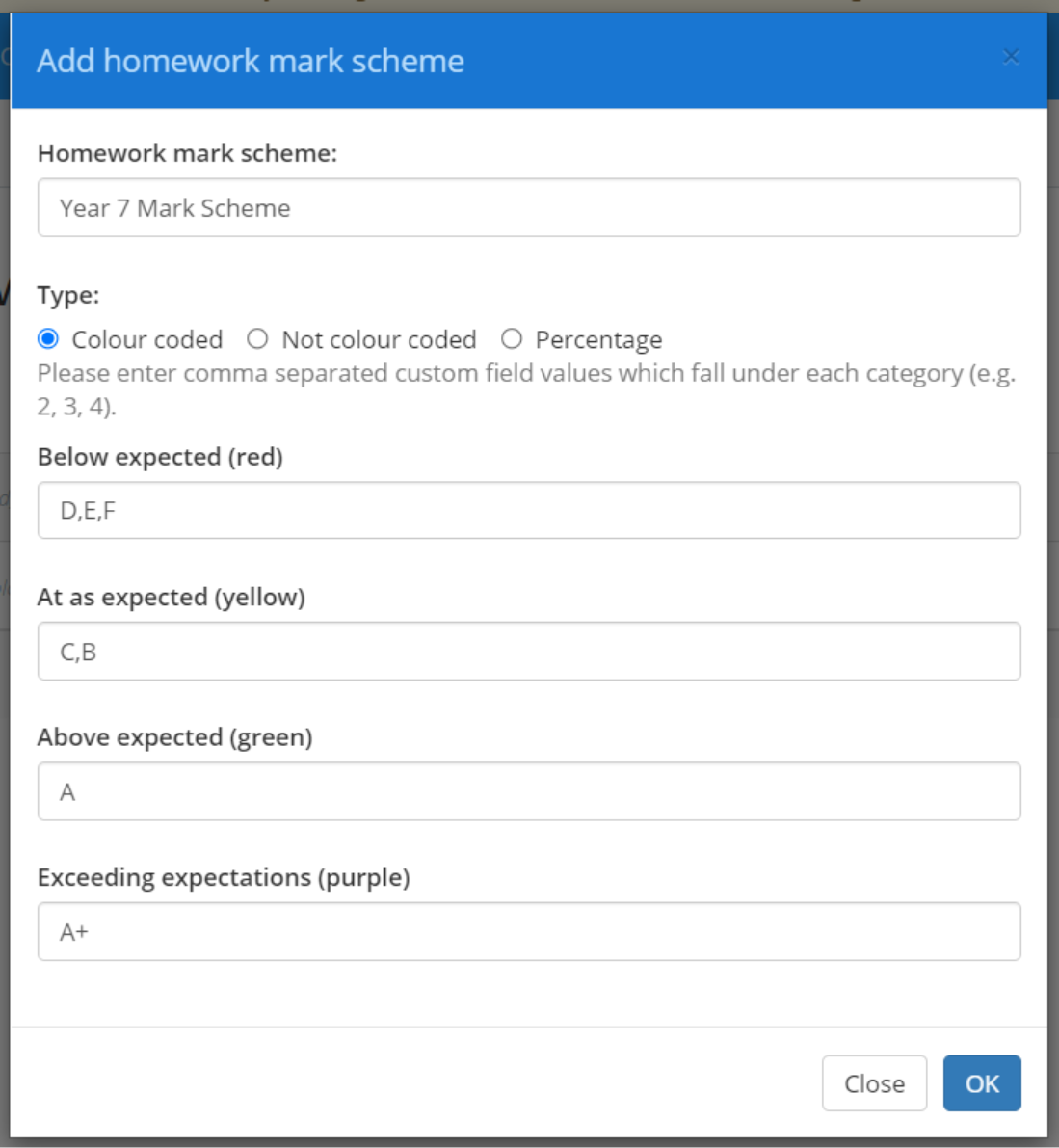
If you selected Colour coded or Not colour coded, you will be prompted to provide comma separated values for each grade in the mark scheme. Once the mark scheme has been selected and filled out, click on the OK button to continue.
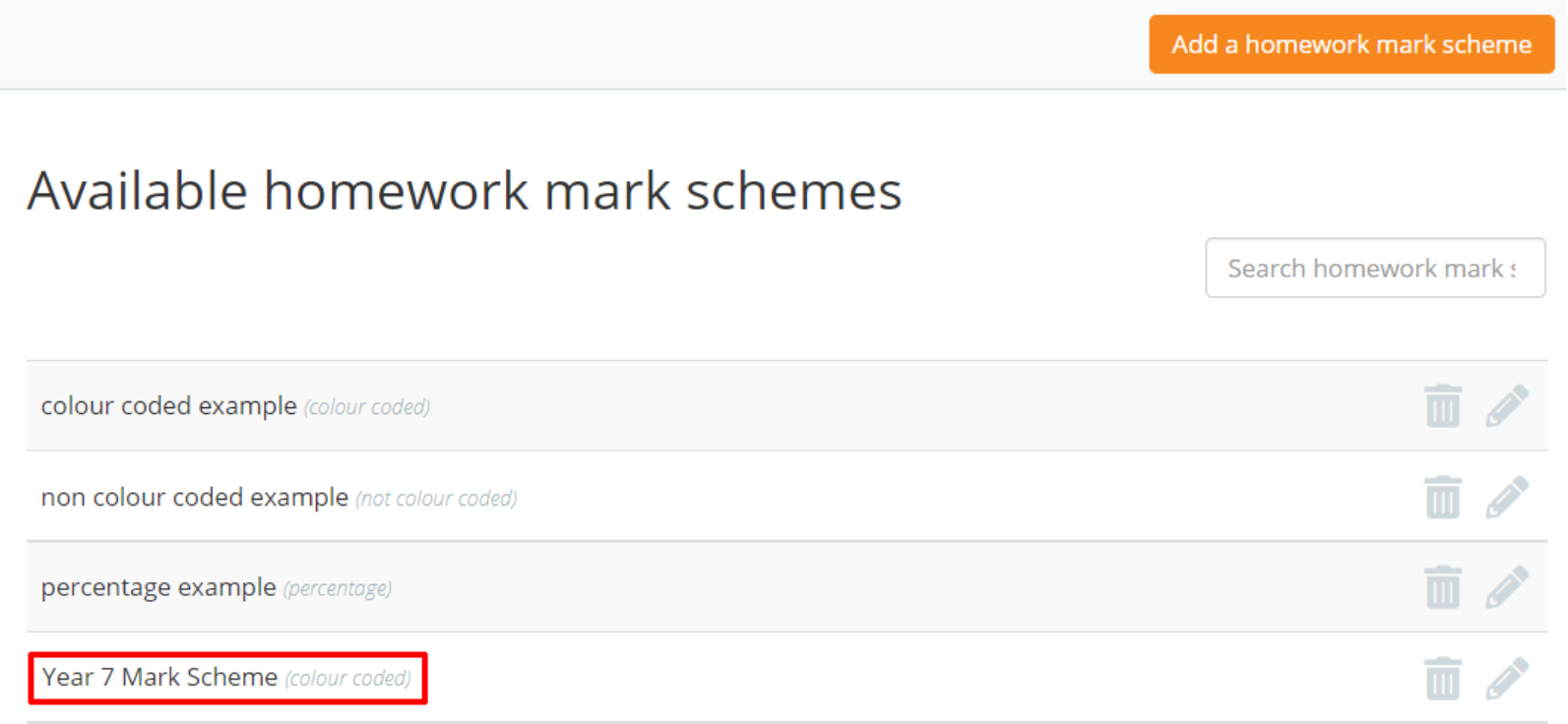
The new mark scheme will appear in the Available homework mark schemes list, allowing teachers to selecting when creating new homework tasks. The mark scheme type will be displayed in brackets after the mark scheme name.
Editing a homework mark scheme
To make changes to a mark scheme before it is used, click on the pencil icon next to the mark scheme of your choice.
Please note: If the mark scheme has been applied to a homework task, you will only be able to change the name of the mark scheme.

Deleting a homework mark scheme
To delete a mark scheme, click on the Bin icon next to the mark scheme of your choice.
Please note: Deleting a homework mark scheme will remove all marks that have been applied to homework tasks.

Was this article helpful?
That’s Great!
Thank you for your feedback
Sorry! We couldn't be helpful
Thank you for your feedback
Feedback sent
We appreciate your effort and will try to fix the article