There may be times when staff members would like to change the room for one of their classes.
There are two ways that you can assign a room to a class in Class Charts:
Assigning a room from the Classes page
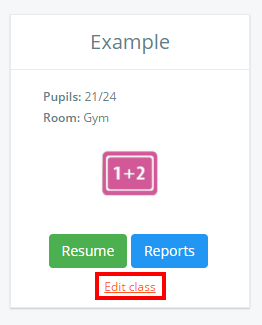
To assign a room from the Classes page, click on the Classes tab along the top of the page and click on the Edit class button for the class of your choice.

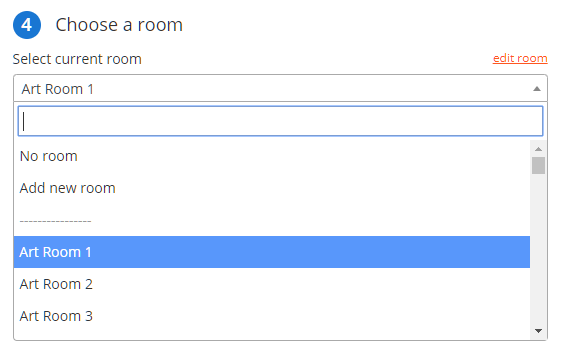
The Edit class popup will appear. Click on the Select current room drop down menu and choose a room from the list.
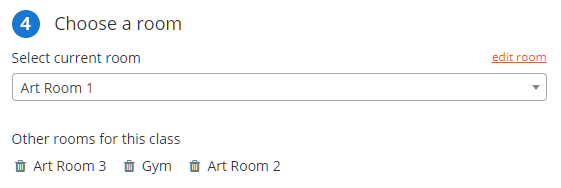
The selected room will now appear as the current room for the class. Any previously used rooms will be displayed below the drop down menu.
Assigning a room when taking a class
You can also assign a room whilst in class.
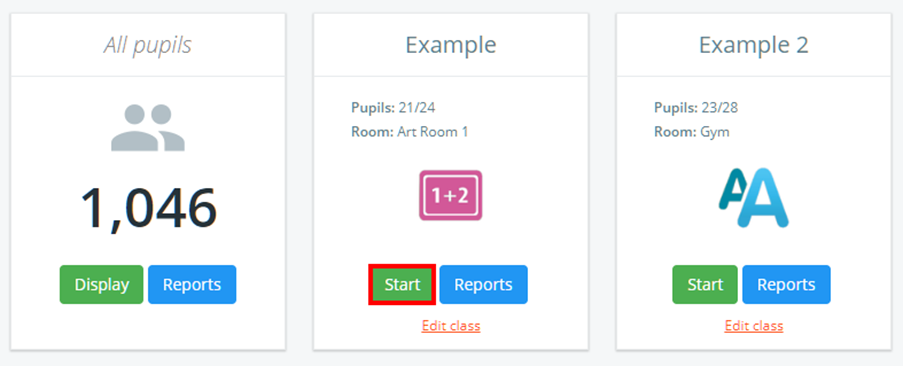
To do this, click on the Classes tab along the top of the page and click on the Start class button for the class of your choice.

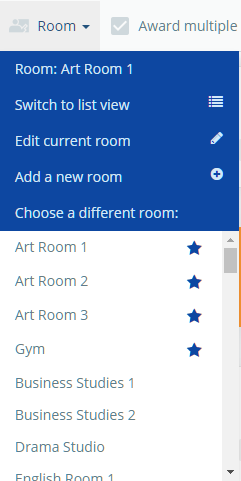
Next, click on the Room tab along the top of the class view.

A list of rooms will appear in a drop down menu. Scroll down to the room of your choice and click on it to select it.
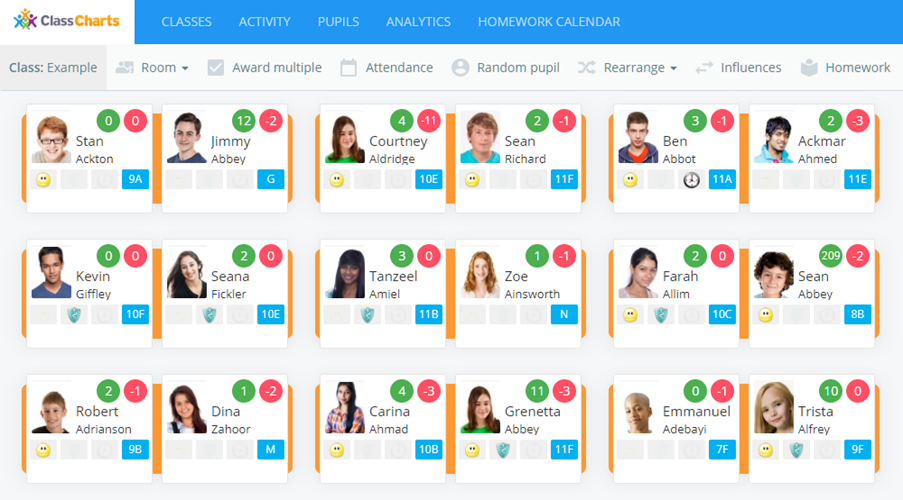
The seating plan will then be updated with the new desk arrangements.
Was this article helpful?
That’s Great!
Thank you for your feedback
Sorry! We couldn't be helpful
Thank you for your feedback
Feedback sent
We appreciate your effort and will try to fix the article