As a school admin you can create and enforce field sets across a range of classes. For example if you wanted to display the same custom fields in all Year 10 English classes, you can create a field set that contains the common fields and then enforce it on all Year 10 English Classes.
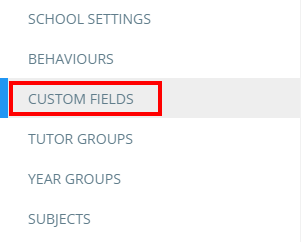
To create a custom fieldset, click on the three lines menu in the top right hand corner and select Custom fields from the list of available options.
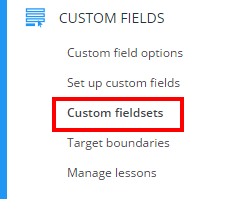
Next, click on Custom fieldsets from the left hand menu.
You will be presented with a list of fieldsets that have been applied in your school’s Class Charts account.
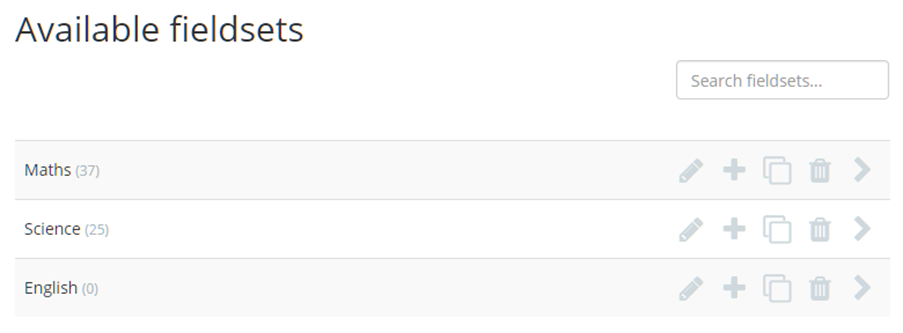
To add a new fieldset, click on the Add a fieldset button in the top right hand corner of the page.

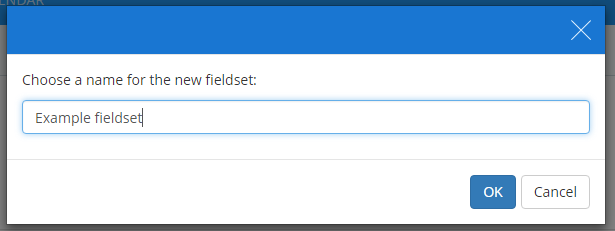
A popup will appear, prompting a name for the new fieldset. Enter a suitable name and click on the OK button.
Selecting custom fields for the fieldset
You will then be redirected to the second stage of the fieldset process: selecting which custom fields should be included in the fieldset. To add a custom field to the fieldset, tick one of the checkboxes available for the field.
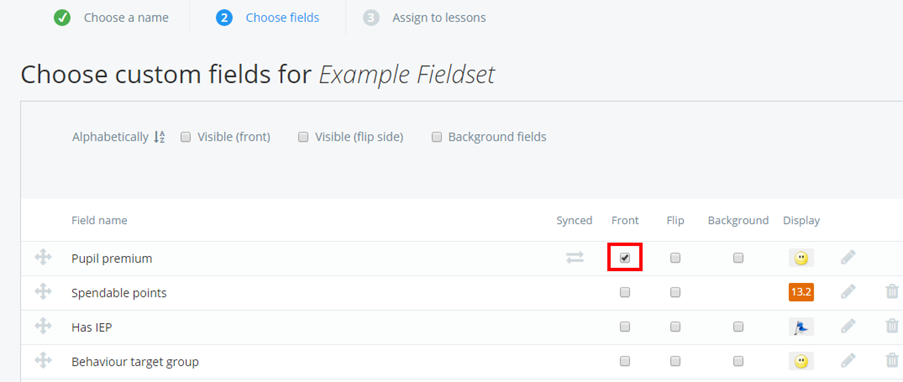
Note: All custom fieldsets will contain the default fields set up by your school admin.
After you have decided which fields to include in the fieldset, click on the Next: assign lessons button to begin applying it to specific lessons.
Applying the fieldset to lessons
You will be redirected to the third stage of the fieldset process: assigning the fieldset to lessons. On this page, you can select the lessons that you wish to apply the fieldset to.
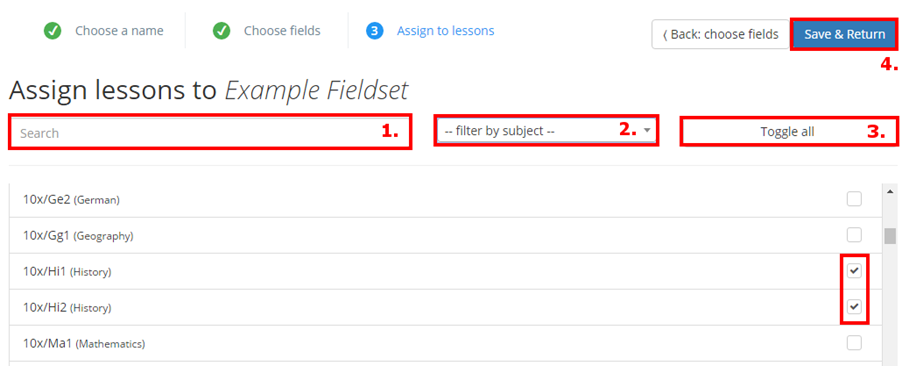
The list of lessons can be refined by using the search box (1) and filtered by a particular subject (2). You select all displayed lessons by clicking on the Toggle all button (3).
After clicking the Save & Return button (4), the custom fieldset will be applied to all of the selected classes.
Was this article helpful?
That’s Great!
Thank you for your feedback
Sorry! We couldn't be helpful
Thank you for your feedback
Feedback sent
We appreciate your effort and will try to fix the article