There may be times when staff members will want to monitor behaviour activity for their classes. Class Charts provides this information in the form of end of class reports.
To view an end of class report, click on the Classes tab along the top of the page.

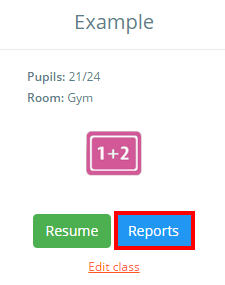
Next, click on the Reports button for the class of your choice.
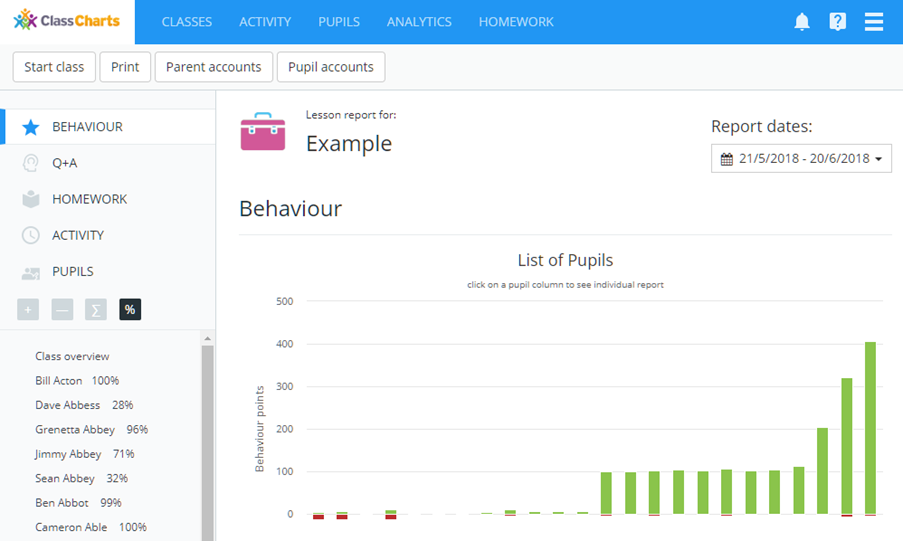
You will be presented with the lesson report for your chosen class. Here, you will see graphs that breakdown the in-class behaviour activity, a graph that breaks down the Q+A assessment, homework submission information and the activity feed for the class.
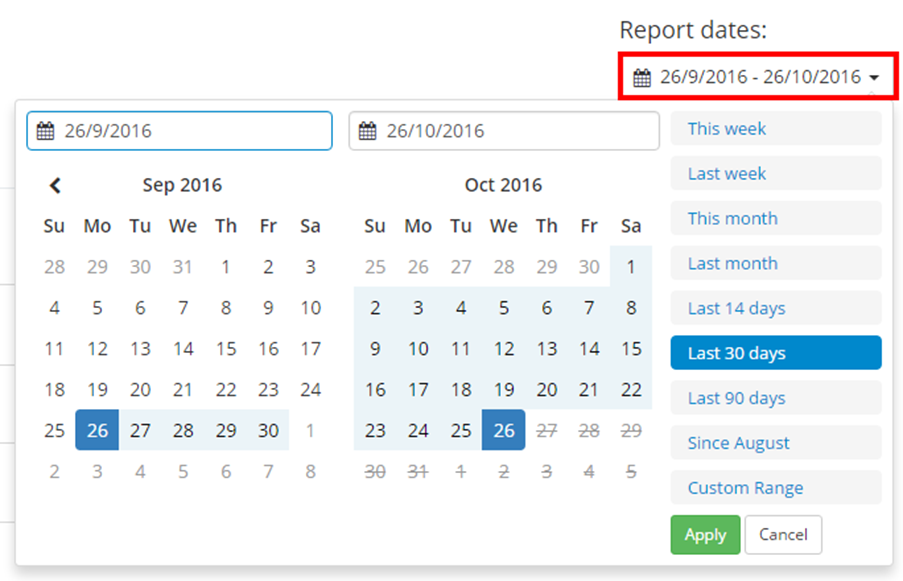
To change the time frame covered by the behaviour report, click on the Report dates field on the right and select the date range of your choice.
Was this article helpful?
That’s Great!
Thank you for your feedback
Sorry! We couldn't be helpful
Thank you for your feedback
Feedback sent
We appreciate your effort and will try to fix the article