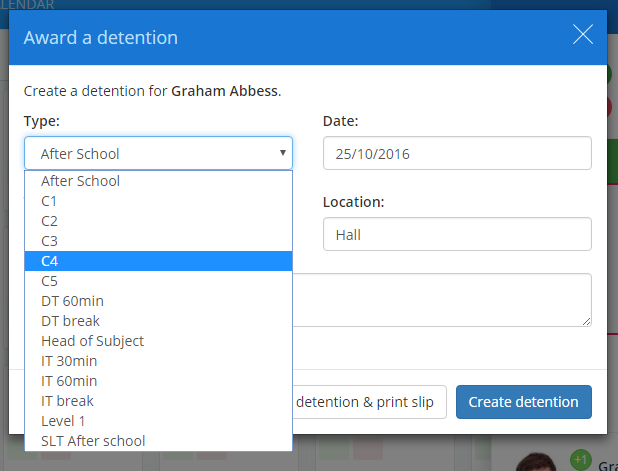
Class Charts allows you to create predefined detention types, which staff can choose from when issuing a detention.
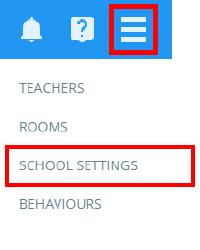
To set up detention types for your school, click on the three lines menu in the top right-hand corner and select School Settings from the list of available options.
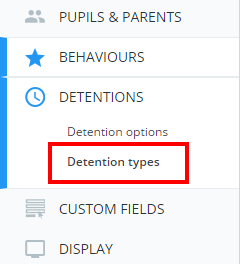
From the School Settings page, click on the Detentions tab on the left-hand side of the screen to and select Detention types.
You will be presented with a list of detention types that have been set up in your school. To create a new detention type, click on the Add a detention type button in the top right-hand corner of the page.
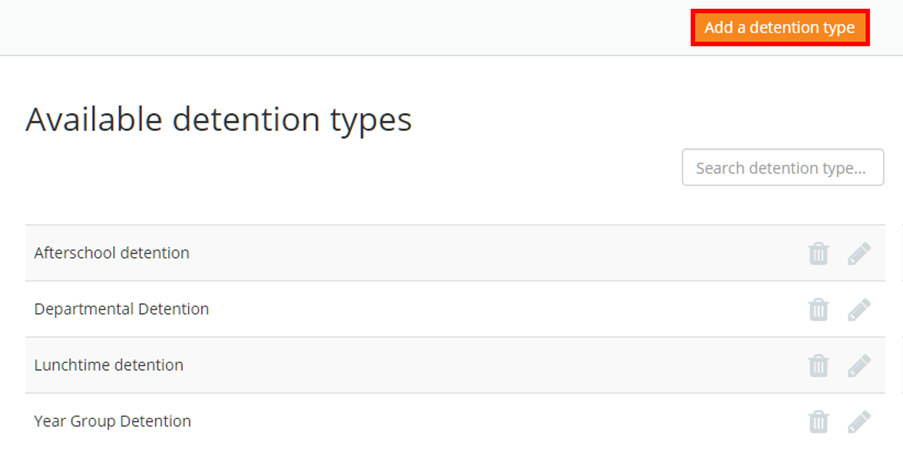
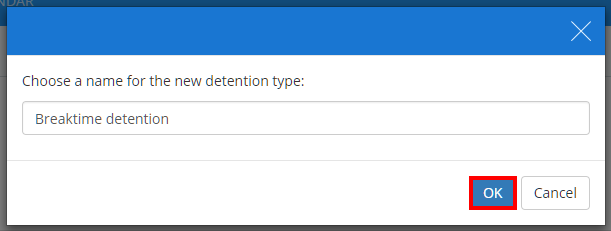
Provide a name for the detention type and click on the OK button. The new detention type will appear within the list of available detention types.
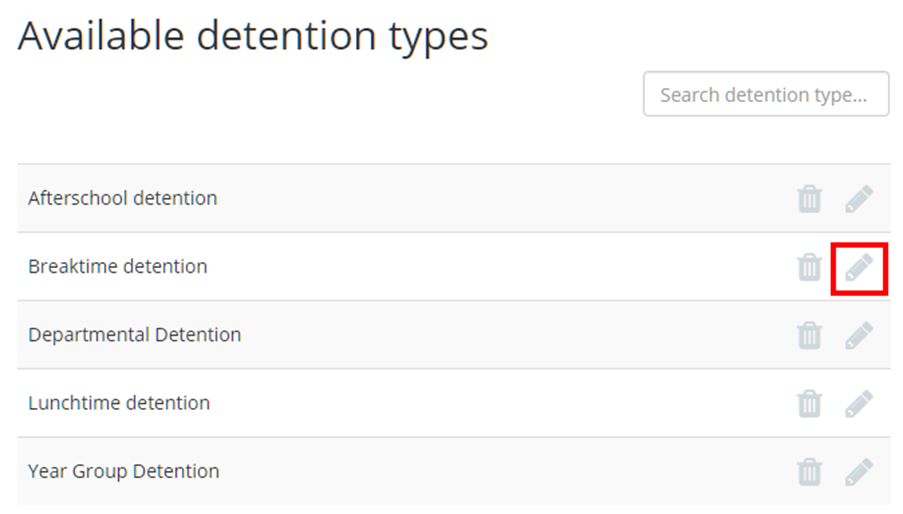
Next, click on the pencil icon alongside your detention type to being describing it in more detail.
The Edit detention type popup will appear. From here, you can specify the default location for the detention, how long the detention will last, the default date and the default time for it it to be scheduled to.
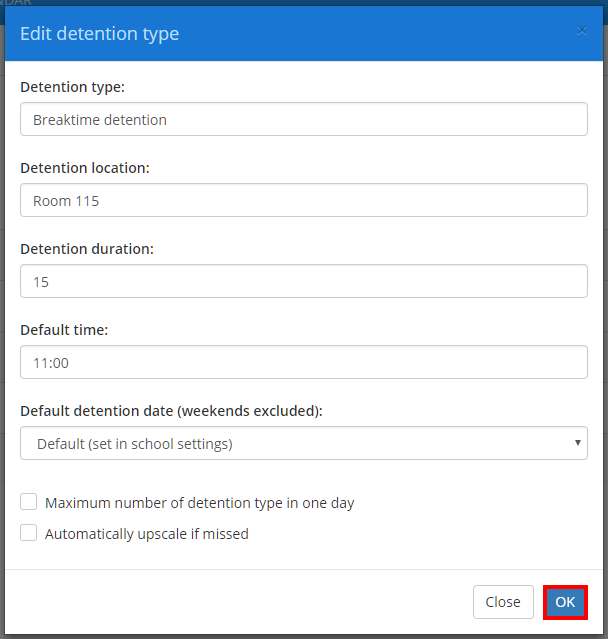
Click on the OK button to confirm your changes. Your new detention type will now be selectable by staff when issuing a detention.
Was this article helpful?
That’s Great!
Thank you for your feedback
Sorry! We couldn't be helpful
Thank you for your feedback
Feedback sent
We appreciate your effort and will try to fix the article