Once homework tasks have been created by staff members, you can start generating reports based on the amount of set homework. To do this, click on the Analytics tab at the top of the page.

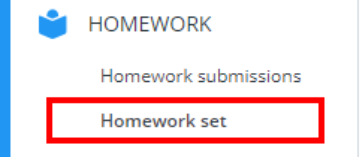
Click on the Homework option in the side menu to the left hand side and select Homework set.
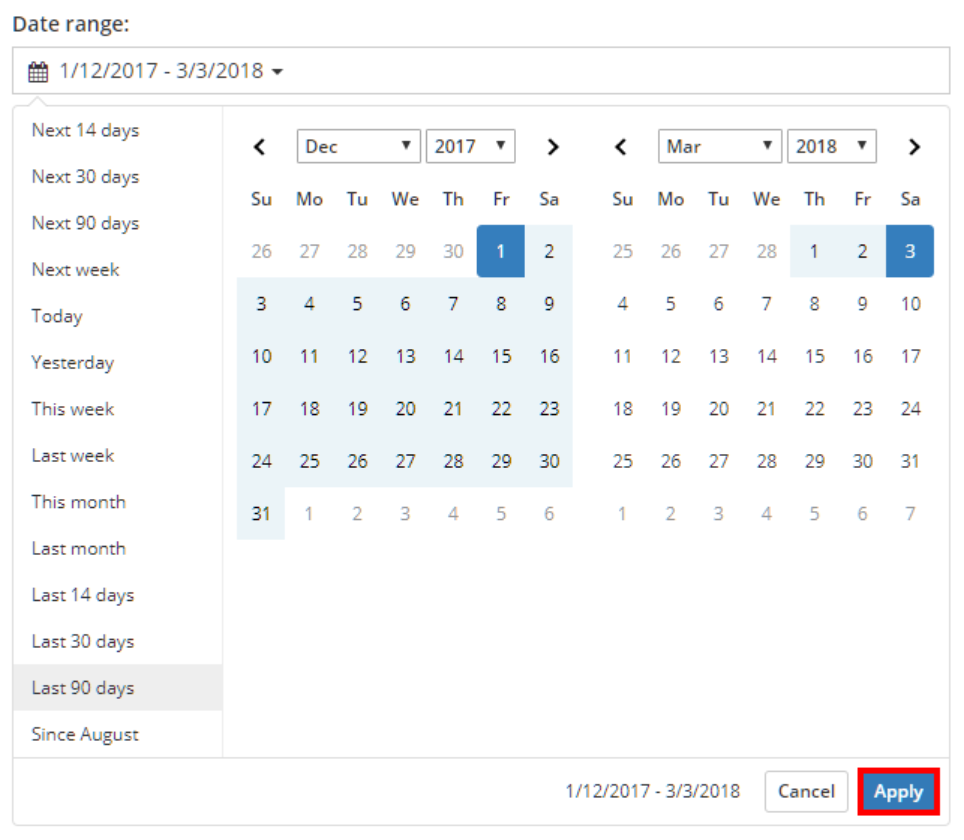
First, select the date range that the report will cover by clicking on the Date range field. A date picker will appear that allows you to select from preset date ranges or a custom range of your choice. Click on the Apply button once you have decided.
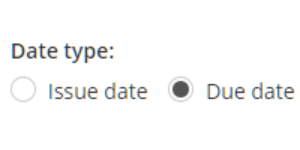
Next, select whether the homework set report should include homework tasks by their issue date or their due date, using the radio buttons provided.
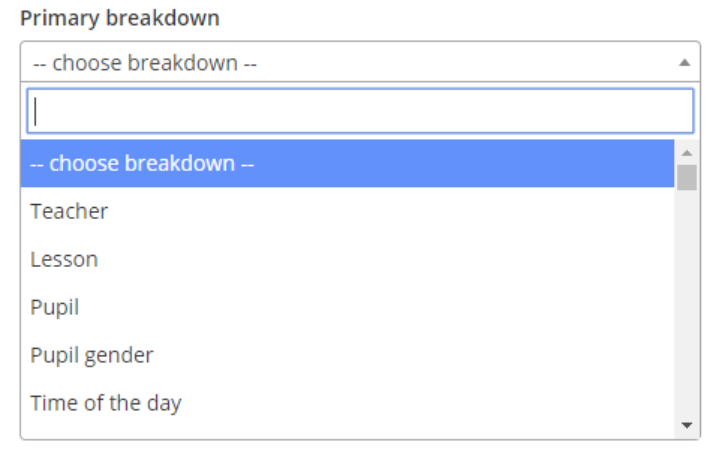
To generate a report, a primary breakdown must be specified so that the results can be broken down in to specific categories. Select a breakdown option from the drop down menu.
Once a primary breakdown has been selected, an optional secondary breakdown can be used to further categorise the results of the report.

If a secondary breakdown has been applied, you can also apply a tertiary breakdown to your report.

If the homework set report is too general for your needs, you can apply various filters that refine the results. To apply a filter, tick a filter option checkbox and select the subcategories of your choice.
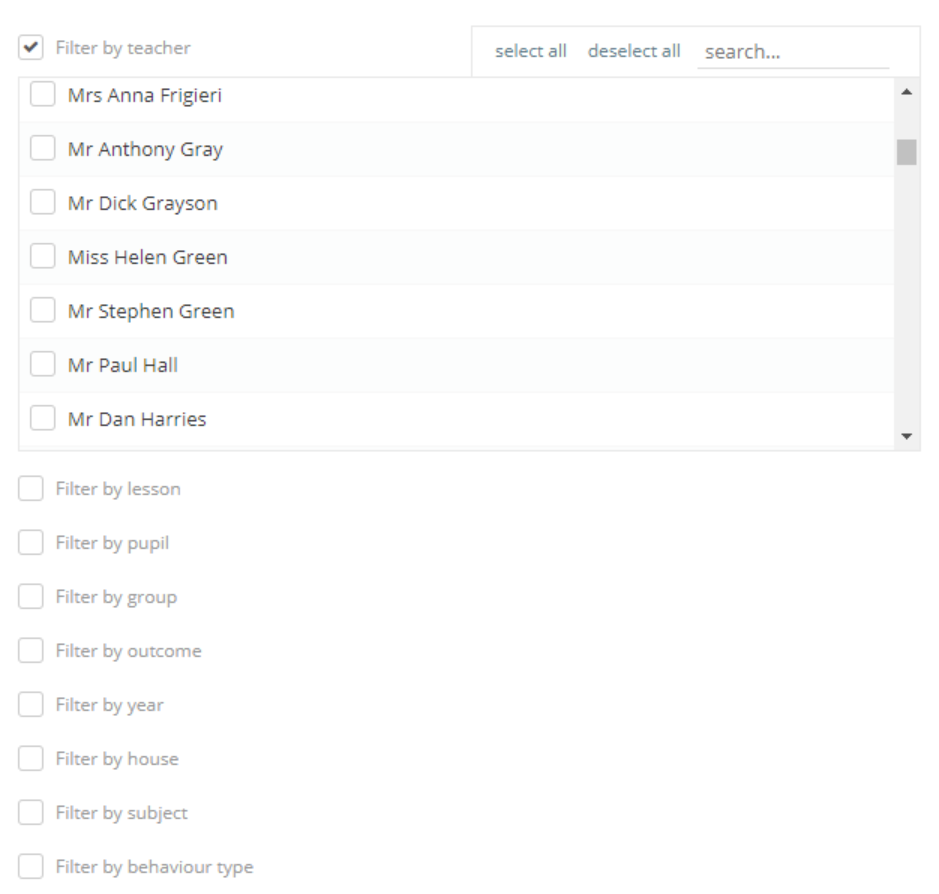
To include archived pupils in the report, tick the checkbox labelled Include archived pupils.
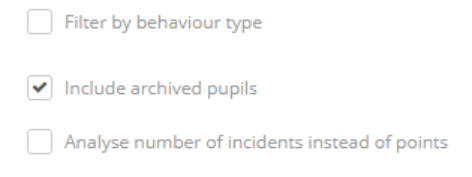
To include the number of times each homework task has been seen by a pupil in the report, tick the checkbox labelled Analyse number of homework seen.
To filter the report results to homework tasks that require uploads, tick the checkbox labelled Only include homework that allow homework uploads.
You can then generate your report by clicking the Generate report button, or export the report to an Excel spreadsheet by clicking the Export to excel button.
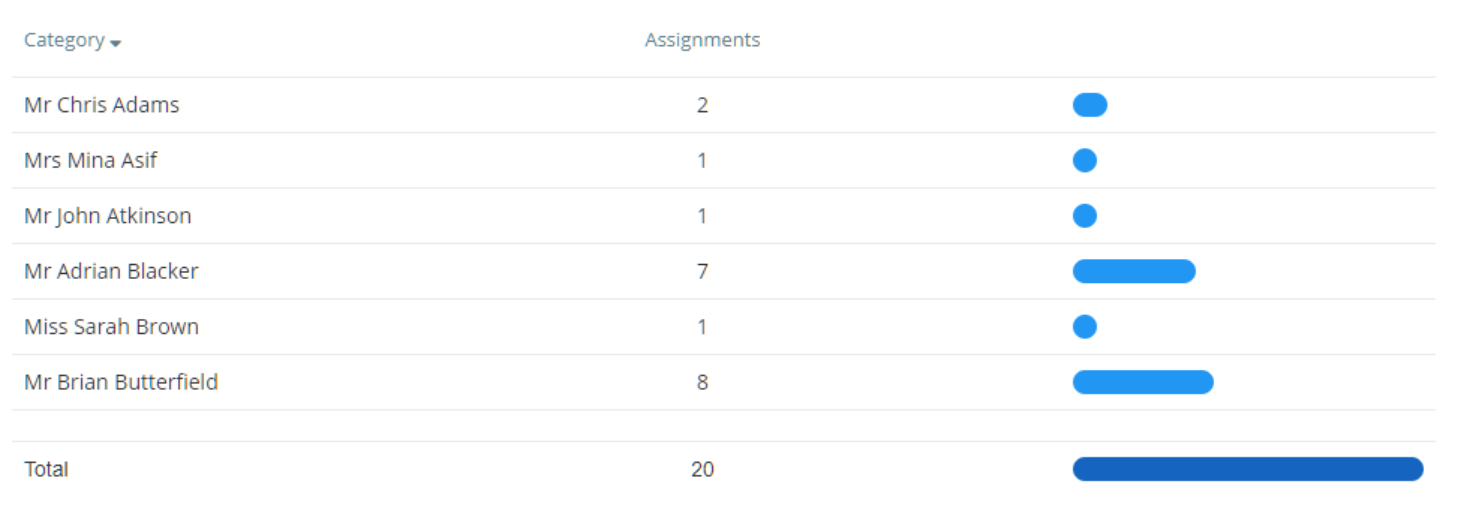
A generated report will be displayed underneath the report options and buttons.
Saving reports
If you find that you are constantly reapplying and running the same reports on a regular basis, you can save the report criteria for easier future use. To do this, set up the report criteria to your desired preferences and click on the Save for later button in the bottom right hand corner of the page.
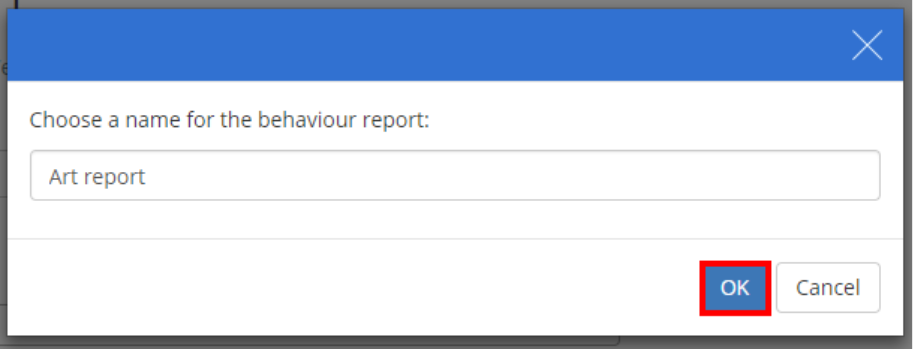
A popup will appear prompting you to name the report. Enter a name and click on the OK button to save the report.
Saved reports will appear along the top of the page. Clicking on a saved report will reapply the report’s breakdown and filter options, which can then be tweaked further.

Was this article helpful?
That’s Great!
Thank you for your feedback
Sorry! We couldn't be helpful
Thank you for your feedback
Feedback sent
We appreciate your effort and will try to fix the article