There may be times when it is necessary to view what a pupil sees through their Class Charts account. If you are a school admin, you will be able to impersonate the pupil account of your choice.
To impersonate a pupil account, click on the Pupils tab along the top of the page.

You will be presented with a table of pupils that are currently enrolled at your school. Scroll across the table horizontally until you reach the Pupil account column.
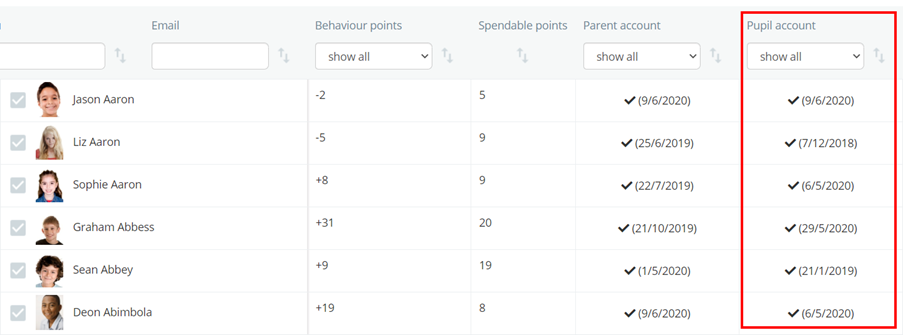
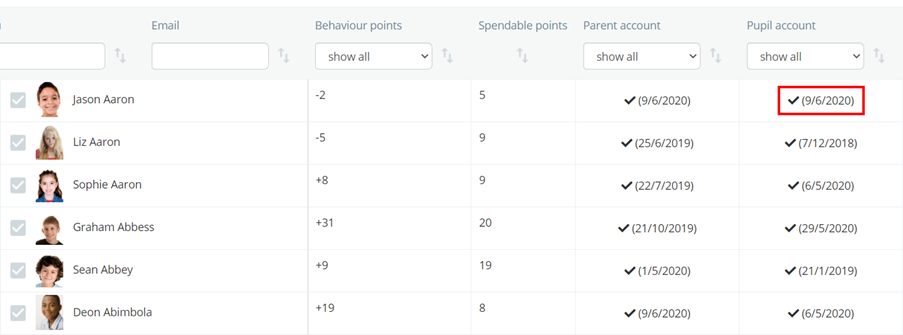
Next, click on the date in the Pupil Account column. This will take you to a pop-up window which will enable you to impersonate this pupil’s account.
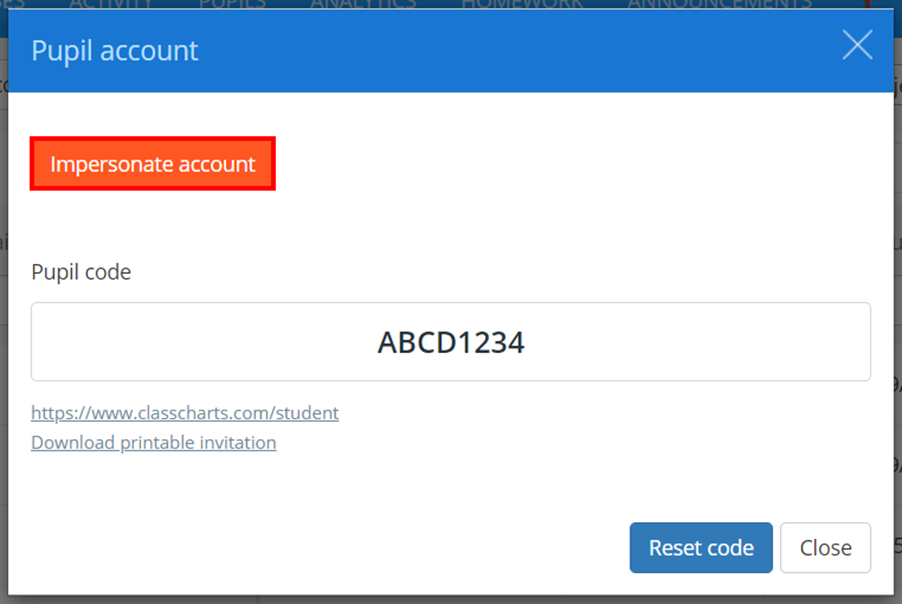
The Pupil account popup will appear. Click on the Impersonate account button.
The pupil’s Class Charts account will now open in a new tab.
Whilst you are impersonating a pupil account, you will only be allowed to view pupil information – e.g behaviour, homework tasks and detentions.
You will be unable to perform actions on the pupil’s behalf – e.g purchase a reward, record a wellbeing submission, or message a teacher. The system will block any attempts to perform any of these actions.
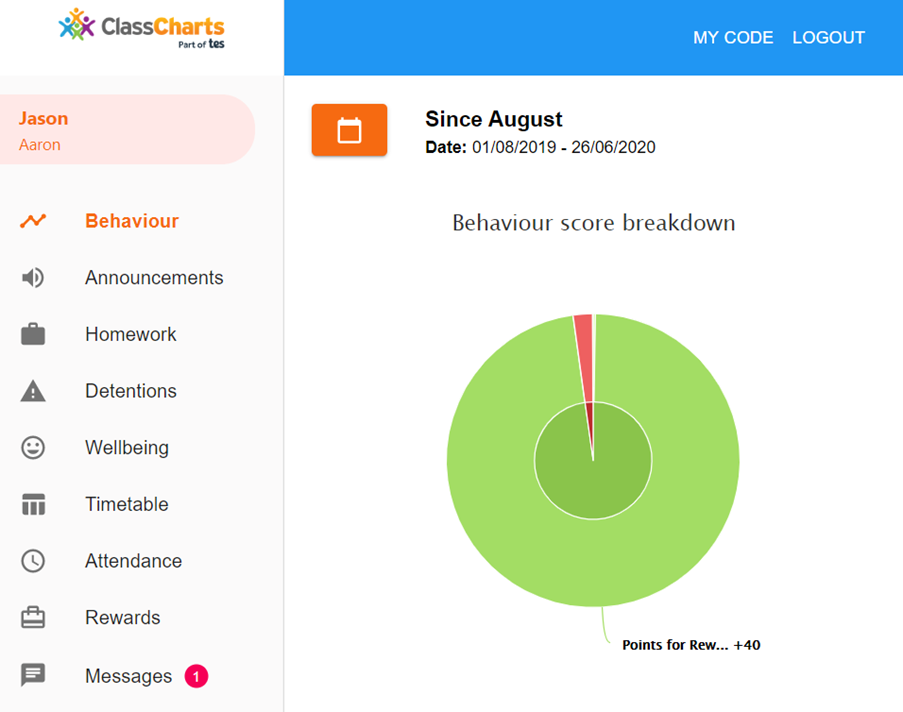

When you are ready to stop impersonating the pupil, select the logout button along the top of the page. Logging out of the impersonated display will not log the pupil out of their account.
Was this article helpful?
That’s Great!
Thank you for your feedback
Sorry! We couldn't be helpful
Thank you for your feedback
Feedback sent
We appreciate your effort and will try to fix the article