As Messaging is used at your school, you may wish to manage and view the created message threads.
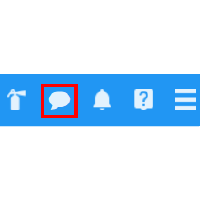
To view messages for all of your school’s staff members, click on the speech bubble icon in the top right hand corner of the page.
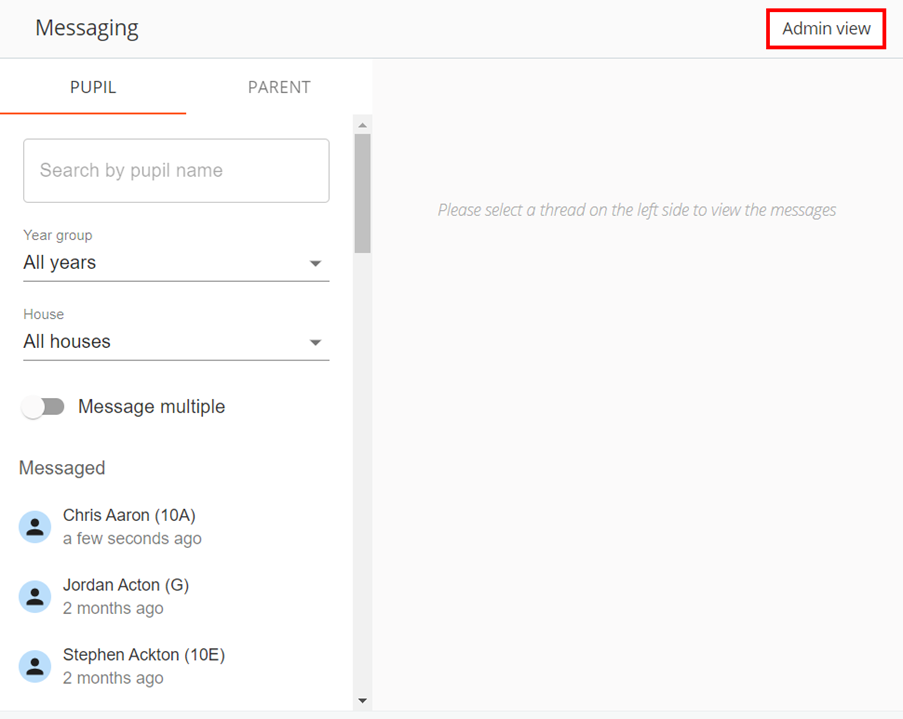
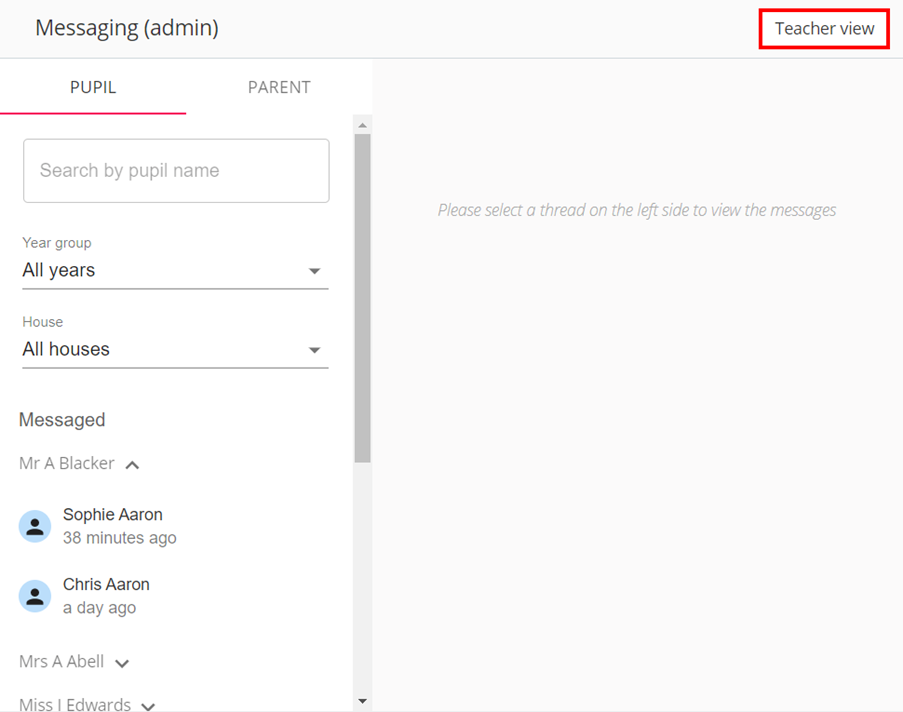
Initially you will be presented with the Messaging page, which displays direct messages that you’ve sent and received from pupils and parents. To view messages across the school, click on the Admin view button.
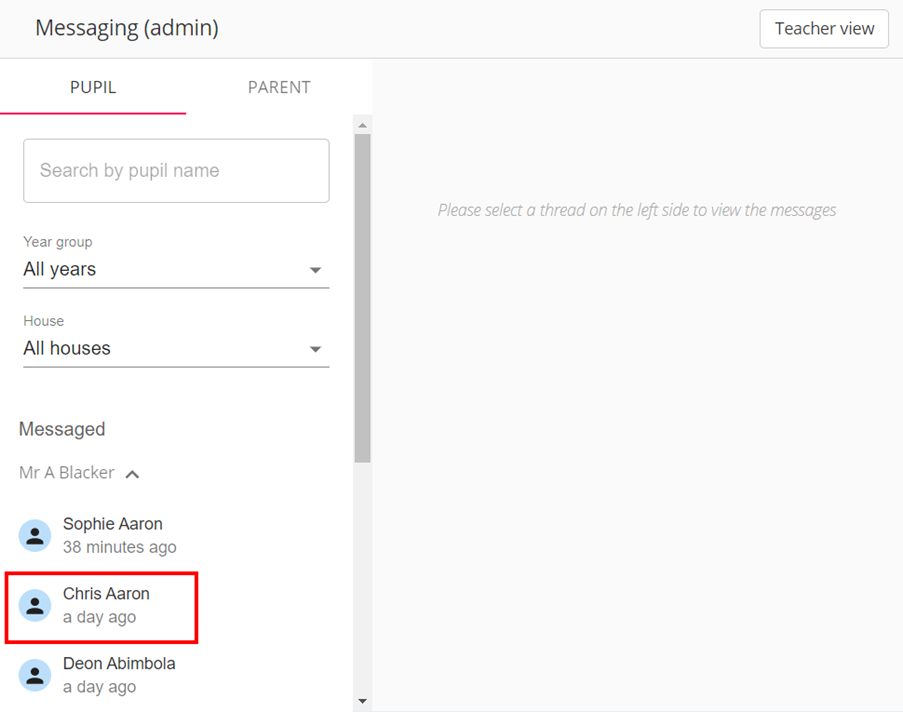
You will now see a list of your school’s staff members in the Pupil and Parent tabs. To view messages between a staff member and a specific pupil, locate them in the Pupil tab and click on their name. Then select the pupil of your choice from the drop down menu.
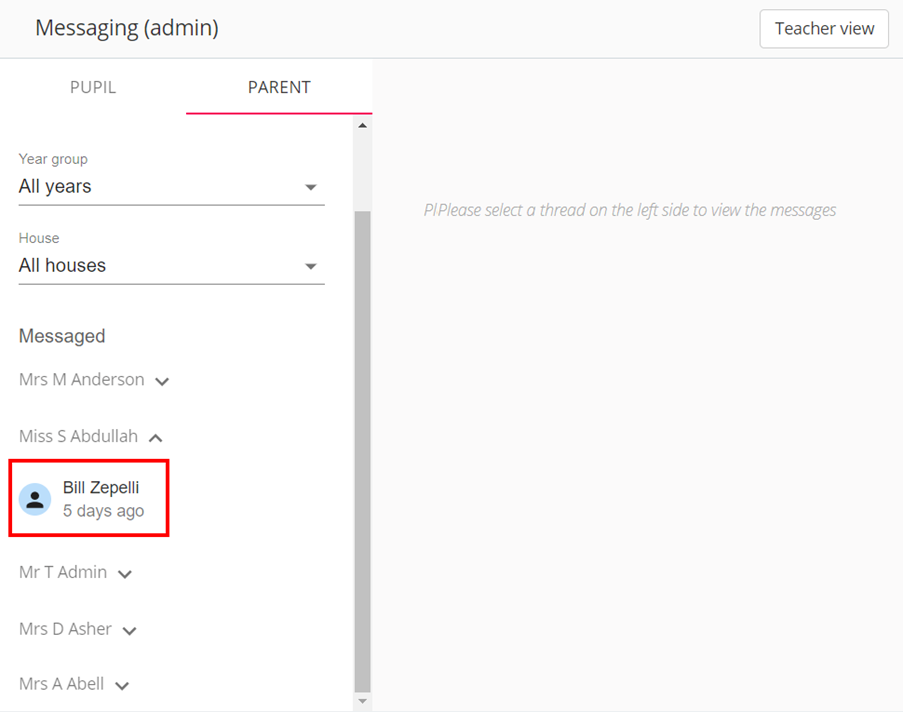
To view messages between a staff member and a specific parent, locate them in the Parent tab and click on their name. Then select the parent of your choice from the drop down menu.
To return to the messages that you’ve personally sent and received, click on the Teacher view button in the top right hand corner.
Locking a staff member’s message thread
There may be times when it is necessary to lock a message thread, so that additional messages cannot be sent or received.
To lock a message thread, click on the lock icon in the top right hand corner.
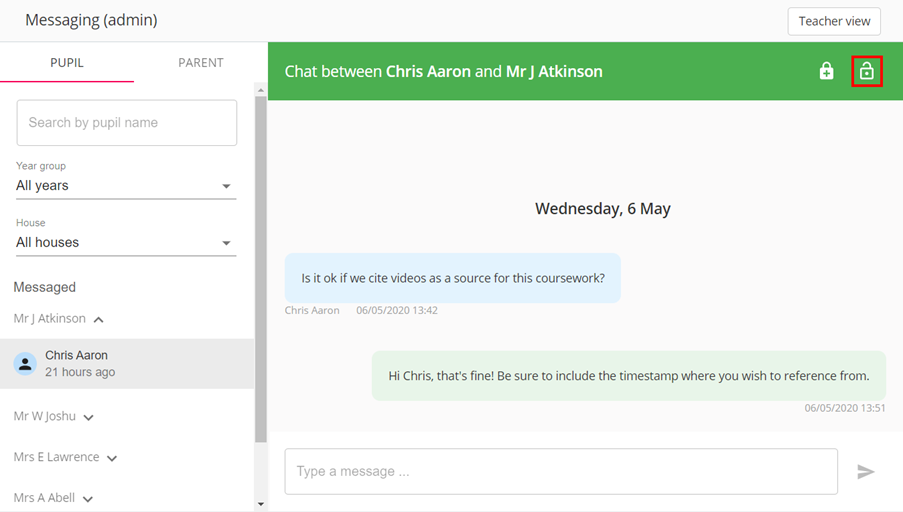
The lock icon will change, help text will appear and the permalock icon will disappear, to indicate that the thread has been locked.
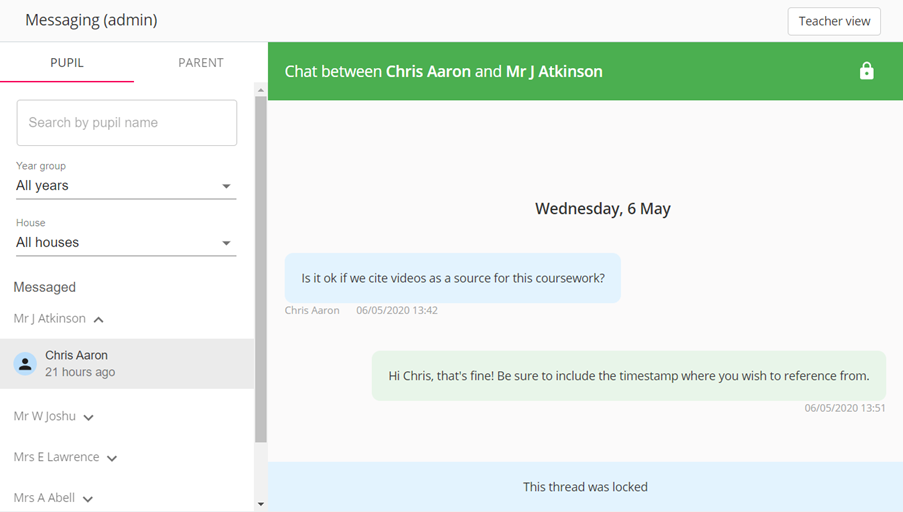
To unlock the thread, click on the lock icon again.
Permanently locking a staff member’s message thread
There may be times when it is necessary to permanently lock a message thread, so that a teacher cannot unlock it themselves.
To permalock a message thread, click on the permalock icon in the top right hand corner.
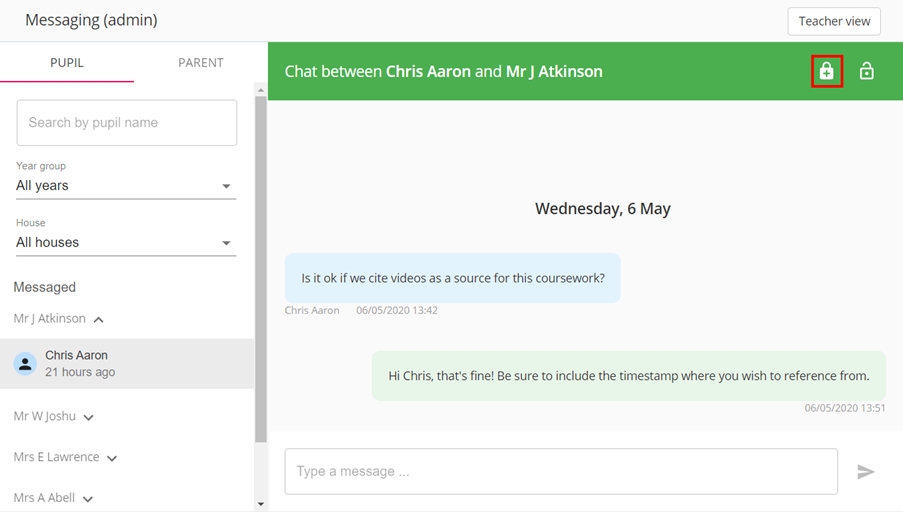
The lock icon will change, help text will appear and the permalock icon will disappear, to indicate that the thread has been locked.
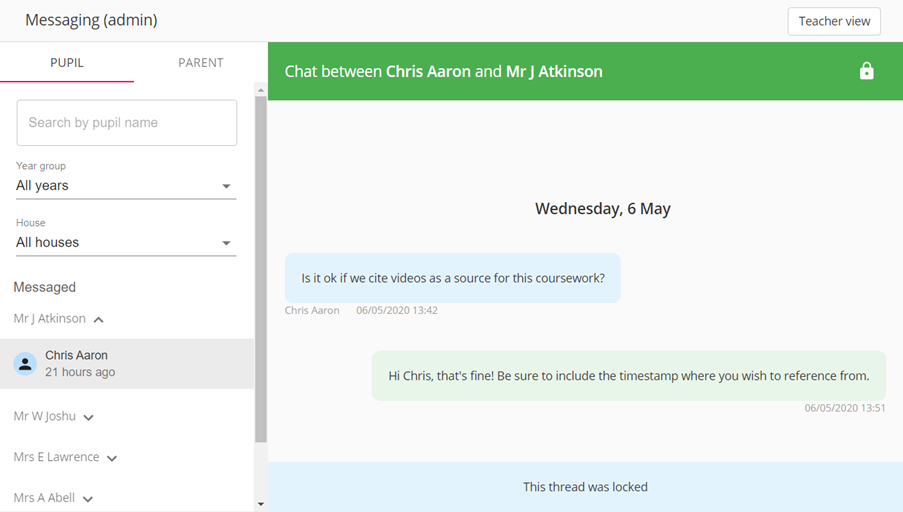
To unlock the thread, click on the lock icon again.
Was this article helpful?
That’s Great!
Thank you for your feedback
Sorry! We couldn't be helpful
Thank you for your feedback
Feedback sent
We appreciate your effort and will try to fix the article