There may be times when you would like to send important information out regarding all pupils within your class. Class Charts allows you to do this through in class announcements.
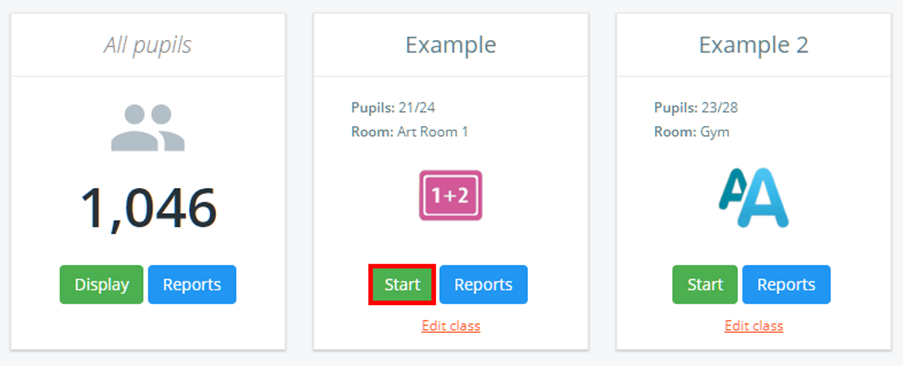
To create announcements in class, click on the Classes tab along the top of the page and click on the Start button for the class of your choice.

You will be presented with the class view page for your selected lesson, where pupils are displayed in their set seats.
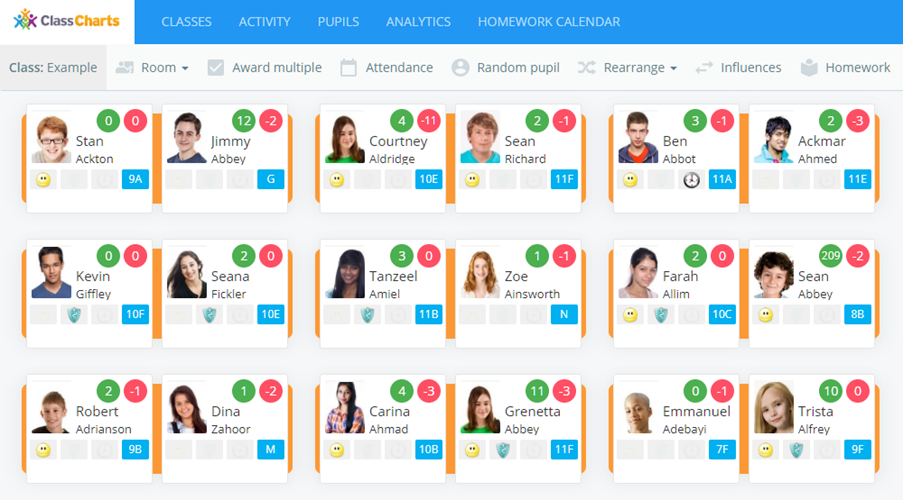
To create an announcement for the lesson, click on the Announcement tab along the top of the class view.

Enter the information of your choice into the Create announcement form provided. The available options are explained below:
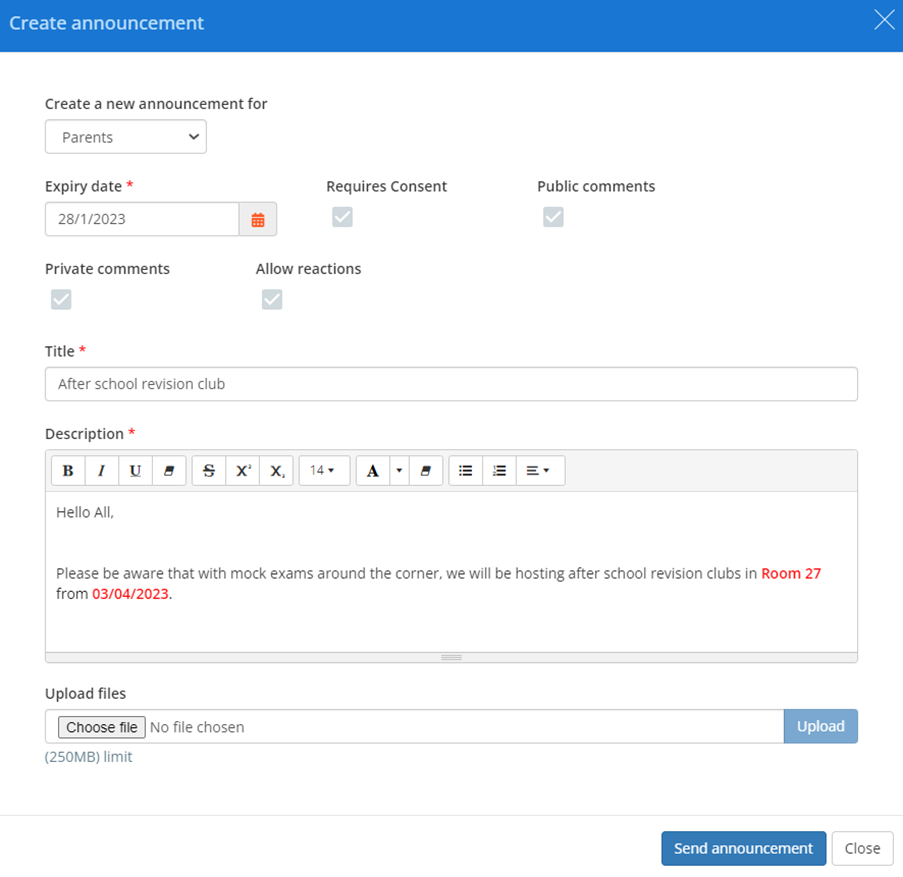
Create a new announcement for: This field determines who the announcement will be sent to.
Expiry Date: This field determines how long the announcement will be shown to recipients.
Requires Consent: This tickbox will allow a parent to give consent from their parent account.
Public comments: This tickbox allows public comments from parents to appear in the announcement.
Private comments: This tickbox allows private comments from the parent accounts.
Allow reactions: This tickbox allows positive reactions from parents.
Title: This field represents the title of your announcement.
Description: This field represents the content included in the announcement.
Upload files: This field allows you to include file attachments that are sent as part of the announcement.
Once you are happy with the announcement, click on the Send announcement button to share it with the previously selected recipients.
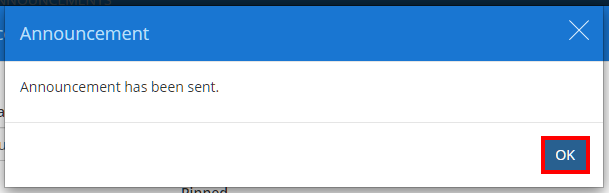
A popup will appear to confirm that the announcement has been sent successfully. Click on the OK button to continue.
Was this article helpful?
That’s Great!
Thank you for your feedback
Sorry! We couldn't be helpful
Thank you for your feedback
Feedback sent
We appreciate your effort and will try to fix the article