Once announcements have been created in your school, you are able to edit their contents with new information.
To edit an announcement, click on the Announcements tab along the top of the page.

You will be presented with a list of announcements that have previously been created in your school. Click on the three dots menu for the announcement of your choice.
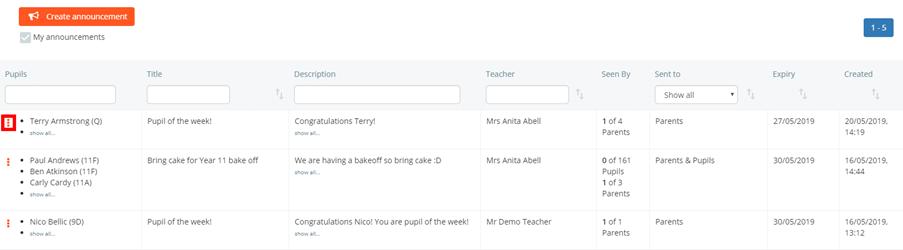
Editing an announcement
To edit an announcement, select View / edit from the three dots menu.

The Announcement popup will appear. Here, you can change if pupils and parents can see the announcement, the expiry date of the announcement, whether or not the announcement is pinned, and the text inside of the announcement.
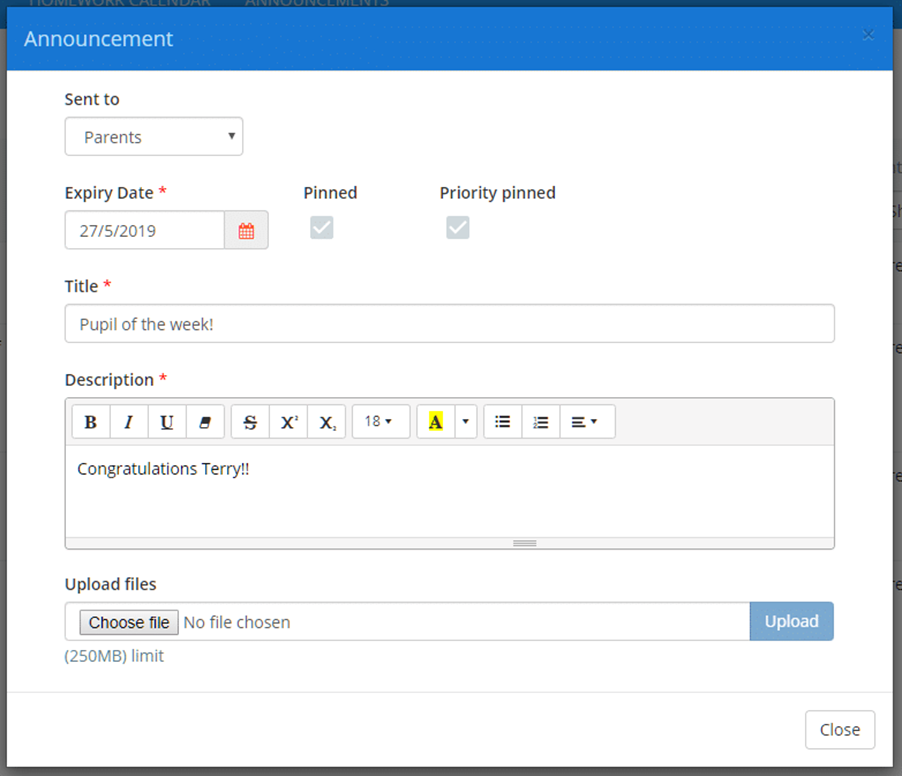
Your changes to the announcement will be saved automatically when you leave the popup.
Deleting an announcement
To delete an announcement, select Delete from the three dots menu.

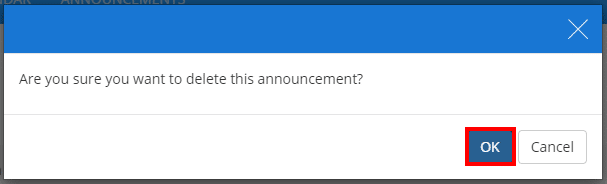
A confirmation popup will appear. Click on the OK button to continue.
The selected announcement will now disappear from the list of announcements, as well as pupil and parent accounts.
Was this article helpful?
That’s Great!
Thank you for your feedback
Sorry! We couldn't be helpful
Thank you for your feedback
Feedback sent
We appreciate your effort and will try to fix the article