You may sometimes need to revert an upscaled detention back to the original sanction awarded, please follow the instructions below to do this.
Firstly head to the detention manager by clicking the 3 lines.
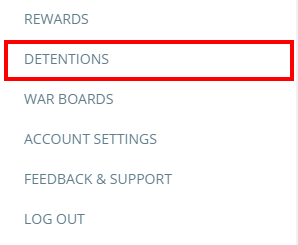
You will be presented with a list of detentions. Click on the Future tab to view the upscaled and pending detentions.
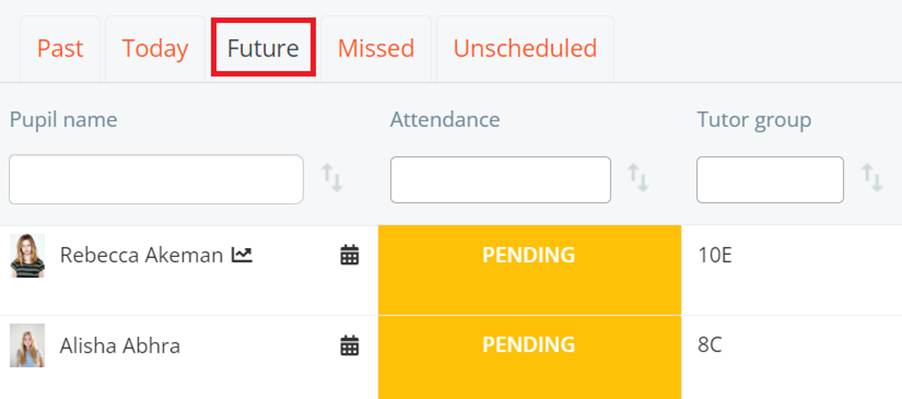
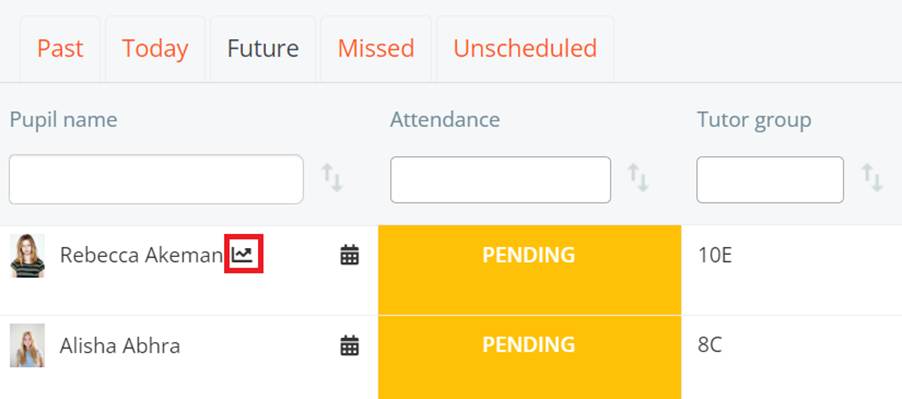
From here, click on the graph icon next to the pupil in question, who’s upscaled detention needs to revert back to the original sanction issued.
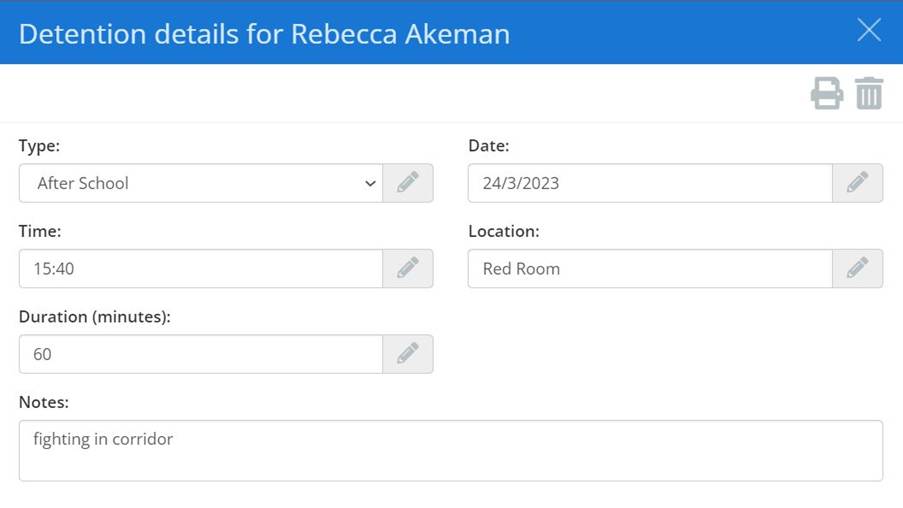
You will be presented with the detention details for the pupil. Change the details to replicate the original detention. Please consider reverting the detention type, time and location.
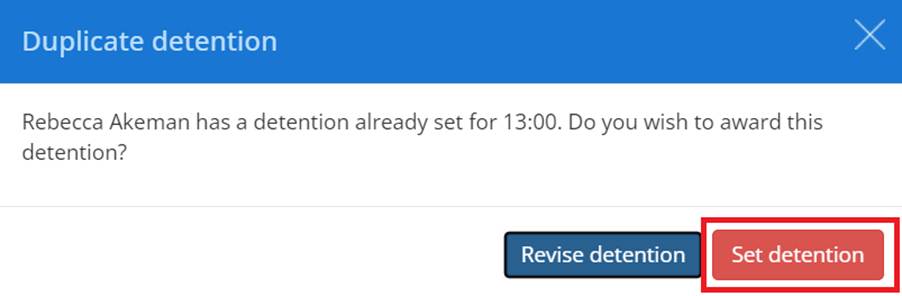
The duplicate detention popup will appear. Please select Set detention.
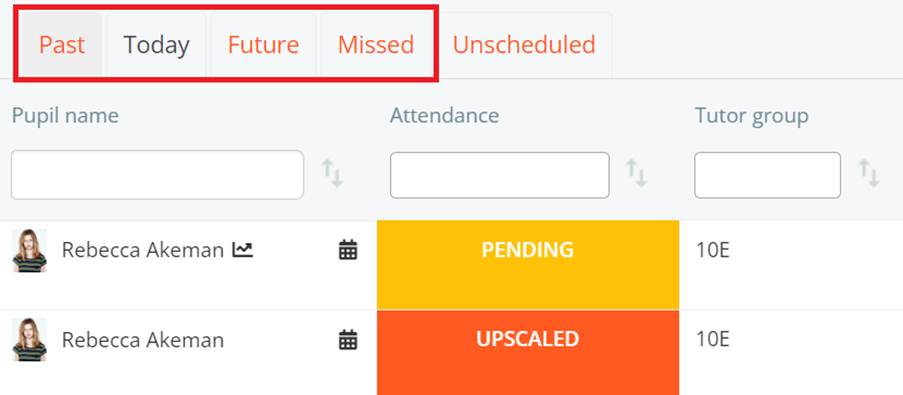
You will now need to click on the tab where the original detention was located.
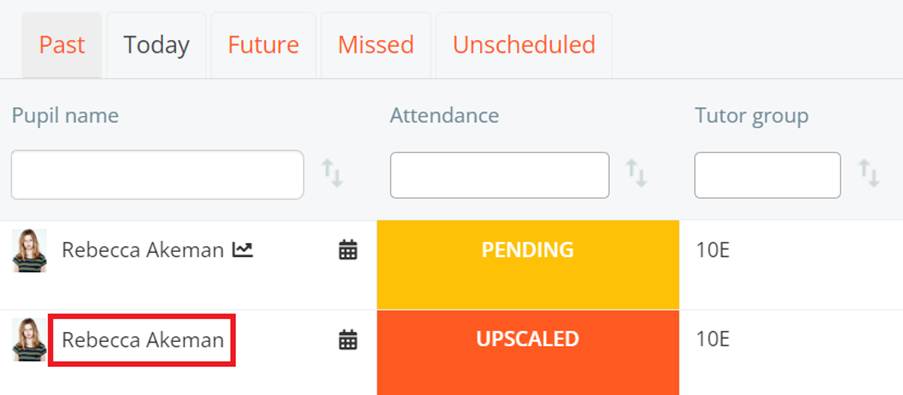
You will now need to click on the name of the pupil with the orange upscaled entry.
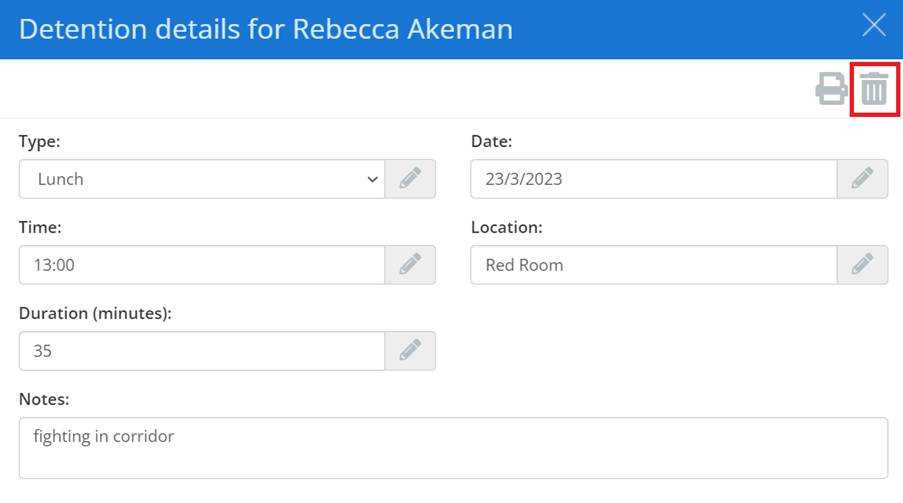
You will again be presented with the detention details for the pupil. You will need to click on the bin icon in the top right corner of the detention details.
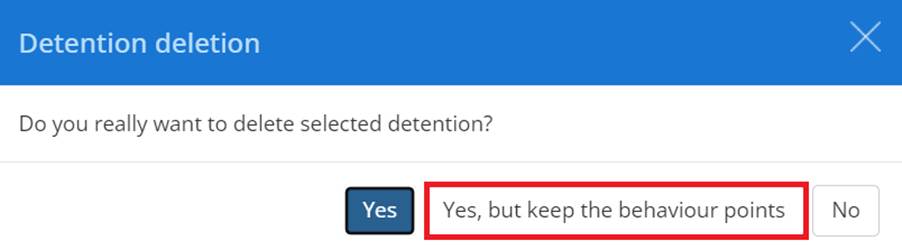
The detention deletion popup will appear. Please select Yes, but keep behaviour points.
The upscale will now disappear and the original detention will remain.
Was this article helpful?
That’s Great!
Thank you for your feedback
Sorry! We couldn't be helpful
Thank you for your feedback
Feedback sent
We appreciate your effort and will try to fix the article