If your school also has a Provision Map account, your main school admin can integrate it with your school’s Class Charts account. This allows you to see Plans, Passports and Provisions in Class Charts, as well as display Wellbeing and Behaviour in Provision Map.
Please note: Only the main school admin for each application’s account is able to approve the link.
To check the current status of your school’s link to its Provision Map account, mouse over the three lines menu and select the school settings option from the list of available options.
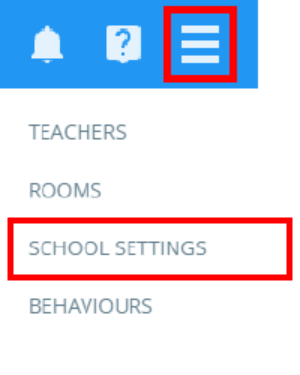
Next, select System Settings from the left side menu.
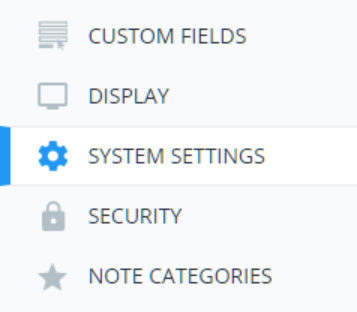
You will be presented with a list of settings that control core features of your school’s Class Charts account. If your school’s Class Charts account has not yet been linked to its Provision Map account, your main school admin will be able to establish a connection between the two in the Provision Map section.

Requesting a link from Class Charts
If a link request has not been made by the main school admin for your school’s Provision Map account, the main school admin for Class Charts will see the message shown below. Click on the Request link button to begin the linking process.

A confirmation message will be displayed. From here, the main school admin for your school’s Provision Map account must confirm the link from their side.
If the main school admin for your school’s Provision Map account has not confirmed or denied the link, the main school admin for Class Charts can send a reminder via email by clicking on the Send email reminder button.

Once the main school admin for your school’s Provision Map account has confirmed the link, you will see the confirmation message shown below.
Approving or denying a link from Provision Map
If the main school admin for your school’s Provision Map account has begun the linking process from their end, the main school admin for Class Charts will be given the choice to confirm or deny the link. Either click on the Approve link or Deny link button to continue.

If the main school admin for Class Charts selects Approve link, a confirmation message will appear.
If the main school admin for Class Charts selects Deny link, the linking process will end. From here a new link request can be created.

Was this article helpful?
That’s Great!
Thank you for your feedback
Sorry! We couldn't be helpful
Thank you for your feedback
Feedback sent
We appreciate your effort and will try to fix the article