If your school uses Wonde as an integration partner with SIMS, you can leave notes on scheduled lessons in your timetable. Pupils will see timetable notes in their pupil accounts, making it useful for providing updates about the lesson.
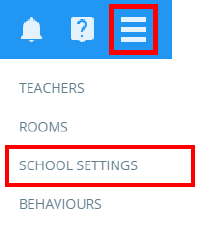
To set up timetable notes, click on the three lines menu and select School settings from the list of available options.
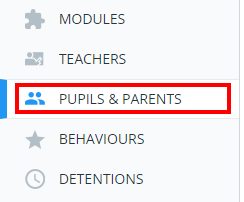
Next, click on the Pupils & Parents tab on the left hand side.
You will be presented with a list of settings which control what is shared with pupils and parents. Ensure that the setting labelled Allow teachers to add notes to pupil timetable entries to Enabled.

Adding a timetable note
To add a timetable note, start by clicking on the Classes tab along the top of the page.

You will be presented with a list of your currently assigned classes. Your scheduled lessons for the day will be displayed above the list.
To add a note to your timetable, click on the Note icon for the scheduled lesson of your choice.

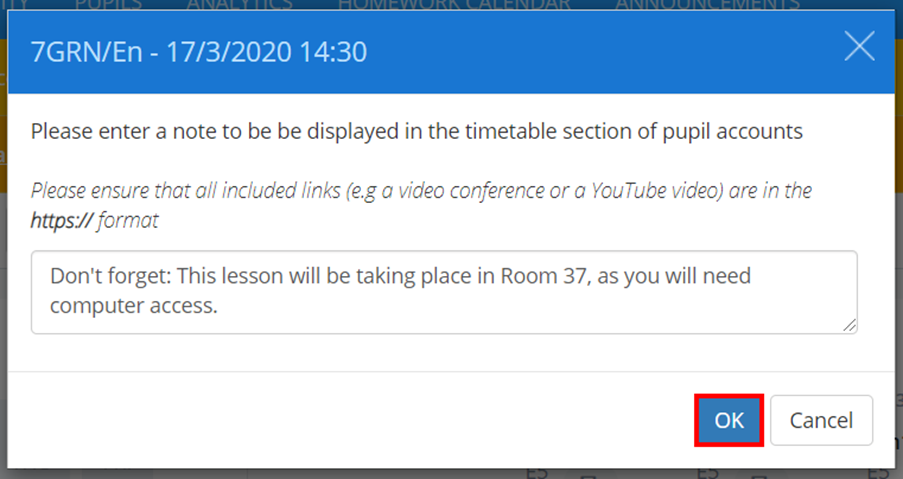
A popup for the scheduled lesson will appear, allowing you to enter a note into the text area provided. To include a link to an external resource in the timetable note, ensure that the URL contains https:// in its address.
Click on the OK button once you have finished writing your timetable note.
The timetable note will now be successfully added to the scheduled lesson, as indicated by the green note icon.

Pupils can now access the note in the timetable section of their pupil accounts.
Was this article helpful?
That’s Great!
Thank you for your feedback
Sorry! We couldn't be helpful
Thank you for your feedback
Feedback sent
We appreciate your effort and will try to fix the article