There may be times when it is necessary to delete a behaviour record from Class Charts.
There are two different methods you can use to delete a specific behaviour:
Deleting a behaviour incident from a class
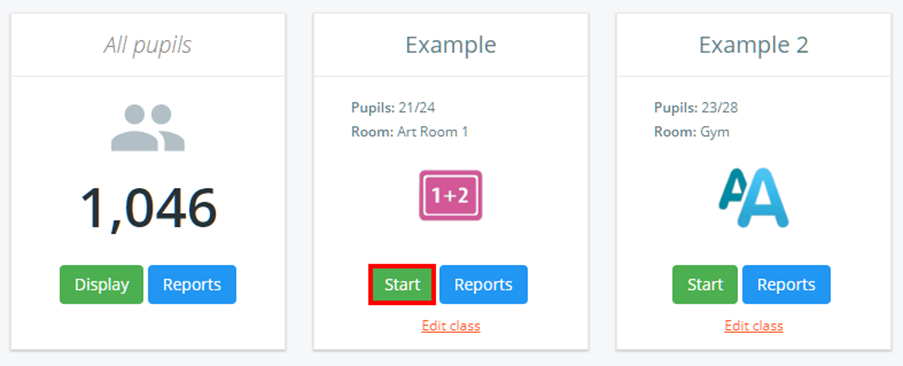
To delete a behaviour incident in class, click on the Classes tab along the top of the page and start the class of your choice by clicking on the Start button.

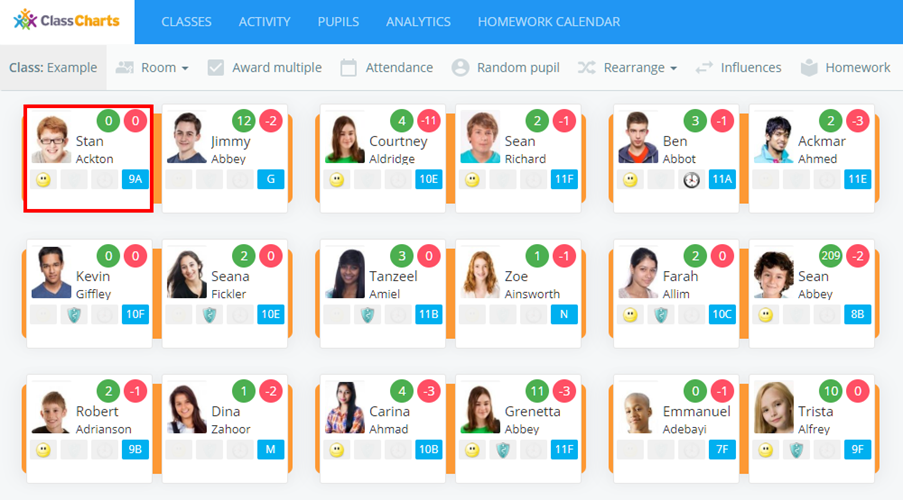
Next, click on the pupil whose behaviour incident you would like to delete.
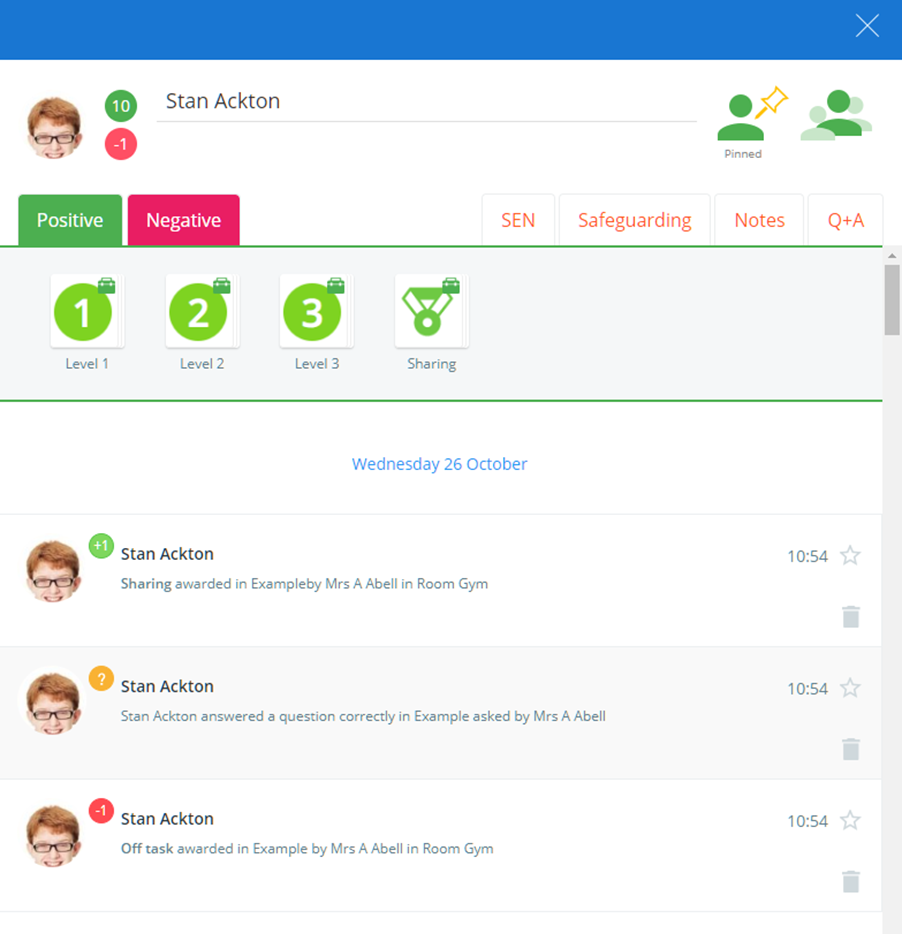
The pupil sidebar will appear, displaying a chronological feed of the pupil’s behaviour activity below the behaviour options.
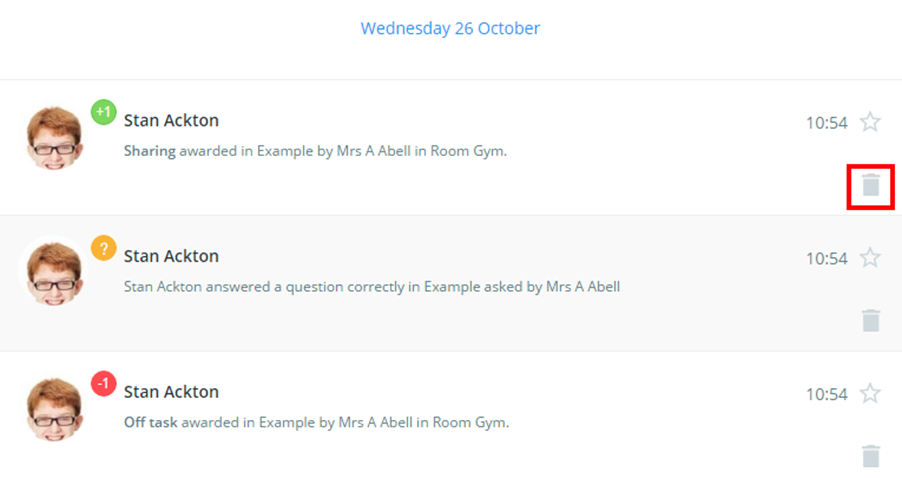
To delete one of the displayed behaviour incidents, click on the bin icon for the incident of your choice. If the behaviour incident also includes a detention, deleting the incident also cancels the detention.
A popup will appear asking you to confirm your choice. Click on the OK button.
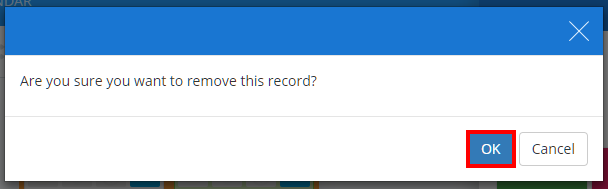
The selected behaviour incident will now be deleted from the pupil’s activity feed.
Deleting a behaviour incident via the Activity feed
In addition to deleting behaviour incidents in class, behaviour incidents can also be deleted from the activity feed.
To delete a behaviour incident from the activity feed, click on the Activity tab along the top of the page.

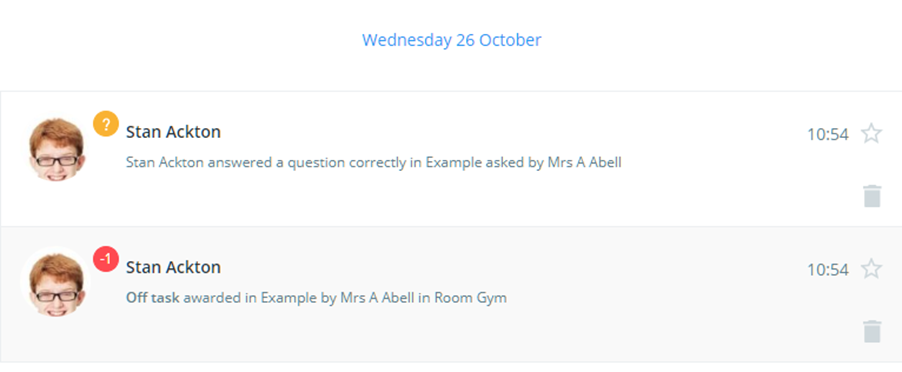
You will be presented with a chronological feed of behaviour incidents that have been issued across your school.
To delete one of the displayed behaviour incidents, click on the bin icon for the incident of your choice. If the behaviour incident also includes a detention, deleting the incident also cancels the detention.

A popup will appear asking you to confirm your choice. Click on the OK button.
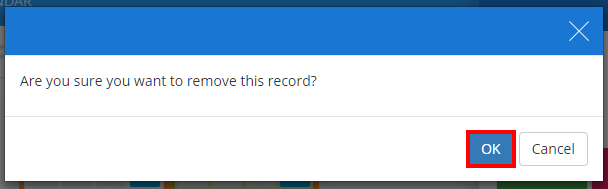
The selected behaviour incident will now be deleted from the activity feed.
If you are using SIMS or Bromcom, and the behaviour has written back to your MIS system, the Main School Admin of your Class Charts account will need to contact us for more information.
Alternatively, you can manually delete the corresponding behaviour within your MIS system.
Was this article helpful?
That’s Great!
Thank you for your feedback
Sorry! We couldn't be helpful
Thank you for your feedback
Feedback sent
We appreciate your effort and will try to fix the article