There may be times when staff will need to bulk set attendance for a specific pupil. Class Charts allows you to bulk set attendance through individual pupil reports.
To find out how to access an individual pupil’s report, check out our Knowledgebase article on the subject.
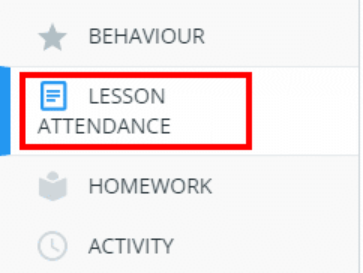
Once you’re viewing a pupil’s individual report, scroll down to the Lesson attendance section of the report.
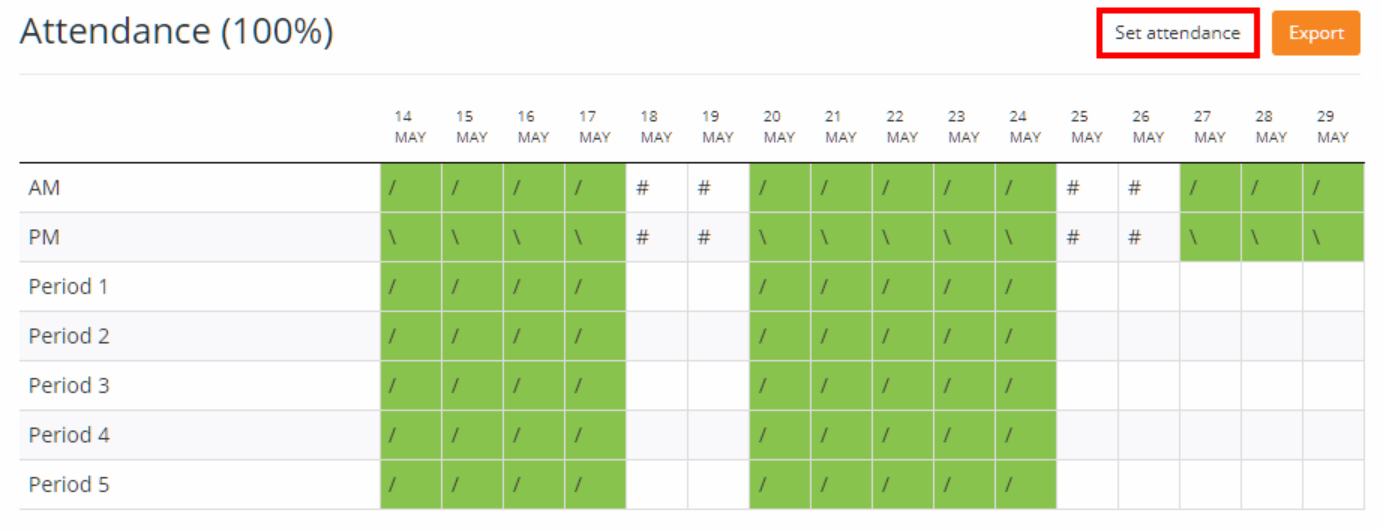
You will be presented with a table displaying the pupil’s attendance records for the selected date range. To set attendance for the pupil in bulk, click on the Set attendance button.
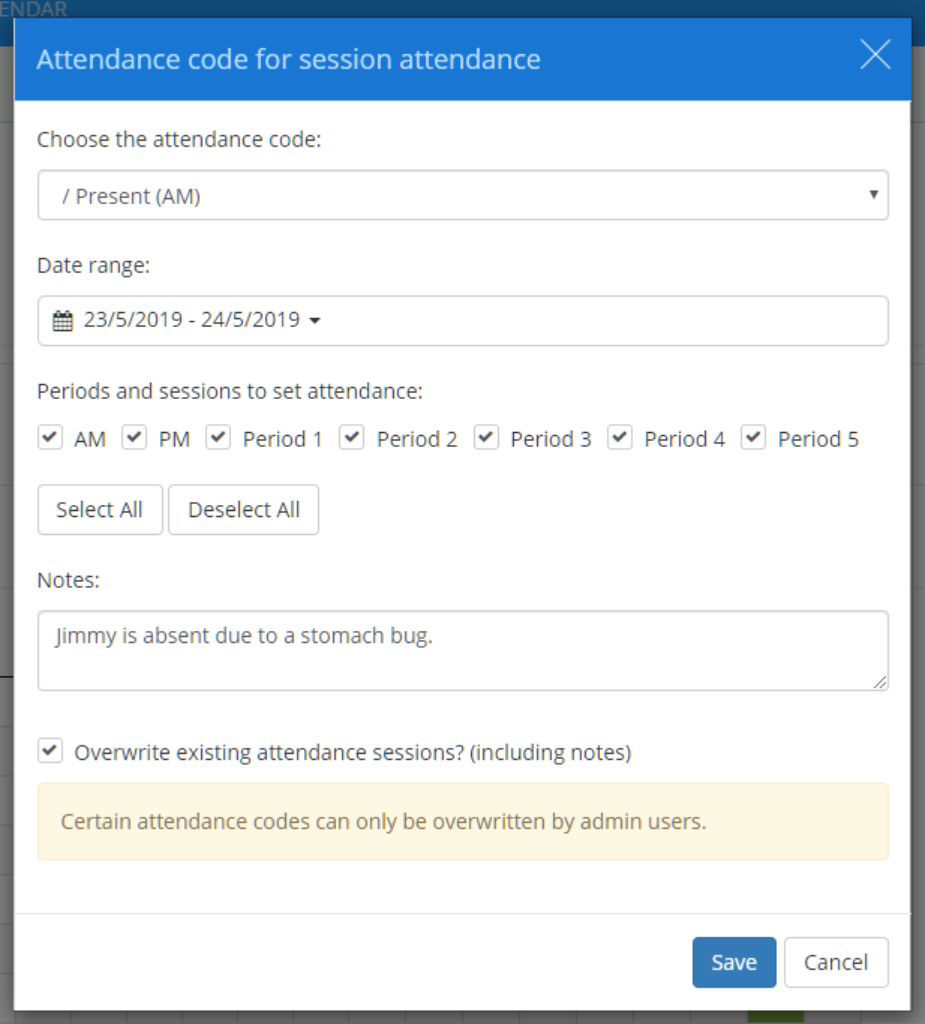
The Attendance code for session attendance popup will appear. Here, you can choose which attendance code to apply, the date range to apply the code to, the periods and sessions to apply the code to, and an optional note for each attendance record.
If you would like to overwrite any existing attendance records that fall under the selected date range, tick the checkbox labelled Overwrite existing attendance sessions? (including notes).
Once you are happy with your selections, click on the Save button to apply the new attendance records.
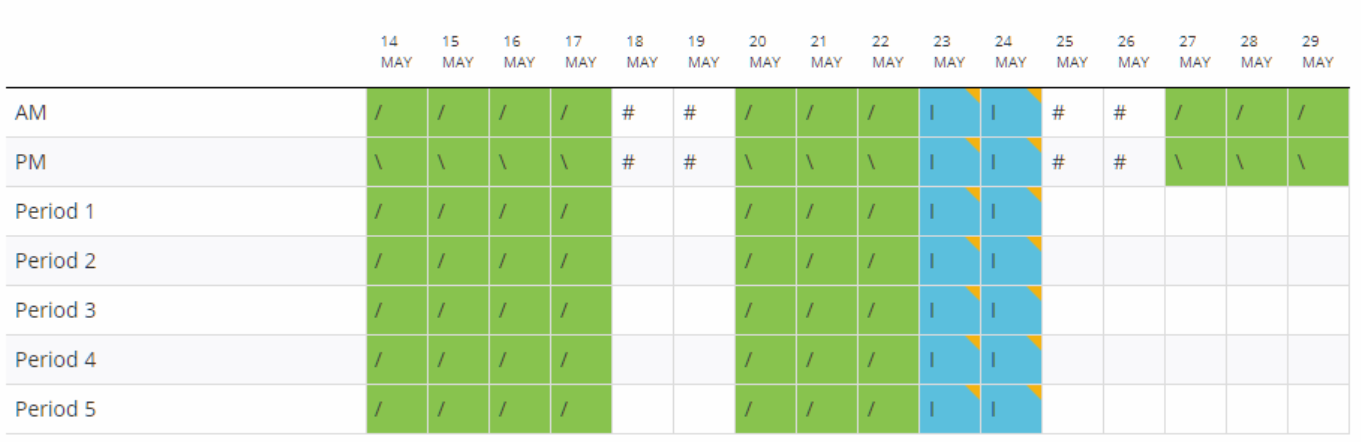
The attendance table will update with the bulk set attendance applied.
Was this article helpful?
That’s Great!
Thank you for your feedback
Sorry! We couldn't be helpful
Thank you for your feedback
Feedback sent
We appreciate your effort and will try to fix the article