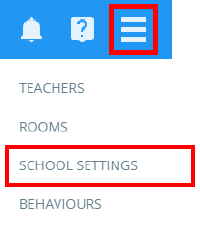
To manage your school’s On-Report card settings, click on the three lines menu in the top right hand corner of Class Charts and select Schools settings from the list of available options.
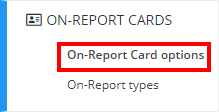
Next, click on On-Report Cards from the left hand menu and select On-Report Card options.
You will be presented with a list of settings that control how On-Report cards are used in your school’s Class Charts account. Each setting is described in more detail below:

Display sessions and lessons for On-Report Cards: This setting controls which periods are displayed on an On-Report card.
Who can create On-Report Cards: This setting controls which staff members will be able to create and manage On-Report cards.
Who can view On-Report Cards?: This setting controls whether or not pupils can see On-Report cards.
Share today’s comments with pupils and parents: This setting controls whether or not comments made today are visible in pupil and parent accounts.
Was this article helpful?
That’s Great!
Thank you for your feedback
Sorry! We couldn't be helpful
Thank you for your feedback
Feedback sent
We appreciate your effort and will try to fix the article